What matters when choosing a shared printer?
Start with how meeting notes will be fed and filed. Then consider the studio’s other print jobs and whether the contents of those notes call for tighter access and collection procedures.
| Concern |
What to check |
Who this matters to |
| Batch scanning |
Check the ADF’s supported page sizes and whether the exact model scans both sides automatically. Compare duplex scan ratings only under comparable settings. |
If I regularly have several pages of double-sided notes, placing and turning each sheet by hand interrupts the job. Around 36% of consumers put reducing that handling first. |
| Shared filing |
Confirm the destination for scanned files and whether each user’s device, account and permissions work with it. |
When several colleagues need the notes after a meeting, I want a repeatable way to put files where the team can find them. For around 29% of consumers, that shared workflow is the primary concern. |
| Printing and supplies |
Compare standard paper capacity, the type of supplies and how often the expected print workload may require intervention. |
If the same machine also handles agendas and hand-outs, I need its printing routine to fit studio work as well as its scanning. Balancing those tasks comes first for around 21% of consumers. |
| Sensitive notes |
Review access to the device and scan destination, plus who collects originals and output. |
Where notes contain personal data, I need to know who can retrieve the paper and open the saved file. Around 14% of consumers make those controls their leading concern. |
Brands to consider for this workflow
These model examples illustrate different document workflows; a brand name alone does not establish the scanning features of another model.
Brother
The MFC-L8390CDW illustrates a colour LED multifunction route for a studio that both prints and scans shared documents.
- Brother UK specifies two-sided scanning at up to 56 images per minute, Gigabit Ethernet, 5 GHz Wi-Fi and USB for the MFC-L8390CDW.
- That scan rating applies to the named model, not every Brother machine. Check the exact machine’s scan destinations, footprint and supplies.
Epson
Epson’s business inkjet examples cover both duplex note scanning and larger shared-document workflows.
- Epson United Kingdom specifies single-pass duplex scanning for the WF-M5899DWF. For the EM-C800RDWF, it specifies duplex scanning at 60 images per minute and security updates for seven years from purchase.
- The EM-C800RDWF’s stated maximum paper capacity of 1,830 sheets requires optional cassettes; do not treat it as the standard configuration.
Canon
The refillable-ink MAXIFY GX7050 illustrates a route for studios combining colour document printing with duplex note scanning.
- Canon specifies a 50-sheet ADF, automatic duplex scanning, Wi-Fi, Ethernet and two 250-sheet paper cassettes for the GX7050.
- Canon UK Store marks its GX7050 listing as discontinued. Check current availability, support and replacement supplies before considering that model.
HP
The LaserJet Pro MFP 3102fdw is an office laser multifunction model to assess if shared printing is also a substantial part of the task.
- HP Store UK positions the 3102fdw for high-volume document printing and highlights its security features.
- HP states that periodic firmware updates can block cartridges that previously worked. Check that model’s scanning features and consumable policy rather than relying on its printing positioning to judge note digitisation.
Joybuy printers for shared-studio use
These multifunction printers are options to assess for a studio that scans meeting notes alongside everyday document printing. Check each exact model’s feeder, duplex scanning and file destinations against the way your team works before choosing.
 No image available
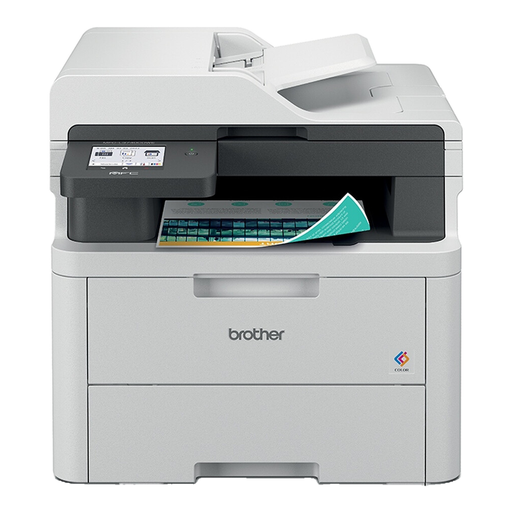
Brother MFC-L3740CDWE colour LED multifunction printer
Consider this wireless colour model if the studio needs printing as well as note scanning. If notes are double-sided, confirm automatic duplex scanning and the destination for shared files on this exact model.
View on Joybuy
 No image available
Canon MAXIFY GX6150
Consider this refillable-ink option when comparing a shared printer for notes and regular documents. Confirm its feeder’s supported paper, automatic duplex scanning and scan destinations before relying on it for batches.
View on Joybuy
 No image available
Epson EcoTank ET-5150 +Ink A4 multifunction printer
Consider this A4 print, scan and copy model if the studio wants one device for notes and everyday documents. Its name specifies Wi-Fi; confirm the required scan destination, feeder media and automatic duplex scanning for your workflow.
View on Joybuy
Questions about digitising meeting notes
Do meeting notes need duplex scanning?
Automatic duplex scanning is worth checking when notes or annotations regularly appear on both sides, because it avoids turning each sheet manually. If batches are small and every page is one-sided, a simplex feeder or flatbed may be sufficient; confirm the exact model’s scanning method before buying.
Can handwritten notes go through an automatic feeder?
Loose handwritten sheets can go through an ADF if their size and condition meet that model’s requirements. Remove staples and adhesive notes, and use the flatbed for fragile, damaged, irregular or bound pages.
Is Wi-Fi enough for a printer shared by the studio?
Wi-Fi can connect a shared printer, but it does not by itself settle where scans are filed or who can open them. Confirm compatibility with the team’s devices, chosen destination and permissions; for example, Brother UK specifies both Gigabit Ethernet and 5 GHz Wi-Fi for the MFC-L8390CDW.
What if meeting notes contain personal data?
Choose device and filing controls appropriate to the sensitivity of the notes, and make someone responsible for collecting paper originals and output. The Information Commissioner’s Office identifies security as a UK GDPR principle and advises shared-printer users to check that nothing has been left behind.
Should I rule out a discontinued printer?
Not automatically, but confirm the particular seller’s product condition and support arrangements, as well as replacement-supply availability. Canon UK Store marks its MAXIFY GX7050 listing as discontinued; that listing does not establish the availability or support terms of other MAXIFY models.


