Shared-studio checklist coordinators
If you organise recurring equipment checks, paper capacity and automatic two-sided printing can affect how often someone must attend to the printer between sessions.


For recurring A4 equipment checklists, choose a multifunction printer with automatic two-sided printing, a paper tray that suits the time between refills, and connections that fit the studio’s shared workflow. A compact inkjet can suit occasional short runs; frequent batches or regular scanning make paper handling and document-feeder capacity more important, but a larger machine needs more space.
If you organise recurring equipment checks, paper capacity and automatic two-sided printing can affect how often someone must attend to the printer between sessions.
If completed forms need to be copied or scanned in batches, a document feeder and the exact model’s scanning functions matter alongside its printing functions.
If the studio prints only occasional A4 checklists, a compact multifunction printer with a suitable connection may be more proportionate than a machine chosen for large paper loads.
Start with how often the studio prints and scans checklists, then check paper handling, two-sided operation and access from the devices members actually use.
| Concern | What to check | Who this matters to |
|---|---|---|
| Interruptions during shared printing | Check the standard A4 tray capacity, whether extra trays are optional, and document-feeder capacity for batches. | When several people print checks between sessions, I want fewer paper refills and less manual feeding. Around 31% of consumers put uninterrupted workflow first. |
| Readable two-sided checklists | Confirm automatic duplex printing and check that the actual form leaves enough room to read, write and sign on both sides. | I want to use both sides of a sheet without making a completed form awkward to fill in; around 25% of consumers prioritise that balance. |
| Printing and digitising forms | Check the studio’s required connections, document-feeder capacity and whether the model automatically scans both sides if needed. | If completed checks must become digital records, I need staff to print and scan without repeatedly handling each page. For around 25% of consumers, that shared workflow is the primary concern. |
| Supplies and commitments | Compare supply yields on the same stated basis against the studio’s expected black and colour pages; read any subscription terms. | With occasional or variable printing, I do not want a supply arrangement built around a volume the studio rarely reaches. Around 19% of consumers put that fit first. |
One-sided and two-sided speeds can differ, so a headline figure may not describe the way the studio prints its checklists.
Compare the exact model’s rated speed in the intended mode, then check its duplex function, paper tray and document feeder.
A slow two-sided workflow or small feeder can mean more waiting and manual handling during batches.
An automatic document feeder moves pages through the scanner; it does not, by itself, establish that both sides are captured automatically.
If completed checklists have content on both sides, confirm the exact model’s two-sided scanning mode before choosing it.
According to Epson United Kingdom, the WorkForce Pro WF-M5899DWF reaches its stated capacity of up to 1,830 sheets with three optional 500-sheet cassettes. That figure should not be treated as the capacity of the base machine.
Check which trays come with the configuration being considered and whether the assembled machine fits its intended position.
Stated yields and subscription allowances need to be considered against the studio’s own mix of checklist pages; they do not settle how often supplies will need replacing.
Estimate black and colour output from the actual templates, and check supply compatibility, stated yield conditions and any subscription or cancellation terms.
Brother UK lists compact A4 inkjet multifunction printers alongside colour document-workflow models.
Epson United Kingdom lists WorkForce multifunction models with different approaches to shared printing, scanning and paper handling.
HP Store UK lists multifunction printers across lighter-use and higher-volume OfficeJet, ENVY and Smart Tank ranges.
These inkjet multifunction options are relevant to shared-studio checklist work. Compare their document-handling needs and available space with the studio’s actual printing pattern before choosing.
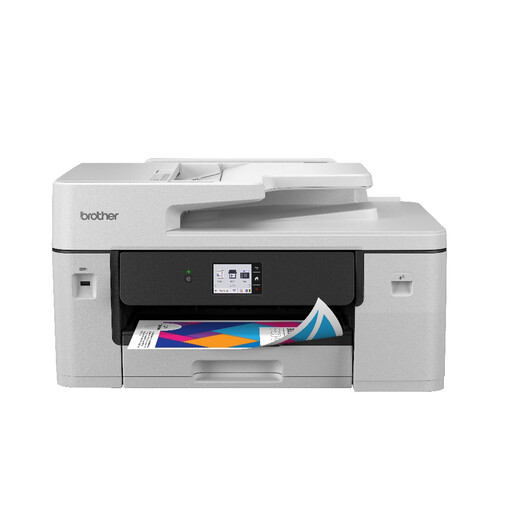 Image unavailable
Consider this all-in-one inkjet if the studio needs one device for its checklist workflow. Check the intended surface and handling arrangements before installation, and confirm automatic two-sided scanning if completed forms need it.
 Image unavailable
Consider this model for a studio assessing business-oriented A4 inkjet options for recurring checklists. If completed forms are double-sided, confirm its scanning mode; compare the supply arrangement with the studio’s expected output.
 Image unavailable
This A4 print, scan and copy option is relevant if the studio wants a single device for blank and completed checklists. Its name specifies Wi-Fi; check the connection the studio will use and whether its feeder and scanning mode suit completed-form batches.
Choose automatic two-sided printing when the checklist remains readable and writable on both sides and reducing paper use matters to the studio. A one-page form, label or template that needs a blank reverse side may be better printed single-sided; check the form itself before making duplex a requirement.
An automatic document feeder is most useful when the studio regularly copies or scans batches of completed checklists rather than handling single sheets. Confirm its capacity and, separately, whether the exact printer can scan both sides automatically if those records require it.