For occasional household inventory sheets, start with a compact A4 all-in-one that prints, scans and copies, and check whether it fits with its trays and scanner lid in use. Prioritise automatic duplex printing for multi-page lists, more paper capacity if refilling interrupts regular updates, or an automatic document feeder if you frequently scan batches of paperwork. Compare compatible ink options before committing to a printer or subscription.
Who needs which features?
Small-desk inventory keepers
If a printer must share a desk with a laptop or household paperwork, look for A4 print, scan and copy functions in one device. Check the space needed when the paper trays are extended and the scanner lid is open, not just the closed dimensions.
Regular inventory updaters
If revised room lists or storage records often run to several pages, automatic duplex printing and a paper tray that needs less frequent refilling may make updates easier to manage.
Receipt and document organisers
If your inventory also involves digitising receipts, manuals or warranty paperwork, consider how you will scan them. An automatic document feeder is particularly relevant when you routinely handle several sheets at once.
What matters when choosing?
On a small desk, establish the printer’s in-use footprint first, then decide which paper-handling and scanning conveniences justify the space they occupy.
| Concern |
What to check |
Who this matters to |
| Desk fit |
Measure available space against the exact model’s dimensions with its paper paths and scanner lid in use; confirm A4 support. |
If the printer shares my desk with everyday paperwork, I need to reach its trays and scanner without moving everything else. Around 40% of consumers put usable desk space first. |
| Paper handling |
Confirm automatic duplex for A4 plain paper and check the input tray’s capacity. |
When my inventory grows into several pages and needs regular updates, I want fewer paper-loading interruptions. Roughly 30% of consumers make paper handling their primary concern. |
| Scanning and copying |
Check whether an automatic document feeder is included if you handle batches, and confirm the supported document sizes. |
If I keep receipts and manuals alongside my inventory, placing every sheet on the scanner individually could slow me down. About 20% of consumers prioritise that document workflow. |
| Connection and ink |
Check printing compatibility with your devices and compare the exact model’s cartridge or subscription terms. |
When I update lists from a phone or laptop, I want printing and ink replenishment to suit how often I actually print. Around 10% of consumers put those practicalities first. |
Buying pitfalls
-
Choosing by closed dimensions alone
A printer can fit its allotted space when closed but obstruct the desk once its trays extend or its scanner lid opens.
Measure the surface and surrounding clearance, then compare them with the exact model’s dimensions and tray arrangement.
-
Treating duplex printing, a larger tray and an ADF as the same convenience
These features address different tasks: printing on both sides, reducing paper refills and feeding documents for batch scanning. A multifunction label does not establish which are included.
Identify which task takes the most effort in your inventory workflow and confirm that feature on the exact model.
-
Assuming an ink subscription will reduce costs
A replenishment plan may be convenient, but its terms need to fit the household’s actual printing pattern.
Compare the current plan allowance and cancellation terms with compatible cartridge options before enrolling.
A recurring plan is a continuing commitment even if inventory printing is irregular.
-
Confusing a model series with the variant on sale
Specifications for a printer family do not establish that every suffix has the same ink arrangement or that a particular variant is currently available.
Check the complete model code, included cartridges and compatible ink on the listing you intend to buy.
Relevant brands to consider
Brother
The DCP-J1050DW illustrates an A4 home inkjet all-in-one with an enclosed paper tray.
- Brother UK lists print, copy and scan functions, wireless connectivity, automatic two-sided printing and a 150-sheet enclosed tray for the DCP-J1050DW.
- Those features describe this model, not every Brother printer. Check its operating clearance and ink options for your desk and printing pattern.
Epson
The XP-3200 and XP-5200 illustrate compact A4 multifunction options with different paper-handling arrangements.
- Epson United Kingdom lists wireless support and automatic double-sided printing for both models, plus an up-to-150-sheet front cassette for the XP-5200.
- Compare the exact model’s in-use space and current ReadyPrint Flex terms rather than assuming a subscription will suit occasional printing.
HP
The DeskJet 4310 illustrates a compact home all-in-one to consider when batch scanning matters.
- HP Store UK describes the DeskJet 4310 as a wireless print, scan and copy model with an automatic document feeder.
- Check duplex printing separately; an automatic document feeder does not establish that the printer can print on both sides automatically. Review any ink-plan terms against your usage.
Canon
The PIXMA TS5350 series illustrates a home multifunction option for inventories alongside occasional use of other paper feeds.
- Canon UK lists print, copy and scan functions, front and rear paper feeds, and automatic duplex printing on specified plain-paper sizes, including A4, for the TS5350 series.
- Check the precise variant and current listing before buying; a series specification alone does not establish which model or ink arrangement is available.
Joybuy product choices
These all-in-one inkjet models are choices to examine if you update inventory sheets and also handle supporting paperwork. Check each printer’s operating footprint before deciding whether it belongs on a small desk.
 No image available
Canon MAXIFY GX6150
Consider this model if regular inventory updates also involve supporting documents. Check its paper-handling and scanning features against your workload, confirm duplex support for the paper you use, and measure the space needed to operate it on your desk.
View on Joybuy
 No image available
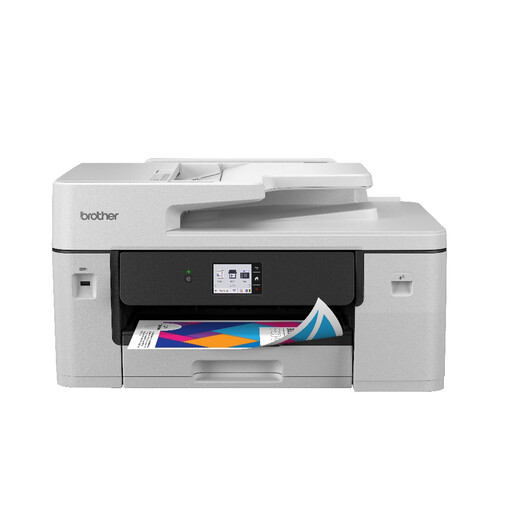
Brother MFC-J6760DW All-in-One Inkjet Printer
Consider this all-in-one if you print inventories and want to scan or copy supporting paperwork. Pay particular attention to its desk footprint and paper access, and confirm that automatic duplex works with your intended A4 paper before choosing it.
View on Joybuy
Frequently asked questions
Do household inventories need automatic duplex printing?
Not if you usually print a single-page list. Automatic duplex becomes useful for multi-page inventories when you want to print on both sides; confirm that the exact printer supports it on A4 plain paper. Canon UK, for example, specifies particular paper sizes and plain paper for automatic duplex on the PIXMA TS5350 series.
When is an automatic document feeder worthwhile?
Prioritise an automatic document feeder if you regularly scan or copy several receipts, forms or other sheets in one session. For occasional single-sheet copying, a flatbed may meet the need; a document feeder does not replace automatic duplex printing.
Should I sign up for an ink subscription?
Treat a subscription as an optional way to replenish ink, not an automatic saving. Compare its current page allowance, fees and cancellation terms with compatible cartridges and how often you expect to update your inventories.
What can I do with an old printer in the UK?
Look for an electrical reuse or recycling route rather than putting an old printer in general waste. GOV.UK explains that UK waste electrical and electronic equipment rules aim to reduce electrical waste sent to landfill or incineration; check local-authority or retailer collection options for your printer.


