People preserving bound journals
If handwritten pages, photographs or pasted-in keepsakes must stay in the book, you need to position pages individually. A flatbed matters more here than feeding loose sheets quickly.


For an intact travel journal, start with a multifunction printer that has a flatbed scanner and a scan area large enough for its pages. An automatic document feeder is useful for removable inserts, not the bound book; before choosing a compact model, check that the printer and its open trays and lid will fit your desk.
If handwritten pages, photographs or pasted-in keepsakes must stay in the book, you need to position pages individually. A flatbed matters more here than feeding loose sheets quickly.
If one device needs to handle occasional journal scans as well as home printing and copying, check how much room it takes while in use, not just when closed. Wireless operation may also suit a workspace without a permanent computer beside the printer.
If your archive includes removable itineraries, confirmations or receipts, an automatic document feeder may help with those sheets. Pages that remain bound still need a separate scanning approach.
Start with how the bound pages will sit on the scanner, then check working clearance, loose-sheet handling and the way you intend to save scans.
| Concern | What to check | Who this matters to |
|---|---|---|
| Bound pages | Check for a flatbed, compare its maximum scan area with your journal pages, and confirm that the lid can accommodate the binding without forcing it. | If photographs or keepsakes are attached to my journal, I need to position each page without feeding the book through rollers. Around 31% of consumers put careful handling of bound pages first. |
| Desk space | Compare your available width, depth and height with the model’s dimensions when its trays and scanner lid are open. | I need to leave the printer ready to use rather than move it whenever I scan a page. For around 31% of consumers, working space is the primary concern. |
| Loose inserts | If you want an automatic document feeder, check its supported paper sizes and media limits for detached sheets. | My journal also contains enough removable paperwork that handling each sheet separately would slow the project down. Around 19% of consumers prioritise batching those loose inserts. |
| Mobile workflow | Confirm compatibility with your phone or tablet and choose scan settings for the files’ intended use. Epson suggests 300 dpi when scans will be printed or converted to editable text. | I want to manage occasional scans from my phone and keep the resulting files useful for what I plan to do with them. Mobile workflow comes first for around 19% of consumers. |
An automatic document feeder is intended for suitable loose sheets; its presence does not establish that it can take a bound book or uneven pages.
Make a flatbed your starting point for the intact journal. Consider a feeder separately if you have removable paperwork to scan.
Print resolution and optical scan resolution describe different functions. A print dpi figure does not tell you how much detail the scanner captures.
Check the optical scan specification and maximum document size for the exact model. Canon lists 1,200 x 2,400 dpi optical scan resolution and a 216 x 297 mm maximum document size for the PIXMA TS5350i series.
A closed printer can take up more working space once its paper trays are extended and its scanner lid is raised.
Measure the place where it will sit, then compare those measurements with the exact model’s in-use dimensions and required clearance.
The useful resolution depends on whether you will view pages on a screen, print them or use optical character recognition to turn text into editable copy.
Epson suggests 96–150 dpi for screen viewing and 300 dpi for printing or optical character recognition. Choose a higher setting when the intended output calls for it, such as later enlargement.
Unnecessarily high settings can produce larger files and lengthen the scanning process.
The PIXMA TS5350i series offers a specified flatbed route for scanning journal pages one at a time alongside printing and copying.
The Expression Home XP-4200 is a compact A4 multifunction option for people who want wireless, phone-led use alongside occasional scanning.
The DeskJet 4220e is worth considering when removable travel paperwork makes an automatic document feeder useful.
The DCP-J1200W is a print, copy and scan option for broader home use where mobile management matters.
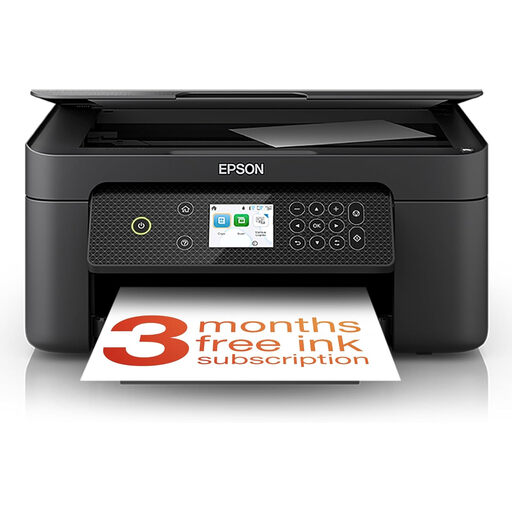
The Epson XP-4200 shown here is a wireless A4 multifunction option for occasional journal archiving alongside home printing and copying. Check its working footprint and whether your particular journal fits the scanner before ordering.
 No image available
Consider this model for occasional journal scans alongside home printing and copying if its scanner can accommodate your book.
Epson lists Wi-Fi Direct and mobile-app support for the XP-4200. Check the scan area, optical scan resolution, binding clearance and dimensions with the trays and lid open against your journal and desk.
No—choose the scanning arrangement for the bound pages first. A flatbed lets you position them individually, while an automatic document feeder is useful for suitable sheets removed from the journal. Check that the flatbed and lid can accommodate your book.
Choose it according to what you will do with the files. Epson suggests 96–150 dpi for screen viewing and 300 dpi for printing or optical character recognition; later enlargement may call for a higher setting, with larger files as a trade-off.
Yes, if the chosen model supports a suitable direct wireless connection and your device can use it. Epson lists Wi-Fi Direct for the XP-4200; confirm the scanning app and device compatibility for the workflow you intend to use.
The UK Consumer Rights Act 2015 requires supplied goods to be of satisfactory quality. If a stated scanner feature matters to your purchase, keep the product listing and specifications so you can explain the issue to the seller.