Staff scanning frequent batches
If maintenance forms regularly run to several pages, an ADF reduces the need to place each sheet on the scanner glass. Check the feeder’s capacity and whether it can scan both sides when that is part of the workflow.


Choose an A4 multifunction printer with an automatic document feeder (ADF) when maintenance forms arrive in batches, rather than relying on flatbed-only scanning. A mono laser suits black-and-white documents, while a colour inkjet is relevant if the classroom also prints colour materials. Check specifically for duplex scanning if the forms have information on both sides.
If maintenance forms regularly run to several pages, an ADF reduces the need to place each sheet on the scanner glass. Check the feeder’s capacity and whether it can scan both sides when that is part of the workflow.
When the same device will produce colour handouts or notices, colour printing matters alongside form scanning. Consider how often those materials are printed before choosing a refillable-ink model.
Forms containing personal information need an approved destination and appropriate access arrangements. The Information Commissioner’s Office advises organisations to use technical and organisational security measures suited to the processing risk.
Start with the form-scanning workflow: batch size and two-sided pages determine which feeder features are useful. Then check where scans may be sent and whether the classroom needs colour output.
| Concern | What to check | Who this matters to |
|---|---|---|
| Multi-page form handling | Check ADF capacity and whether the scanner, not just the printer, handles both sides automatically. | When forms pile up, I want to feed a batch without placing or turning every sheet by hand; around 50% of consumers put that scanning workflow first. |
| Approved scan destinations | Confirm network compatibility, permitted destinations and who can access the device and saved scans. | If forms contain personal information, I need scans to reach an approved location without exposing them to the wrong people; roughly 30% of consumers make secure workflow integration their primary concern. |
| Colour and ongoing printing | Decide whether colour is essential, then compare expected black-and-white and colour printing with the model’s supply requirements. | When I also produce colour classroom materials, I need the printer’s output and ink arrangement to suit that recurring work; about 20% of consumers prioritise this balance. |
A printer that prints on both sides does not necessarily scan both sides through its ADF. Canon describes the MAXIFY GX7150 specifically as having a single-pass, two-sided scan feeder.
If maintenance forms are routinely double-sided, look for an explicit duplex-scanning specification or confirm the page-turning workflow before ordering.
Otherwise, staff may need to turn and rescan pages manually.
A convenient destination does not control who can send, receive or retain a scan. The Information Commissioner’s Office advises appropriate technical and organisational measures and highlights the risk of sending personal information to the wrong recipient.
Agree permitted destinations, access and retention procedures with the school’s IT or data-protection lead before scanning forms containing personal information.
Manufacturer page-yield claims do not describe a classroom’s own mix of documents. The Department for Education advises schools to establish annual print volumes and existing arrangements before setting printing requirements.
Estimate black-and-white and colour use separately, and consider the model’s supply and maintenance requirements alongside its scanning features.
HP states that the OfficeJet Pro 8122e uses dynamic security that may block cartridges with a non-HP chip, including after firmware updates.
If considering that model, check its cartridge requirements before committing to a supply arrangement.
Brother’s MFC-L2860DWE is a mono-laser multifunction option for classrooms whose forms and routine documents are black and white.
Canon’s MAXIFY GX6150 and GX7150 combine colour refillable-ink printing with document feeders, but their scanning arrangements differ.
Epson’s EcoTank ET-4950 is an A4 colour multifunction option where double-sided document feeding is relevant.
HP’s OfficeJet Pro 8122e is a colour-inkjet multifunction option with an ADF and scan-to-email or cloud features.
These inkjet multifunction printers are options for a classroom combining form scanning with printing. Check each model’s feeder and approved scan workflow against the forms you handle.
 No image available
Consider this colour refillable-ink model when forms arrive in batches and the classroom also prints colour materials.
Canon UK specifies a 50-sheet ADF, paper capacity of up to 350 sheets and scanning to network folders, email or USB. Confirm whether its scanning workflow handles double-sided forms and whether the destinations are approved by the school.
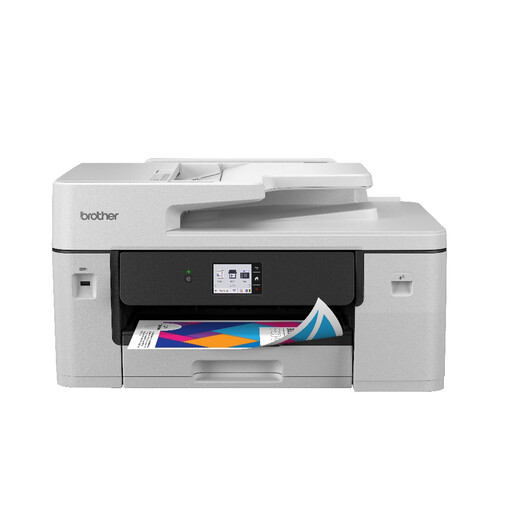 No image available
Consider this inkjet multifunction model if the classroom needs scanning and printing in one device.
Before ordering, confirm its feeder capacity, whether it scans double-sided forms automatically, the available placement space and which scan destinations the school permits.
 No image available
This A4 Wi-Fi multifunction model is an option when the classroom wants printing, scanning and copying together.
Check its ADF’s handling of the forms you use, particularly double-sided pages, and confirm that its scan destinations and network connection suit the school’s approved setup.
An ADF is useful when forms commonly have several pages or arrive in batches, because it feeds sheets without repeated placement on the scanner glass. Check capacity and supported paper, and look specifically for duplex scanning if information appears on both sides.
Use email or cloud destinations only when they fit the school’s approved data-handling process. For forms containing personal information, agree access and recipient checks with the appropriate school lead; the Information Commissioner’s Office says security requires measures suited to the circumstances and risk.
Consider a wider printing arrangement if this purchase is part of a school- or trust-wide change, rather than judging the classroom device in isolation. The Department for Education advises schools to review existing equipment, annual print volumes, contracts, locations and network infrastructure before specifying a multifunction-device or printing service.
Follow the school’s approved electrical-equipment disposal route and ask the replacement supplier about any take-back arrangement. Confirm the procedure with the school or local authority before removing the old device.