Space-constrained caption makers
You need printing, copying and scanning without giving a printer permanent control of the desk. Check room for paper loading, output and an open scanner lid as well as the closed printer.


Choose a print, copy and scan model by the space it needs while operating, not just its dimensions with the trays closed. For display captions, check that the exact paper or lightweight card is supported; if you print repeated batches, tray capacity and automatic double-sided printing may matter more than they do for occasional one-sided sheets.
You need printing, copying and scanning without giving a printer permanent control of the desk. Check room for paper loading, output and an open scanner lid as well as the closed printer.
You make captions on A6 sheets, photo-sized paper or lightweight card. Match the intended stock to the exact model’s supported size, media type, weight and feed tray.
You produce caption sheets in batches and want to spend less time reloading paper or turning two-sided sheets manually. Compare tray capacity and double-sided printing only after confirming that the printer fits and accepts your paper.
For a small desk, establish the printer’s working space first, then check caption-stock compatibility and the handling needed for your usual batch.
| Concern | What to check | Who this matters to |
|---|---|---|
| Working space | Measure desk width, depth and height with paper supports extended and the scanner lid open; compare these with the exact model’s operating requirements. | If the desk must also hold other work, I need the printer to remain usable after its trays are opened. Around 42% of consumers would put working space first. |
| Caption stock and text | Check the intended sheet size, media type and weight against the specified tray; trial the finished layout on a small amount of stock. | For small cards or photo-sized captions, I need my chosen paper to feed properly and the text to remain readable. Roughly 33% of consumers would prioritise stock compatibility and legibility. |
| Batch handling | Compare input capacity with your usual batch, and check whether automatic double-sided printing applies to the paper and job you use. | When I replace many caption sheets at once, repeated reloading or turning pages interrupts the job. Around 25% of consumers would make batch handling their primary concern. |
A printer may fit in its stored position but need more room for paper, output and the scanner lid while you use it.
Measure the usable desk area and check operating clearance for the exact model before buying.
Supported weights and types depend on the model and feed tray. A photo-paper rating does not establish compatibility with textured craft card or display board.
Check the specified size, stock type and weight for the correct tray, then try a small amount of your final caption stock.
Stock that feeds or prints poorly can use up card and ink during trial runs.
Automatic double-sided printing helps only when the intended sheets and paper are suitable for two-sided jobs; it does not simplify a run of one-sided caption cards.
Decide how often you need two-sided sheets before giving this feature priority over desk fit and media support.
The PIXMA TS6550i and TS3750i offer different approaches to paper handling for home document and photo printing.
The DCP-J1260W is a print, copy and scan option for captions made on supported small-format media.
The Expression Home XP-4200 combines A4 printing, copying and scanning with wireless connection options.
The DeskJet 4220e is an all-in-one model with specified small-media and card options.
These multifunction models offer different starting points for caption sheets and desk layouts. Check each printer’s operating space and the specifications for your intended stock before choosing.
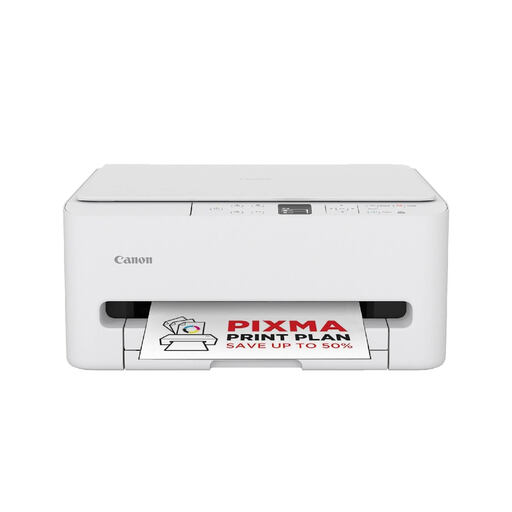 No image available
Consider this model when stored dimensions are important, but measure the space needed to use it as well.
Canon UK gives its dimensions as approximately 374 × 355 × 168 mm with trays retracted and specifies a 100-sheet cassette and automatic double-sided printing.
Check your caption card against the exact media specification before ordering stock.
 No image available
For caption jobs on a shared desk, check this model’s operating dimensions and supported paper before choosing it.
Allow for paper loading, output collection and scanner access when measuring the available space.
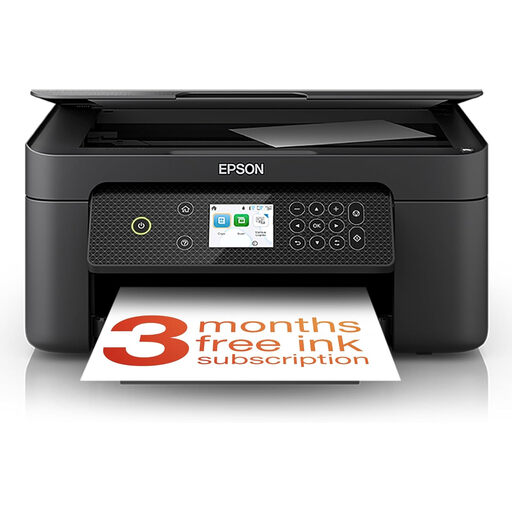 No image available
For A4 caption sheets that may need printing on both sides, the XP-4200 is worth checking against your desk layout.
Epson specifies printing, copying, scanning and automatic double-sided printing for this model.
Confirm its operating dimensions and the supported weight and type of your chosen card before buying.
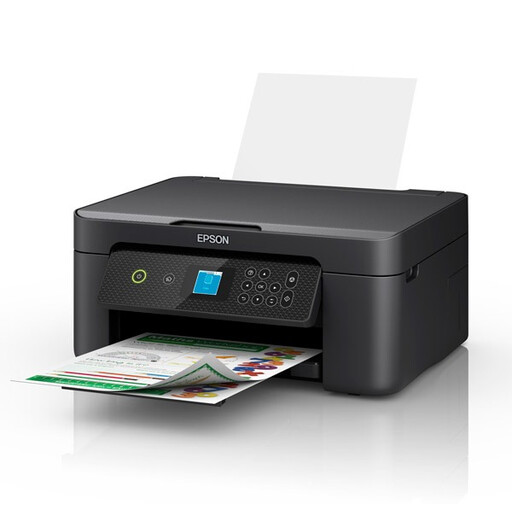 No image available
For A4 caption sheets alongside occasional copying or scanning, check whether this model fits where it will operate.
Its product title specifies print, scan and copy functions, Wi-Fi and automatic double-sided printing.
Confirm the dimensions and supported caption-stock type and weight for the exact printer.
 No image available
For A4 caption printing with copying and scanning, compare this model’s working space with the room available on your desk.
The product title identifies A4 print, scan and copy functions and Wi-Fi.
Check the exact dimensions and media specification if you plan to use small sheets or card.
Measure the usable width, depth and height while the printer is set up for printing and scanning. Include extended paper supports, the output area and space to open the scanner lid; closed-tray dimensions alone describe storage, not necessarily operation.
Yes, if the exact model supports your card’s size, type and weight in the feed tray you will use. Brother UK lists 64–220 g/m² media in the DCP-J1260W standard tray, while HP specifies HP cards up to 200 g/m² for the DeskJet 4220e; neither figure covers every textured or coated card.
Automatic double-sided printing is useful if you regularly make two-sided sheets on compatible paper, but it does not help with one-sided caption cards. Canon lists the TS6550i with automatic double-sided printing and the TS3750i with manual handling; Epson specifies automatic double-sided printing for the XP-4200.