What matters when buying?
Decide what the finished lists must look like, then consider how often you will print them and whether source pages need copying or scanning in batches. Check the exact model for each function you intend to use.
| Concern |
What to check |
Who this matters to |
| Colour and core functions |
Check A4 print, copy and scan functions, and decide whether the finished layout requires colour. |
If I need coloured headings on the lists and must also copy or scan project pages, I want one device that covers those jobs. Around 20% of consumers put colour-capable all-in-one convenience first. |
| Recurring printing |
Check the ink supply and the conditions behind any stated page yield against your expected use. |
If the project leads to regular household or club printing, I want to avoid frequent consumable changes. Around 33% of consumers put fewer refill interruptions first. |
| Multi-page handling |
Check for an automatic document feeder, its capacity and whether two-sided scanning is needed. |
When several booking forms need copying or scanning, I do not want to place every loose sheet on the glass separately. Around 27% of consumers put multi-page handling first. |
| Black-text batches |
Confirm that mono output is acceptable; compare print speeds on the same basis and check for automatic rather than manual two-sided printing. |
If I repeatedly print plain black-text lists, I can give up colour in favour of quicker batch output. Around 20% of consumers put black-text batch printing first. |
Joybuy printer options for booking lists
These printer options address different booking-list needs, from colour project pages and multi-page paperwork to plain black-text lists. Compare the exact model’s functions with your layout and the number of pages you need to handle.
 No image available
Canon MAXIFY GX6150
Consider this model if the booking-list project involves recurring colour pages or multi-page paperwork. Confirm its paper handling and scanning functions against your largest job before choosing it for a one-off project.
View on Joybuy
 No image available
Epson EcoTank ET-5150 +Ink A4 Multifunction Printer
For a project that also calls for later home printing, this A4 Wi-Fi model offers printing, scanning and copying. If you need to scan both sides of several forms, confirm that specific scanning function before ordering.
View on Joybuy
 No image available
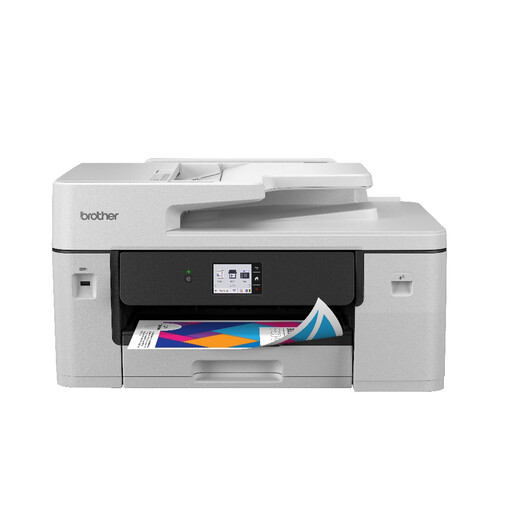
Brother MFC-J6760DW All-in-One Inkjet Printer
Consider this all-in-one inkjet if the project needs colour pages alongside copying or scanning. Its larger office-oriented format deserves a space check if you only need to print booking lists once.
View on Joybuy
 No image available
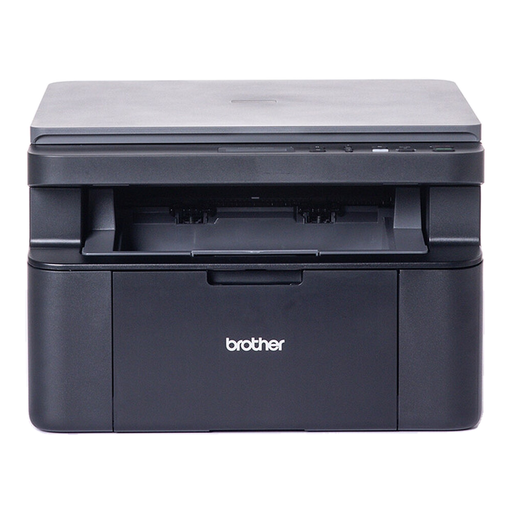
Brother DCP-L1640W Mono Laser Printer
This mono laser model is a route to consider when the finished booking lists need no colour. If you will print on both sides or scan several forms, check the page-handling workflow: the product information describes manual two-sided printing and a flatbed scanner.
View on Joybuy
Common questions
Do booking lists need a colour multifunction printer?
Choose colour if the finished lists need coloured headings, codes or graphics. For predominantly black-text lists printed in repeated batches, a mono multifunction printer is another option, provided you can accept that it will not print colour project pages.
When is an automatic document feeder useful?
Prioritise a document feeder when you repeatedly copy or scan several loose pages rather than placing each one on the glass. Check its stated capacity and, if the forms have content on both sides, whether the exact model supports two-sided scanning.
Should I choose automatic two-sided printing?
Choose it if the booking-list layout works on both sides of a sheet and you want to avoid turning and re-feeding pages yourself. Confirm that the exact model specifies automatic two-sided printing; manual two-sided printing is a different workflow.
What should I do with an old printer?
Consider passing on a usable printer or using an electrical-recycling route. Before donating, selling or recycling a connected printer, follow its manufacturer’s factory-reset instructions to clear stored settings, as Recycle Your Electricals recommends.


