For frequent foreign-language annotation, start by testing the input layout on your work computer, then choose a keyboard around the friction you face most: typing near colleagues, sustained editing or repeated shortcuts. A familiar-shaped keyboard asks less adjustment of your typing habits; a programmable UK ISO board may suit a shortcut-heavy workflow, while a fully split design offers more positioning choices but takes time to learn. Assess any keyboard as part of the whole workstation, not as a standalone solution to discomfort.
Who this is for
Long-session document annotators
If you spend long periods selecting text, adding comments and revising passages, consider keyboard position alongside the rest of your desk setup. The Health and Safety Executive treats keyboard use as part of the wider display screen equipment workstation assessment.
Consumers typing near colleagues
If repetitive typing could distract nearby colleagues, check the sound of the exact keyboard and switch option. ZSA distinguishes a quiet switch choice from audibly clicky Cherry MX Blue switches; neither description establishes how a configuration will sound at your desk.
Multilingual, shortcut-heavy editors
If you regularly change input languages or use recurring symbols and editing commands, check both the physical key legends and your computer’s input settings. Microsoft and Apple describe configurable keyboard layouts or input sources for Windows and macOS respectively.
What matters when choosing
Test the language input you need before changing keyboards. Then decide whether your main purchasing concern is sustained typing position, disturbance to colleagues or quicker access to annotation commands.
| Concern | What to check | Who this matters to |
|---|
| Sustained typing comfort |
Check keyboard height and hand position within the whole desk setup; consider whether a familiar or separated layout suits the adjustment you can make. |
During long annotation sessions, I want a typing position I can maintain without overlooking my chair, screen and pointing device. Around 40% of consumers put sustained comfort first. |
| Typing noise |
Check the exact switch or key option and, where possible, listen to that configuration rather than relying on its keyboard category. |
With colleagues working nearby, I do not want repeated keystrokes to become a distraction. Keeping typing noise down is the primary concern for around 30% of consumers. |
| Language input and shortcuts |
Test the required operating-system input source; check physical legends and any remapping support you intend to use. |
When I move between languages, punctuation and comments, I need to find the right keys and repeat commands reliably. Around 30% of consumers prioritise this input-and-shortcut workflow. |
Buying pitfalls
-
Treating an ergonomic label as a solution to discomfort
A keyboard changes only one part of your working position. The Health and Safety Executive’s display screen equipment guidance considers risks across the workstation.
Check the keyboard together with your chair, desk, screen and pointing device. Where applicable, ask for a workplace assessment if your setup changes or you report discomfort.
-
Choosing clicky switches without considering colleagues
Switch options can differ within a keyboard range. ZSA describes Cherry MX Blue switches as audibly clicky, which matters when others work within earshot.
Check the exact switch choice and assess its sound where possible; an ergonomic shape alone says nothing about typing noise.
-
Assuming foreign-language key legends enable language input
Windows keyboard layouts and macOS input sources are configured in the operating system. New physical legends alone do not set up the input method you need.
Configure and test the required language first. Consider matching legends if locating its punctuation or symbols remains difficult.
-
Underestimating the change to a fully split layout
ErgoDox EZ’s own getting-started guidance acknowledges that its columnar, split design can feel unfamiliar to traditional-keyboard users.
If annotation must continue without a learning period, consider a more familiar layout. Otherwise, check the split board’s desk footprint and make time to learn its key positions.
Learning new positions or layers may temporarily slow annotation.
Brands to consider for different keyboard approaches
Logitech
A reference point for consumers who want an office keyboard with a familiar-looking layout rather than a fully split design.
- Logitech describes Wave Keys as wave-shaped, with a memory-foam palm rest, Bluetooth or the supplied Logi Bolt receiver, and switching between up to three devices.
- Its design claims do not establish individual comfort or the keyboard’s typing noise in your office.
Keychron
Relevant if familiar UK ISO key placement and programmable mechanical-keyboard options matter to your annotation workflow.
- Keychron lists UK ISO keyboards and describes its Q Max ISO range as supporting QMK/VIA configuration.
- Check the exact model’s layout, switches and height; a UK ISO or programmable label does not by itself establish ergonomic fit or quiet operation.
ErgoDox EZ
A specialist option for consumers prepared to learn a separated, columnar key layout.
- ErgoDox EZ describes separate keyboard halves, customisation and an optional tilt and tent accessory.
- Its own setup guidance acknowledges the adjustment from a traditional keyboard; check whether the layout and desk footprint suit your work.
ZSA
Relevant to consumers considering a configurable split keyboard for repeated editing commands.
- ZSA provides a keyboard configurator and distinguishes quiet from audibly clicky switch options for Moonlander.
- Check the selected switch configuration for a shared office rather than treating a brand’s sound description as a measured result.
Joybuy product choices for shared-office annotation
These keyboards cover familiar wireless layouts and a split-layout option for annotation at a shared desk. Compare their physical layouts with the punctuation you use, and check typing sound and shortcut requirements for the exact configuration.
 No image available
HP 960 Ergonomic Split Layout Wireless Keyboard with padded wrist rest
Consider this split-layout option if you want wrist support during annotation. Check its physical key layout against your usual punctuation positions, and confirm compatibility before relying on configurable shortcuts or a particular typing sound.
View on Joybuy
 No image available
Targus EcoSmart™ Full Size Wireless Keyboard (UK)
Consider this full-size UK-layout keyboard if familiar physical key placement matters during English-led annotation. Check its sound in the configuration you will use and confirm any remapping features before depending on custom shortcuts.
View on Joybuy
 No image available
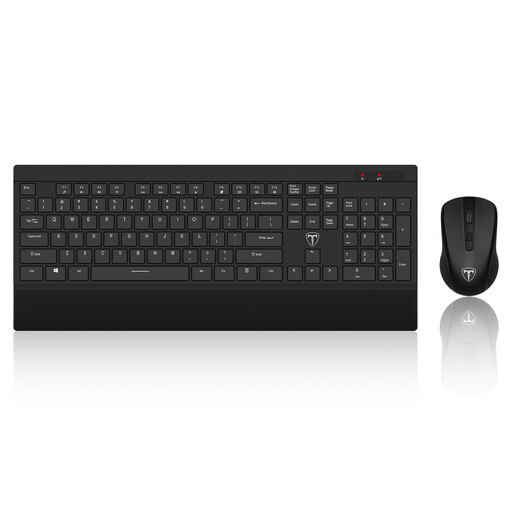
ET Silent wireless keyboard and mouse set, US layout
Consider the keyboard-and-mouse set if a US physical layout fits your typing habits. Its punctuation legends may differ from familiar UK positions; check those differences, the exact typing sound and any shortcut features you need.
View on Joybuy
Common questions
Do I need a foreign-language physical keyboard to annotate another language?
Not necessarily: Microsoft describes adding keyboard layouts in Windows, and Apple describes adding input sources on a Mac. Test the language and punctuation you need in your operating system first; matching physical legends may still help when you frequently have to locate unfamiliar keys.
Can I tell whether a keyboard will be quiet from its switch type?
Switch type is a useful check, but it does not establish how the complete keyboard will sound at your desk. ZSA distinguishes a quiet option from audibly clicky Cherry MX Blue switches; listen to or test the exact configuration where possible.
Is a fully split keyboard worth the adjustment for annotation?
A fully split design is worth considering if separate hand positioning and customisation matter enough to justify learning new key positions. ErgoDox EZ describes its split, columnar layout but also acknowledges that moving from a traditional keyboard can feel intimidating; check your desk space and time available to practise.
How should I set up a new keyboard at work?
Set it up as part of the whole workstation, checking your typing position alongside the chair, desk, screen and pointing device. The Health and Safety Executive advises assessing display screen equipment workstation risks and reviewing the assessment when the workstation or its use changes, or when discomfort is reported.


