What to check before buying
Work through laptop capability first, then match the connection method, monitor arrangement and desk position to the way you work.
| Priority |
What to check |
Your needs |
| Independent display support |
Check the exact laptop model’s supported external-display count. Confirm its HDMI, DisplayPort, USB-C DisplayPort Alt Mode, USB4 or Thunderbolt capability. Check the required resolution and refresh rate for each display. |
I need my laptop to detect the intended screens as separate desktops rather than mirror them or run them below the required specification. |
| Two extended desktops |
For a native multi-display connection, check host and dock support for DisplayPort MST where relevant. Check operating-system behaviour as well as the dock’s display configuration. |
I want calls, documents, reference material and work applications visible on independent screens. On macOS, an MST-only setup should not be assumed to extend two displays; Plugable’s guidance says MST-connected displays mirror instead. |
| One-cable desk connection |
Compare the dock’s video outputs, USB ports, Ethernet and host charging with the laptop’s supported protocol. Match Power Delivery pass-through with the laptop’s charging requirement. |
I want monitors, keyboard, mouse, network and power to connect with less desk-cable clutter, without sacrificing the peripherals I use each day. |
| Fallback video expansion |
Choose DisplayLink hardware only when it explicitly states DisplayLink support. Check the operating system, driver requirements and available processing resources. |
I need an additional screen without replacing an older laptop that lacks suitable native video expansion. On a Mac, I must be willing to install DisplayLink Manager and grant Screen Recording permission. |
| Screen placement |
Check monitor VESA compatibility, monitor weight, desk thickness, clamp clearance and cable reach before choosing an arm or stand. Consider glare and viewing position at the desk. |
I want more screen space without forcing an awkward viewing angle or a cramped desk layout. HSE guidance highlights workstation assessment for regular display-screen work. |
Joybuy product options
Joybuy product options for adding an external screen at a home-working desk, including larger fixed monitors, a portable second screen and a USB-C dock for compatible laptop setups.
 No image available
AOC Q32V4 31.5-inch 2K Ultra HD IPS Monitor
For a fixed desk where one larger external workspace is the main aim.
31.5-inch 2K Ultra HD IPS monitor with built-in speakers.
Check that your laptop and cable can output the required QHD signal; a monitor does not add extra video-output capacity to a laptop.
Joybuy
 No image available
CRUA 32-inch 1500R Curved 2K QHD Monitor
For a fixed home-office desk needing a larger primary external workspace.
32-inch curved monitor with 2560 × 1440 resolution, 165 Hz refresh rate, HDMI, DisplayPort and VESA 100 × 100 mm mounting.
Confirm that your laptop, cable and output specification support the intended resolution and refresh rate, and allow enough desk depth for the screen.
Joybuy
 No image available
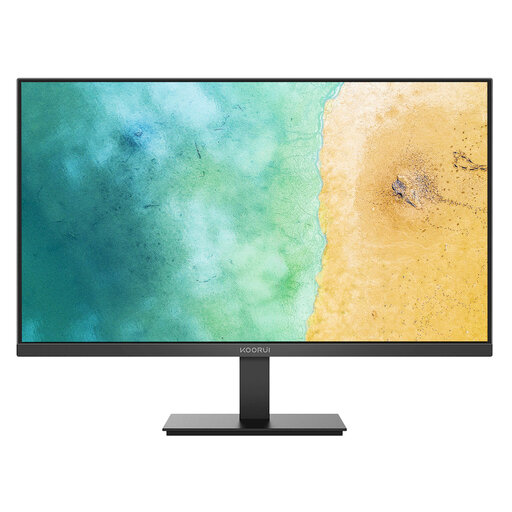
KOORUI MB27V29FS2 27-inch IPS Monitor
For a straightforward additional desk screen for office applications.
27-inch IPS monitor with HDMI and VGA inputs, tilt adjustment and VESA 100 × 100 mm mounting.
Check that your laptop has a suitable HDMI or VGA connection, or that any required active adapter supports the intended display mode.
Joybuy
 No image available
Targus USB-C Universal Dual HDMI 4K Dock with 100W Power Delivery Pass-Thru
For a compatible desk setup needing two display connections alongside peripherals.
Dual HDMI 2.0 outputs, USB-C Alt Mode host connection, Gigabit Ethernet, USB ports, card readers and 100 W Power Delivery pass-through are stated.
Confirm DisplayPort Alt Mode support, native display limits and the dock’s Mac-specific configuration where relevant. Check whether a suitable power adapter is included.
Joybuy
 No image available
ASUS ZenScreen MB166C 15.6-inch Portable USB Monitor
For laptop-based work away from a permanent desk or where space is limited.
15.6-inch Full HD IPS portable monitor with USB Type-C connection, anti-glare surface and 780 g stated weight.
Check that the laptop’s USB-C port supports video output and provides sufficient power. This model lists USB-C only and no HDMI input.
Joybuy
Frequently asked questions
Does a USB-C port automatically support an external monitor or dual-monitor dock?
No. USB-C is a connector type, and not every USB-C port carries video. A native video dock or adapter needs a suitable host pathway such as DisplayPort Alt Mode, USB4 or Thunderbolt; multi-monitor support also depends on the laptop GPU, operating system, dock design and available bandwidth. Check the laptop specification and the dock compatibility documentation.
Can a Mac use an MST dock for two extended external monitors?
Do not assume so. Plugable’s MST guidance states that macOS does not support MST for extended displays, so MST-connected displays mirror rather than extend. Check the exact Mac model’s Apple display-support specification; a DisplayLink-based solution may be an option beyond native support if its software and permission requirements are acceptable.
When is DisplayLink a sensible choice for home working?
DisplayLink can be useful where native laptop video outputs are insufficient, including some older laptops without USB-C video capability and some Macs with limited native display support. It requires compatible DisplayLink hardware and software; DisplayLink says performance depends on the computer, and macOS requires DisplayLink Manager with Screen Recording permission.
Do I need a workstation assessment when I work with screens at home?
For Great Britain, HSE states that the Display Screen Equipment Regulations can apply to people working at home permanently, long term or routinely as hybrid workers. HSE also states that employers must carry out a workstation assessment where workers use display screen equipment daily for continuous periods of an hour or more. This does not mean every consumer needs to buy a monitor arm.
What electrical-product information should I check for a dock or powered monitor?
For products supplied in Great Britain, electrical equipment must meet applicable safety requirements before being placed on the market. GOV.UK guidance says recognition of certain goods meeting EU requirements, including CE marking, was extended indefinitely for many products from 1 October 2024. Choose a seller that provides clear product identification, instructions and UK-relevant support; Northern Ireland rules can differ.


