What to check before buying
For two or more work laptops at one desk, decide whether the display and controls must switch together. A dock expands connections for one laptop, while a stand only organises where a laptop sits; neither performs KVM switching by itself.
| Concern |
What to check |
Who this matters to |
| Ports, video and charging |
Check each laptop’s video-output mode and the accessory’s host requirements. For USB-C video or charging, confirm the required DisplayPort Alt Mode and Power Delivery capabilities rather than relying on the connector shape. |
If I want fewer cables, I need to know that both laptops can provide the video and charging functions the setup expects; around 34% of consumers put this compatibility need first. |
| Shared or separate controls |
Decide whether the keyboard and mouse must follow the display. Dell Technologies notes that built-in KVM is a feature of selected monitors, not a consequence of having multiple video inputs. |
When I change laptops several times a day, I want my controls to change with the screen; around 25% of consumers primarily need shared switching. |
| Workplace permissions |
Ask IT about USB peripherals, wireless receivers and any software the chosen accessory requires. Microsoft documents controls for USB use and device installation on managed Windows computers. |
If my laptop is managed by my employer, an accessory needs to be permitted as well as compatible; around 25% of consumers put workplace approval first. |
| Desk organisation |
Consider direct monitor inputs and separate approved peripherals if switching is infrequent. Check that any stand leaves ports accessible and ventilation unobstructed. |
If I work on one laptop for long stretches, I may prefer a tidier desk without adding a shared-control device; around 16% of consumers primarily want this simpler arrangement. |
Joybuy products for a multi-input desk
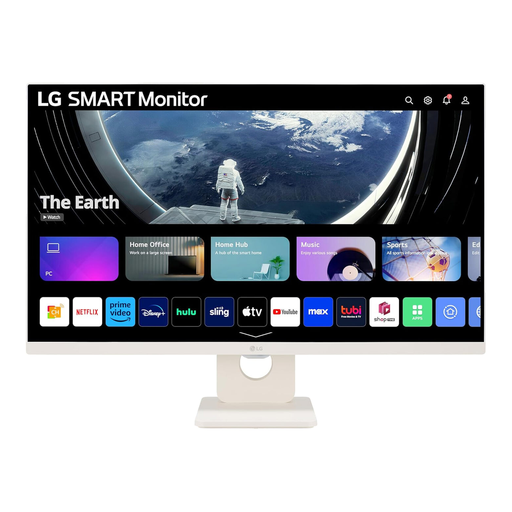
This monitor is relevant if the laptops can use its HDMI inputs and you are content to keep keyboard and mouse control separate. If those peripherals must switch with the picture, check for documented KVM support before choosing a monitor.
 No image available
LG Smart Monitor 27U511SA-W, 27-inch Full HD
Consider this for two laptops using separate controls if both can connect to its HDMI inputs; confirm that its input-selection behaviour suits your workflow.
Two HDMI inputs; 27-inch IPS display, 1920 × 1080 resolution and 100 Hz stated refresh rate. Built-in KVM or shared keyboard-and-mouse switching is not established, so check the monitor documentation if you need that function.
View on Joybuy
Questions about multi-laptop desks
Will any USB-C laptop work with a USB-C KVM or dock for an external display?
No: the laptop port must provide the functions the particular accessory requires. StarTech.com specifies DisplayPort Alt Mode and Power Delivery for full functionality of its documented USB-C KVM, so compare each laptop’s port specification with the accessory’s host requirements.
When is a KVM more useful than switching the monitor input?
A KVM suits a desk where the monitor, keyboard and mouse need to move together between laptops. If you only need to change the picture and can keep controls separate, monitor input switching may be enough; Dell Technologies notes that multiple inputs alone do not establish built-in KVM support.
Can workplace controls prevent a dock or peripheral from working?
Yes, depending on how the employer manages the laptop. Microsoft documents controls for USB devices and device installation on managed Windows computers; ask IT about the intended dock, KVM, receiver and any required software before buying.
What should I check when the desk is connected?
Check each laptop’s video output, keyboard and mouse response, and charging arrangement before relying on the setup for work. Then try the switching method and any webcam or audio devices you intend to share, while keeping each laptop’s original charger available until charging has been checked during use.


