What to check before buying
Confirm that the computer can drive the intended two-screen arrangement before deciding which display and desk features matter most to your work.
| Concern | What to check | Who this matters to |
|---|
| Notation and working area |
Compare screen size and native resolution, then check that both displays can use readable scaling and be positioned at similar heights. |
If I move between dense scores and worksheet pages, I want detail without making symbols too small to read. Roughly 37% of consumers put notation and working area first. |
| Two-display connections |
Check the exact computer’s external-display limit, video outputs and required cables; confirm the dock or monitor connection method if using one. |
When I work from a laptop, I need two independent screens rather than assuming a USB-C socket will provide them. Around 27% of consumers make connection compatibility their primary concern. |
| Desk positioning |
Measure desk width and depth, and compare stand adjustment or compatible mounting options. The Health and Safety Executive advises placing the screen about an arm’s length away, with its top at eye level. |
If two screens crowd my desk, I need room to place the main display without repeatedly twisting towards it. Approximately 18% of consumers prioritise workstation fit. |
| Colour-sensitive work |
If you also prepare visual assets, compare stated colour coverage and calibration for the exact model rather than treating either as a measure of text clarity. |
When my worksheets also involve colour artwork, I want display features suited to that work, not just document layout. Roughly 18% of consumers place colour-related needs first. |
Joybuy monitors for worksheet desks
These 4K monitors offer choices for a two-screen worksheet desk, including USB-C and HDMI or DisplayPort connection approaches. Select a connection plan your computer supports; a feature on one monitor does not establish that it can drive a second screen.
 No image available
BenQ MA270UP Nano Glossy 27-inch 4K IPS monitor
Consider this for worksheet pages alongside a compatible USB-C laptop. The product name specifies a 27-inch 4K IPS display, USB-C and a height-adjustable stand; confirm your computer’s two-display support and the connection needed for each screen.
View on Joybuy
 No image available
iiyama ProLite XUB2792UHSU-B6 27-inch 4K monitor
A 27-inch 4K screen is relevant if you want space for notation and reference pages. Check the monitor’s exact inputs and stand adjustments against your desk plan, and confirm any USB-C video or charging function you intend to use.
View on Joybuy
 No image available
LG 27UP650K 27-inch 4K IPS monitor
Consider this for a worksheet desk using direct video connections. Its product name specifies HDMI, DisplayPort and a 27-inch 4K IPS display; check that your computer or dock supports two external screens through the connections you plan to use.
View on Joybuy
 No image available
MSI MD272UPSW Smart 27-inch 4K IPS monitor
This 4K IPS option may suit a desk where laptop charging is useful. The product name specifies USB-C with 65 W power delivery; check whether your computer and the intended connection support video and two independent external displays.
View on Joybuy
 No image available
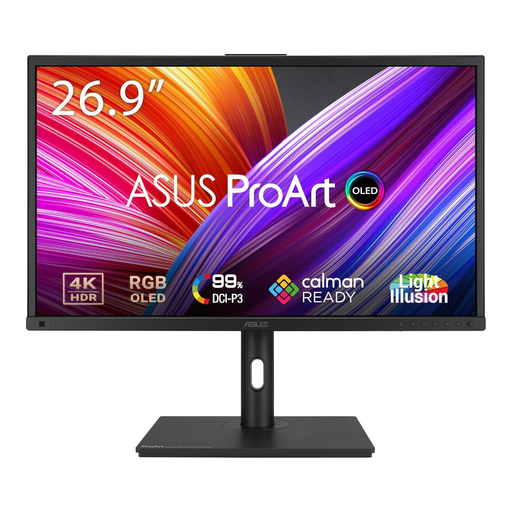
ASUS ProArt PA27DCE-K 4K OLED monitor
Consider this 4K OLED model if your worksheet desk also serves colour-sensitive visual work. For pages that remain static for long periods, follow the product’s OLED care guidance on prolonged high-brightness static images; also check the computer’s two-display support and the exact connection functions you need.
View on Joybuy
Frequently asked questions
How do I know whether my laptop can run two independent monitors?
Check the exact laptop model’s documented external-display count before buying monitors or a dock. Apple Support advises Mac users to check their model’s video ports, supported display count and required cables or adapters; a USB-C port alone does not answer the question.
Will a Thunderbolt daisy chain connect both worksheet screens?
Only if the computer, monitor chain and intended cables support that arrangement. BenQ lists Thunderbolt daisy-chain technology for the PD2725U, but you still need to check the computer’s supported external-display count and connection requirements.
How should I position two monitors for long worksheet sessions?
Plan the whole workstation around the screen you use most, rather than fitting two stands wherever they will go. The Health and Safety Executive advises placing the top of the screen at eye level and about an arm’s length away, while keeping the screen and keyboard central to avoid twisting.
What energy information can I compare on monitors in Great Britain?
Compare the SDR energy-efficiency class and on-mode SDR consumption shown in the electronic-display energy information. GOV.UK’s energy-label guidance uses an A-to-G SDR class; energy information does not replace checks for readable notation, compatible connections and desk fit.


