Who needs which setup?
The right NAS setup depends on what must be restored, who may access the community files and whether the backup task is likely to grow.
Recovery-first household organiser
You need a straightforward way to restore family and community documents after deletion or computer failure. Prioritise scheduled backups, a restore you can practise and a separate protected copy; the National Cyber Security Centre advises keeping backup storage disconnected when it is not in use.
Community-data custodian
You may hold member, volunteer or contact information and need to decide who can reach it and who will take over administration. The Information Commissioner’s Office says security measures for personal data should reflect the risk and include the ability to restore access.
Growing shared-files user
You expect more computers, larger files or several people accessing shared folders. Check usable capacity and the rest of the network before choosing extra bays or faster ports; a networking specification alone does not establish the speed of the whole setup.
What matters when choosing?
Choose the backup and recovery workflow before deciding how much networking or expansion capability you need. A NAS serving a family computer and community files also needs an access plan if other people will use it.
Simple two-bay backup NAS
Choose when: One computer and a modest collection of shared files are the main task, and straightforward recovery matters most.
Trade-off: Two drive bays limit storage-layout choices, and local drive redundancy cannot replace a separate backup copy.
Backup-led NAS with faster networking
Choose when: Several computers may need backing up or people will regularly move larger community files. Synology positions the two-bay DS225+ for multiple endpoint backups.
Trade-off: To make use of its 2.5GbE port, the connected equipment must support an appropriate network connection.
Expansion-oriented NAS
Choose when: Shared files, device backups or other planned work warrant more configuration options than the one-computer task requires.
Trade-off: Extra ports and expansion slots add choices to assess without removing the need for access controls and a separate backup.
| Concern |
What to check |
Who this matters to |
| Recovery after data loss |
Check scheduled backup, earlier-version recovery and a destination for a separate protected copy. Practise restoring a file. |
If a computer fails or files are deleted, I need to retrieve the family and group documents rather than merely keep the NAS running. Around 36% of consumers put recovery resilience first. |
| Automatic PC backup |
Confirm the backup application supports the computer’s operating system, scheduling and the type of restore you need. |
I do not want the only backup to depend on remembering a manual copy after each change. Roughly 29% of consumers make a low-maintenance backup routine their main priority. |
| Access to community files |
Check named accounts, folder permissions and separate administrator access; decide who will retain recovery credentials. |
If group records contain people’s details, I need to limit who can open them and make administration manageable when a volunteer leaves. Around 21% of consumers put controlled access first. |
| Capacity and growth |
Size usable storage for existing data and backup versions. Check drive compatibility and whether the computer and network can use a faster port. |
If more devices or large files are likely, I need room to expand without choosing networking features I cannot use. Approximately 14% of consumers prioritise future capacity or performance. |
Brands to consider
These manufacturer examples show different ways to meet the same backup task; the features described belong to the named models, not every product from each brand.
Synology
The DS223 is a two-bay option focused on home and small-office file management; the two-bay DS225+ adds built-in 2.5GbE and is positioned by Synology for multiple endpoint backups.
- Synology describes computer-folder backup tools for the DS223 and a 2.5GbE port for the DS225+.
- Check the chosen model’s backup application and drive requirements, then keep a separate copy of important data.
QNAP
The two-bay TS-264 is an option when backup will share the NAS with larger-file or expansion plans.
- QNAP specifies two 2.5GbE ports, two M.2 slots and a PCIe slot for the TS-264.
- Those options may exceed a one-computer backup need; drives and compatible network equipment must be considered separately.
ASUSTOR
The two-bay AS6702T is aimed at users who have a defined need for faster networking or SSD expansion alongside backup.
- ASUSTOR specifies 2.5GbE networking, an Intel N5105 quad-core processor and four M.2 SSD slots for the AS6702T.
- ASUSTOR says this model does not support a 10GbE upgrade; check the exact model rather than assuming every expansion option applies.
TerraMaster
The two-bay F2-424 is another option for users combining backup with more demanding shared-file plans.
- TerraMaster specifies dual 2.5GbE ports, two M.2 slots and 8 GB DDR5 for the F2-424.
- Check whether its extra hardware serves the planned workload; it does not remove the need for a separate backup copy.
Joybuy NAS choices
These Synology NAS options address different amounts of room for shared files: a two-bay, diskless DS225+ and a four-bay DS425+. For either one, confirm the family computer’s backup workflow and plan a separate protected copy before relying on it.
 No image available
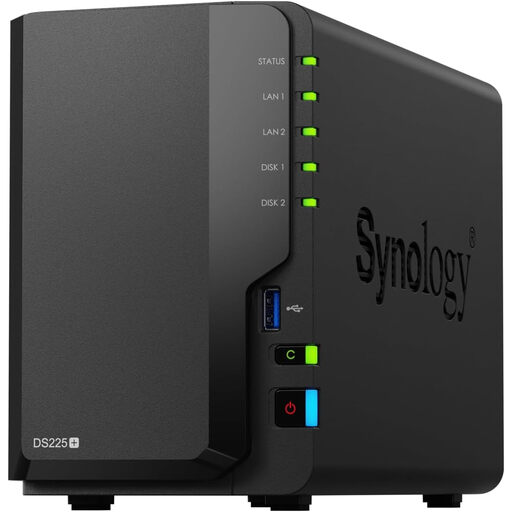
Synology DS225+ two-bay diskless NAS
Consider this model if the family computer’s backup may later be joined by other devices; Synology positions the DS225+ for multiple endpoint backups.
It has two drive bays, is listed as diskless and has built-in 2.5GbE. Choose compatible drives and check the computer’s operating-system support and scheduled-backup workflow before buying.
Keep a separate protected backup: snapshots or local drive redundancy are not substitutes for one.
View on Joybuy
 No image available
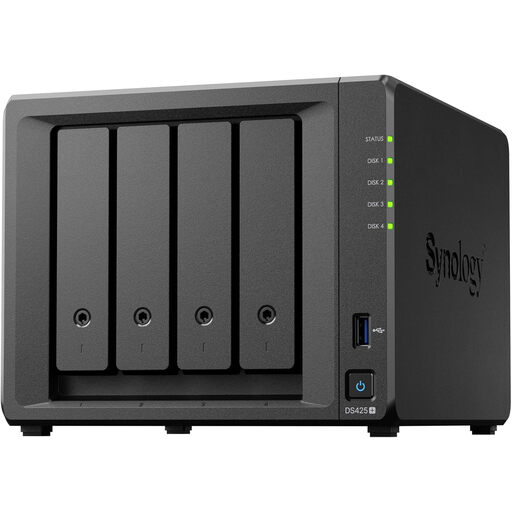
Synology DS425+ four-bay NAS
Consider the four-bay DS425+ if planned file growth or more device backups warrant additional drive bays rather than a setup sized chiefly for one computer.
Check drive inclusion, compatible drives and usable capacity for the storage layout you intend to use. Confirm the family computer’s operating-system support and scheduled-backup workflow.
Arrange and test a separate protected copy of important family and community files.
View on Joybuy
Frequently asked questions
Is a two-bay NAS enough for one family computer?
A two-bay NAS can be a proportionate starting point for backing up one computer and keeping modest shared files, provided its backup workflow and usable capacity fit the job. Check compatible drives, the intended storage layout and how many earlier backup versions you need to retain; allow for more bays if your projected data or device count warrants them.
Does RAID mean I can skip a second backup?
No. RAID keeps data on drives within the same NAS rather than creating a separate protected copy. The National Cyber Security Centre advises that backup storage should not remain connected when it is not in use; plan another copy and practise restoring from it.
Should community-group users share the household NAS login?
Use separate named accounts where the NAS supports them, rather than one login for household and group access. Limit folder permissions, keep administration credentials separate from everyday access and check available multi-factor authentication options; the National Cyber Security Centre recommends separating backup administration credentials.
Do data-protection rules matter to a small UK community group?
They can matter if the group processes information about identified or identifiable people, such as member contact details. The Information Commissioner’s Office explains that electronic personal-data processing falls within UK GDPR guidance and that security measures, including recovery and testing, should be appropriate to the risk.
What should I test after setting up the NAS?
Check that a scheduled computer backup completes, restore an individual file and make sure the separate protected copy can also be recovered. If community personal data is involved, the Information Commissioner’s Office includes the ability to restore access and testing the effectiveness of security measures in its data-security guidance.


