What to check before buying
For design files being moved between homes, establish a separate recovery copy first; then choose the drive arrangement, network connection and setup procedure that fit how you will use the NAS.
| Concern |
What to check |
Who this matters to |
| Separate recovery copy |
Restore a project folder from a separate backup before packing. Keep a copy offsite and a backup disconnected when it is not in use. |
If the computer and NAS travel together, I need a copy I can restore even if both are unavailable. Around 33% of consumers put that separate recovery copy first. |
| Capacity and drive growth |
Check the number of bays, whether drives are included, exact drive compatibility and usable space under the planned storage arrangement. |
As project folders and source assets accumulate, I need to know how the drive setup can grow. For around 27% of consumers, capacity and drive growth are the primary concern. |
| Large-file transfers |
Check the NAS, computer and intervening wired-network equipment for the link speed you intend to use. |
If I regularly move large folders between workstations, waiting for transfers affects my workflow. Transfer performance comes first for around 20% of consumers. |
| Move-day setup |
Check the exact model’s installation procedure and drive list; finish a backup and test restoration before changing the storage setup. |
When equipment is being packed and reconnected, I want a setup I can restart without putting my only project copy at risk. Around 20% of consumers prioritise a predictable move-day setup. |
Joybuy NAS options
These enclosures offer different bay counts for a central design-file library. Choose the drive and network setup for your projects, while keeping a separate, tested copy for the move.
 No image available
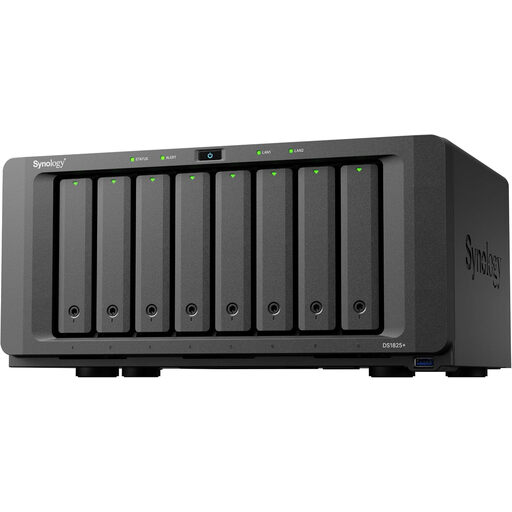
Synology DS1825+ eight-bay diskless NAS
Consider this enclosure if a growing design-file archive calls for eight internal drive bays. Its title identifies it as diskless, so check suitable drives before planning the storage arrangement.
Keep a separate, tested recovery copy during the move; the additional bays do not replace one.
View on Joybuy
 No image available
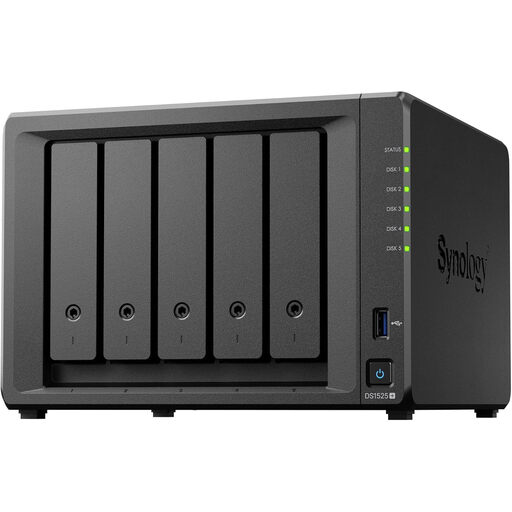
Synology DS1525+ five-bay diskless NAS
The five-bay DS1525+ is an option when several internal drive positions matter for a growing project library. It is described as diskless; choose drives for the exact enclosure and planned storage arrangement.
Before relocating it, test restoration from a separate copy kept apart from the NAS.
View on Joybuy
 No image available
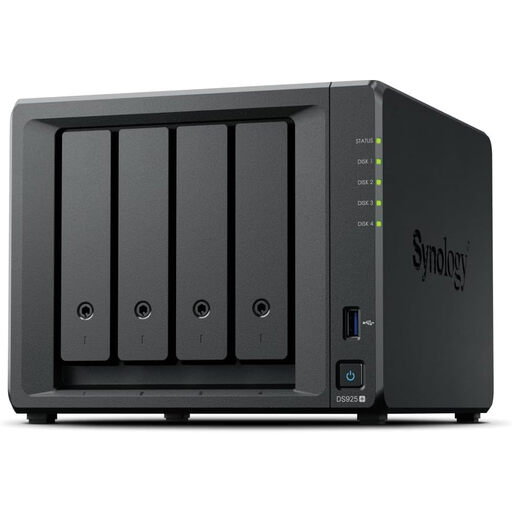
Synology DiskStation DS925+ four-bay NAS
For large folders shared across wired computers, the DS925+ combines four drive bays with two built-in 2.5GbE ports, according to Synology. It also supports M.2 NVMe drives for cache or storage pools.
Check drive compatibility and the equipment along the wired network path. Synology warns that installing a drive containing data can erase it, so keep a separate copy before setup.
View on Joybuy
 No image available
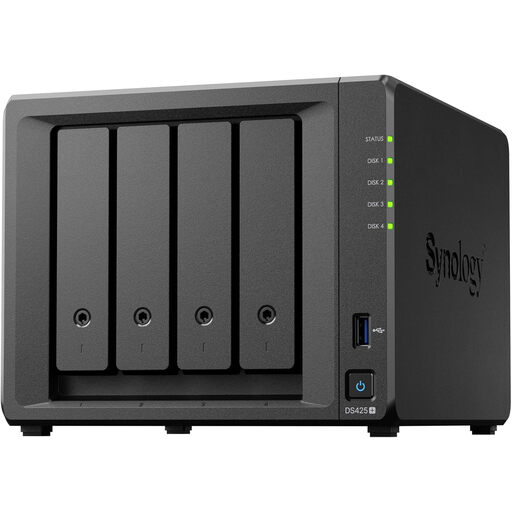
Synology DS425+ four-bay NAS
The DS425+ is a four-bay option for keeping a shared design-file library on the network. Synology specifies built-in 2.5GbE, SATA HDD or SSD support in the internal bays, and M.2 NVMe support for cache.
Check the exact drives against Synology’s compatibility list and confirm the listing’s drive configuration. A separate backup remains necessary for the move.
View on Joybuy
 No image available
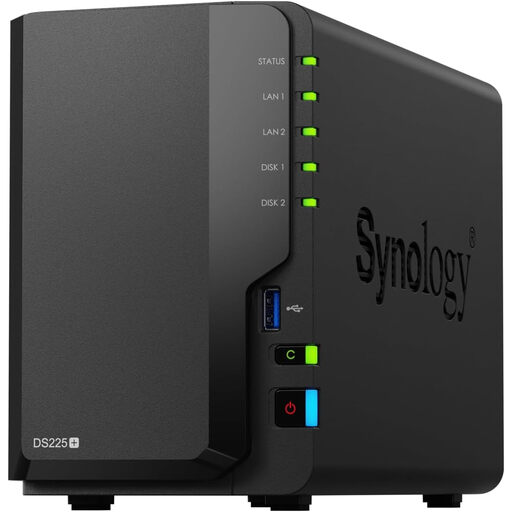
Synology DS225+ two-bay diskless NAS
This two-bay enclosure is an option if the planned project library fits the usable capacity of a two-drive arrangement. Its title identifies it as diskless; check compatible drives and the space available under your chosen configuration.
It has fewer internal drive positions than the four-, five- and eight-bay options here. Keep a separate recovery copy for the move regardless of bay count.
View on Joybuy
Common questions
Can the NAS be my only copy of design files during a move?
No: keep a recoverable copy apart from the NAS and working computer. For this move, follow the National Cyber Security Centre’s guidance to keep three copies across two devices, with one offsite, and a backup disconnected when it is not in use.
Will a NAS enclosure include hard drives?
Check the exact listing rather than assuming it does. QNAP specifies that the TS-464 ships without HDDs; for any enclosure, confirm whether drives are included and whether the selected models are compatible.
How do I know whether a NAS drive is compatible?
Match the full drive model against the compatibility information for your exact enclosure. Synology and QNAP provide model-specific resources; a drive described as NAS-rated is not automatically confirmed for every system.
Can I move an existing drive containing my only project copy into a new NAS?
Do not use the only copy for initial setup. Synology warns that installing a data-bearing drive in the DS925+ can result in formatting and erasure; first make and test a separate copy, then follow the installation instructions for your exact model.
What if the design files contain personal data?
If you process personal data as part of an organisation’s activities, assess how access to and backups of those files will be secured. The Information Commissioner’s Office says data protection law requires appropriate technical and organisational security measures; choosing a particular NAS model does not settle those responsibilities.


