For a growing RAW archive, choose the number of drive bays and usable capacity after RAID before paying attention to headline storage figures. A four-bay NAS offers more ways to balance growth and drive-failure tolerance than a two-bay model, but faster Ethernet helps only when the rest of your network can use it. Keep an independent backup: RAID alone cannot recover every lost shoot.
Who needs which setup?
Photographers with growing RAW libraries
If you regularly add shoots, plan the space available after RAID redundancy rather than buying for today’s archive alone. A four-bay system gives you more capacity and drive-failure-tolerance options than a two-bay setup; the usable space still depends on the drives and RAID arrangement you choose.
Photographers working across a local network
If you import, cull or preview large RAW folders over the network, check the connection from NAS to computer. A faster NAS port will not deliver its potential benefit through a slower switch, adapter or computer connection.
Photographers protecting irreplaceable shoots
If losing client work or original images is your main concern, plan for both drive-failure tolerance and a separate backup. Synology states that RAID is not a backup; an independent copy is needed for losses such as accidental deletion or damage to the NAS location.
What matters when choosing a NAS?
Start with how you will recover your files and how much usable space the archive needs; then assess whether your editing workflow justifies faster networking or optional SSD storage.
| Concern |
What to check |
Who this matters to |
| Recovering shoots |
Check the exact model’s supported RAID modes and plan an independent backup destination away from the NAS. |
If a disk fails or files are deleted, I need a way to recover the shoot rather than relying on the array alone; roughly 29% of consumers would make recoverability their primary concern. |
| Usable capacity |
Compare capacity after your chosen RAID arrangement and allow room for future shoots; check how drive sizes affect expansion. |
My RAW library keeps growing, so space lost to redundancy matters as much as the capacity printed on each drive; around 29% of consumers would put archive headroom first. |
| Network speed |
Check the NAS, computer and switch together. Treat published maximum transfer figures as conditional on the stated configuration. |
When I move or access large folders during editing, a slow network path interrupts the workflow; about 24% of consumers would prioritise local transfer speed. |
| Setup and components |
Confirm which drives and accessories are included, check component compatibility and account for a separate backup. |
I want to know which compatible parts I need before setting up my first archive; roughly 18% of consumers would make a manageable setup their main priority. |
Mistakes to avoid
-
Treating RAID as your only copy
RAID can keep an array available through supported drive failures, but it cannot by itself recover files lost to deletion, malware, theft or damage at the NAS location.
Keep an independent backup and check that you can restore important shoots from it. The Cybersecurity and Infrastructure Security Agency recommends keeping three copies of important files, including one off-site.
A separate backup destination also needs ongoing storage and maintenance.
-
Adding up drive labels to estimate usable space
Redundancy reduces the space available for RAW files. Synology also notes that conventional RAID layouts can leave capacity on larger drives unused when drive sizes differ.
Compare usable capacity for the intended drives and RAID type, then leave headroom for future shoots. Synology recommends matching drive sizes when creating a RAID volume for capacity efficiency.
-
Choosing fast NAS ports without checking the network
A faster port on the enclosure cannot overcome a slower connection elsewhere between the NAS and editing computer. Manufacturer transfer figures may depend on a particular network configuration.
Check the computer’s Ethernet connection, the switch and the NAS before deciding whether 2.5GbE or a later 10GbE upgrade suits your workflow.
Using the faster connection may require a compatible switch, computer adapter or network card.
-
Assuming an enclosure includes storage drives
QNAP specifies that the TS-464 ships without HDDs. What comes with another NAS should be checked against that model’s listing rather than assumed from its bay count.
Confirm the included components and the manufacturer’s drive compatibility guidance before selecting drives, backup storage or optional upgrades.
Brands to consider for RAW-file storage
Synology
Synology’s four-bay DS923+ is a reference point if archive growth and RAID management are central to your choice.
- Synology documents an expansion path and an optional 10GbE upgrade for the DS923+.
- Expansion equipment and drives are separate components. Synology recommends matching drive sizes when creating a RAID volume, and states that RAID is not a backup.
QNAP
QNAP’s TS-464 suits consideration when built-in faster networking is a priority alongside four drive bays.
- QNAP lists four SATA bays, two 2.5GbE ports and two M.2 slots for the TS-464.
- QNAP says the TS-464 ships without HDDs. Transfer results depend on configuration, so check the wider network and component compatibility.
ASUSTOR
ASUSTOR’s Lockerstor 4 Gen2 (AS6704T) is an option to examine if you want several M.2 slots alongside an HDD archive.
- ASUSTOR lists four drive bays, dual 2.5GbE, four M.2 slots and a PCIe expansion option for this model.
- Choosing an SSD arrangement or network upgrade adds configuration decisions; neither replaces planning HDD capacity and a separate backup.
Four-bay NAS products on Joybuy
These Synology four-bay models are relevant to planning a growing RAW archive. Compare usable capacity, compatible drives and your backup arrangement before choosing an enclosure.
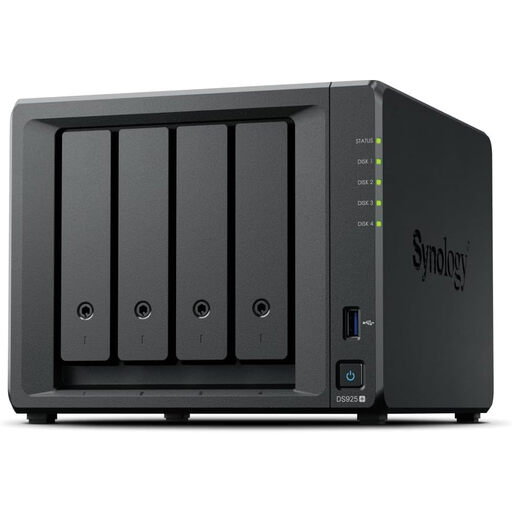 Image unavailable
Synology DiskStation DS925+ four-bay NAS
Consider this four-bay model if you need to plan space for a growing RAW archive. Check usable capacity with your intended drives and RAID arrangement; if you are considering DX525 expansion, confirm the compatible components. The listing describes Synology-branded drive compatibility, so check the exact drive models before buying. Keep a separate backup copy.
Joybuy
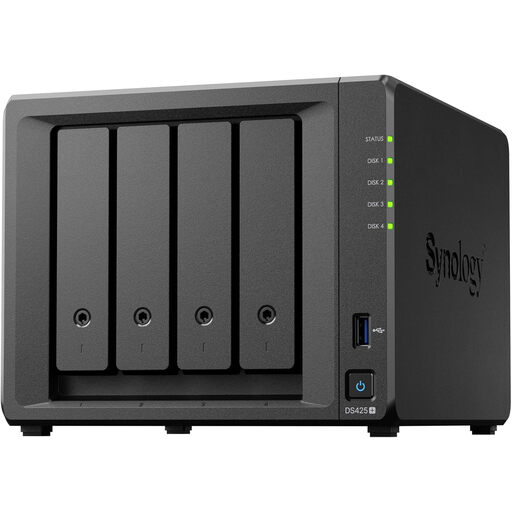 Image unavailable
Synology DS425+ four-bay NAS
Consider this four-bay model for a central RAW-file archive. Work out usable capacity for your chosen drives and RAID arrangement; if M.2 storage or caching matters to you, confirm the slot count and supported configurations. Check the network connections you need and keep an independent backup copy.
Joybuy
Questions about RAW-file storage
Does RAID mean my RAW files are backed up?
No. RAID can keep an array available after the number of drive failures supported by its configuration, but it is not a separate copy. Synology explicitly states that RAID is not a backup; keep an independent copy that you can restore if files are deleted or the NAS is lost.
Should I choose two or four bays for a RAW archive?
Four bays give you more options for balancing future capacity and drive-failure tolerance if your RAW archive is likely to grow. The space you can actually use depends on your drive sizes and RAID arrangement, so compare those configurations rather than the enclosure’s maximum headline capacity.
Can I use different-sized drives in one NAS?
Some configurations allow it, but the usable capacity depends on the NAS and RAID type. Synology notes that conventional RAID can base capacity on the smallest drive and recommends identical-size drives when creating a RAID volume to use capacity efficiently.
Will a 2.5GbE NAS automatically speed up RAW transfers?
No. The editing computer and the network path must also support the faster connection. Check the conditions behind any quoted transfer figure: QNAP’s stated maximum for the TS-464 uses its two 2.5GbE ports in a port-trunking configuration, not a guaranteed single-computer result.


