A NAS makes sense if your sewing patterns need a shared home across computers after the move, not just a one-off transfer. If you only need to move a modest collection, a removable copy alongside an off-site or cloud copy may be simpler. Either way, keep a separate copy away from the NAS during the move and test that you can restore your files; two NAS disks alone are not an independent backup.
Who needs which approach?
Move-week pattern archivists
If your sewing PDFs, scans, notes and project photos are difficult to replace, focus on copies you can recover while computers and boxes are in transit. The National Cyber Security Centre advises keeping a backup in a separate safe location.
Multi-device sewing households
If more than one computer needs the patterns after the move, a central file library may be useful beyond moving day. Plan how that library will be backed up as well as shared.
High-volume creative-file organisers
If you regularly import large batches of scans, photographs or design assets, faster connections and expansion may be worth considering. Check that your computer and network can use those features before choosing a NAS for them.
What matters when choosing?
Decide whether you need shared storage after the move, then plan an independent recovery copy before considering faster transfer hardware.
| Concern |
What to check |
Who this matters to |
| Recovering files after a loss |
Check for an external-drive or cloud backup option, and test restoring a sample folder. Keep one copy separate during the move. |
If a box or device is lost, I need to retrieve my patterns from somewhere else. Around 42% of consumers put independent recovery first. |
| Copying larger libraries |
Check the connection from computer to NAS before choosing 2.5GbE; consider how you will transfer large batches of scans and photos. |
Repeated imports of scans and images make copying time important to me. Roughly 33% of consumers prioritise a practical transfer workflow. |
| Keeping storage simple |
Decide whether you will use shared storage after the move, and check the required drives and capacity for your chosen enclosure. |
I want an accessible home for my patterns without setting up expansion features I will not use. About 25% of consumers put straightforward long-term storage first. |
Mistakes to avoid before moving
-
Treating two NAS disks as the only backup
Both disks travel in the same device, and Synology warns that RAID crashes and drive failures can still cause data loss.
Make a separate copy before moving, restore a sample of PDFs, scans and photos from it, and transport that copy separately from the NAS.
-
Overlooking the drives needed for an enclosure
The storage you can use depends on the drives installed. QNAP states that its TS-264 ships without hard disks; check what is supplied with the particular enclosure you choose.
Confirm model-specific drive compatibility and allow capacity for the files you expect to keep, not just the folder you are copying today.
-
Choosing 2.5GbE without checking the connection
A 2.5GbE NAS port cannot deliver that connection speed through a slower computer or network path.
Check the source computer, switch and connection path before choosing a NAS for faster network copying.
A compatible network adapter or switch may also be needed.
-
Packing the NAS as soon as copying finishes
A completed transfer does not show that the intended files open or can be recovered from the separate backup.
Open a representative selection of patterns, scans and project notes from both locations before packing, and make sure you can access the accounts needed to restore them.
Relevant NAS brands for reference
Synology
Relevant if you want a continuing pattern archive with documented options for backing up to another destination.
- Synology documents backup workflows using tools including Hyper Backup, USB Copy and Cloud Sync.
- Synology warns that a local copy does not eliminate data-loss risk from RAID crashes or drive failure. PCMag UK noted the DS224+ model’s 1GbE ports and limited expandability in its 2023 review.
QNAP
Relevant if repeated large imports make faster local connections and hardware expansion useful.
- QNAP lists two 2.5GbE ports, two M.2 slots and two 10Gbps USB ports for the TS-264.
- Those connections depend on compatible equipment elsewhere in the workflow. QNAP states that the TS-264 ships without hard disks, and it still needs a separate backup destination.
ASUSTOR
Relevant if the pattern archive is part of a broader creative-file collection that may need expansion.
- ASUSTOR lists 2.5GbE, support for up to four M.2 SSDs and a PCIe expansion slot for its Lockerstor Gen2 range.
- Those expansion choices may add little to a small collection of PDFs, and local expansion does not provide an off-site copy.
Joybuy NAS choices for a continuing archive
These Synology NAS enclosures are choices to consider if you want to keep a central pattern archive after the move. Choose the number of bays for your longer-term storage plans, and arrange a separate, restorable copy for the move itself.
 No image available
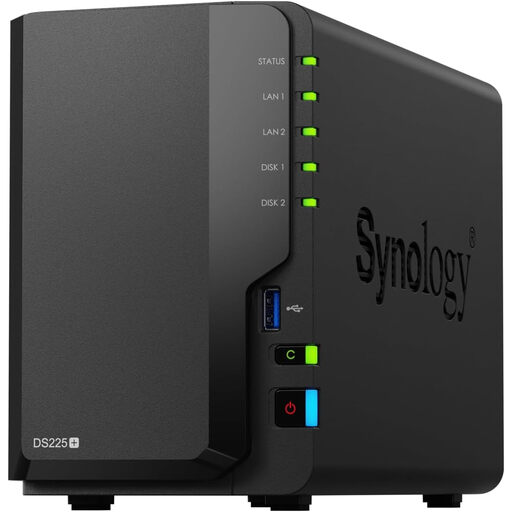
Synology DS225+ two-bay diskless NAS
Consider this model if you want a central pattern archive to keep using after the move. Its two-bay enclosure is diskless, so check compatible drives; set up an independent backup and test restoring files before packing.
View on Joybuy
 No image available
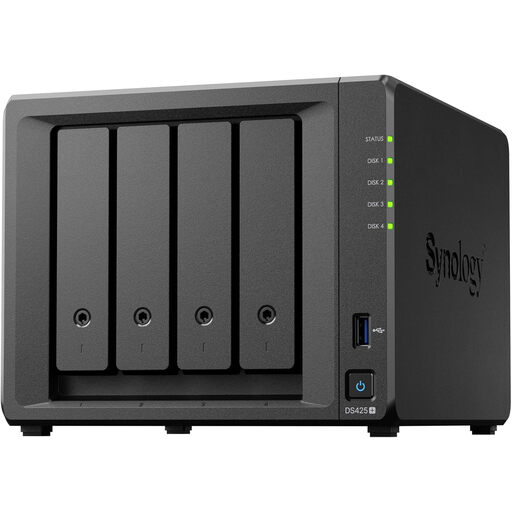
Synology DS425+ four-bay NAS
Consider this four-bay model if your continuing shared archive calls for more drive bays. Confirm compatible drives and what is included, then check that you can make and restore a separate backup; the additional bays do not replace one.
View on Joybuy
Questions about copying patterns
Is RAID 1 enough to protect sewing patterns during a move?
No: RAID 1 is not an independent backup of your sewing patterns. Synology warns that RAID crashes and hard-drive failures can still cause data loss, so keep another recoverable copy away from the NAS while moving.
How should I copy patterns before moving day?
Keep the working files and a separate copy that you can access if the NAS or computer is lost. The National Cyber Security Centre advises storing backups in a separate safe location, such as removable media or cloud storage; open and restore a sample of your pattern files before packing.
Do sewing PDFs need a 2.5GbE NAS?
Ordinary PDF storage alone is not a reason to choose 2.5GbE. It is more relevant if you repeatedly transfer large batches of scans or images and your computer and network path also support it; QNAP lists dual 2.5GbE ports for its TS-264.
Will a NAS enclosure come with hard drives?
Check the particular enclosure before choosing drives: they are not always included. QNAP specifies that its TS-264 ships without hard disks; also check drive compatibility and arrange a separate backup destination.


