What matters when choosing?
Start with the way you will recover photos, then decide which library tools you need and whether your drive and network plan leaves room for the archive to grow.
Synology DS225+ with Synology Photos
Consider it when: You want chronological and folder browsing, photo categorisation and a built-in 2.5GbE port, as documented by Synology.
Check first: Drive compatibility and usable capacity depend on the disks and configuration you choose.
QNAP TS-233 with QuMagie
Consider it when: Automatic phone-media upload and a centrally organised photo library are your main priorities.
Check first: QNAP sets hardware, software and, for some functions, licence requirements for advanced recognition and video features.
ASUSTOR Drivestor 2 Pro Gen2 (AS3302T v2)
Consider it when: You want the documented 2.5GbE port, Btrfs/iSCSI snapshots and tool-free drive installation.
Keep in mind: ASUSTOR’s quoted transfer rates come from lab conditions, while snapshots still leave you needing a separately protected copy.
| Concern | What to check | Who this matters to |
|---|
| Recovery |
Check supported drives and the intended RAID or snapshot configuration; plan a copy that is offline or otherwise separately protected. |
If a drive fails or connected storage is affected by malware, I need photos I can restore rather than redundancy alone; around 42% of consumers would make recovery their primary concern. |
| Photo workflow |
Check the exact model’s photo-app features, phone compatibility and any required AI package or licence. |
When phone pictures and workstation folders accumulate, I want to import them and find the images I need; roughly 33% of consumers would prioritise photo organisation and import. |
| Space and transfers |
Calculate usable capacity for the intended drives and configuration; check the workstation, network equipment and cabling alongside the NAS port. |
As my photo or video folders grow, I need space for the archive and a network path suited to moving it; about 25% of consumers would put capacity and transfer planning first. |
Joybuy product choices
These Synology NAS choices cover a two-bay, diskless photo-backup setup and a four-bay option for planning a larger workstation archive. Check each configuration against your drives, usable-capacity target and separate-backup plan.
 No image available
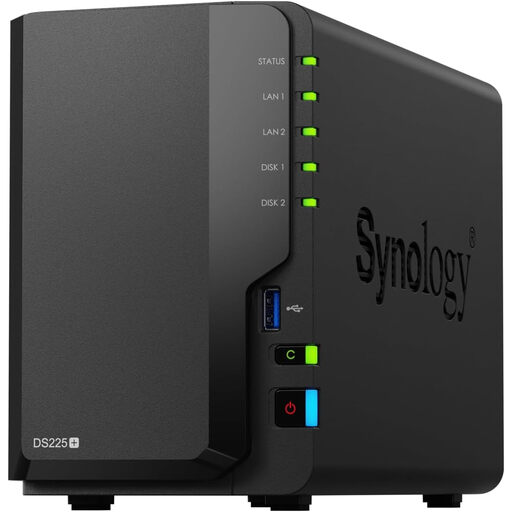
Synology DS225+ 2-Bay Diskless NAS
Consider this two-bay model if you want a local photo library using the documented Synology Photos workflow.
Synology lists a built-in 2.5GbE port for the DS225+. The unit is listed as diskless, so check compatible drives and usable capacity for your intended configuration.
Keep another photo copy separately protected; a connected NAS is not an independent backup.
Joybuy
 No image available
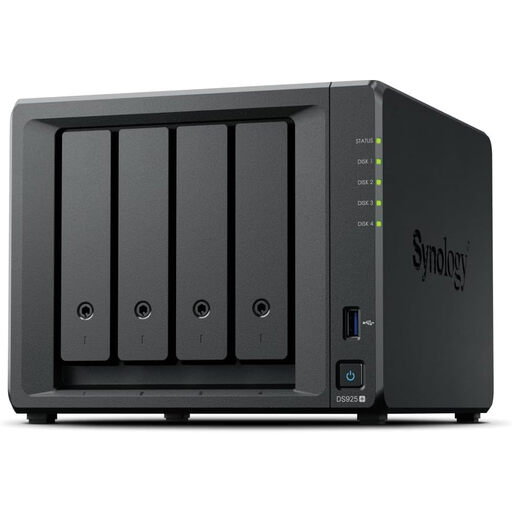
Synology DiskStation DS925+ 4-Bay NAS
Consider this four-bay model if your workstation photo archive calls for a configuration with more drive bays.
Confirm supported drive models, whether drives are included and the correct expansion accessory before planning an upgrade. Work out usable capacity for your chosen drives and keep a separately protected photo copy.
Joybuy
Frequently asked questions
Is a two-bay NAS enough for a home workstation photo backup?
It can be enough if your library fits the usable space available with your chosen two drives and configuration. Plan an additional protected copy as well; two bays do not, by themselves, provide recovery if connected copies are affected in the same incident.
Can RAID 1 replace a separate photo backup?
No. RAID 1 can reduce the impact of one drive failing, but it is not an independent copy. The National Cyber Security Centre warns that ransomware has affected connected backups, so keep another copy offline or digitally disconnected when it is not in use.
Will a NAS enclosure include the storage drives?
Check the individual listing rather than assuming drives are included. A unit described as diskless needs separately selected compatible drives; also calculate usable space for the configuration you intend to set up.
What should I check for phone-photo upload and photo recognition?
Check the exact NAS model and photo app before choosing for either feature. Synology documents mobile support and categorisation in Synology Photos; QNAP documents automatic upload through QuMagie Mobile, while recognition requires supported hardware and QNAP AI Core.


