For a photo catalogue expected to grow, choose usable capacity and a recovery plan before paying for faster network ports: four bays offer more disk-layout flexibility than two, but RAID and snapshots do not replace a separate backup. Prioritise faster wired networking only if the workstation and the rest of the connection can use it; the National Cyber Security Centre advises keeping backups isolated so one incident cannot affect every copy.
Who this setup suits
Photo archivists prioritising recovery
If losing or changing a catalogue would be difficult to put right, you need recoverable versions and a copy beyond the connected NAS. The National Cyber Security Centre's backup guidance makes isolation an important part of that plan.
Owners of growing RAW-photo libraries
If originals, edits and retained backup versions are increasing, compare usable capacity and drive-bay flexibility rather than the number of bays alone. Check drive compatibility for the exact enclosure you choose.
People moving large photo batches
If initial backups or full restores involve large transfers, faster wired networking may matter. Check the workstation, switch or router and NAS together before making network speed a deciding feature.
What to prioritise
For a home-workstation photo catalogue, decide whether independent recovery, room to grow or transfer time is the need you would compromise least.
| Concern |
What to check |
Who this matters to |
| Recovery beyond the NAS |
Check the available versioning or snapshot tools, then plan a separate offline or offsite copy and a restore test. |
If a catalogue is deleted or a connected device is compromised, I need a copy that the same incident cannot readily change. Around 42% of consumers put independent recovery first. |
| Usable capacity |
Allow for the intended disk layout, retained versions and growth; check drive compatibility with the exact NAS model. |
As my originals and edits accumulate, I want enough usable space without immediately replacing the enclosure. For around 33% of consumers, capacity and expansion take priority. |
| Transfer time |
Check the Ethernet capability of the workstation and every device on the wired path before choosing faster NAS ports. |
When I move large batches or restore the full library, waiting for transfers matters to my workflow. Faster transfers are the main concern for around 25% of consumers. |
Buying pitfalls
-
Treating RAID or snapshots as the only backup
Disk redundancy and earlier local versions can help with particular failures, but a connected NAS may be affected by the same compromise or local incident as the workstation.
Keep a separate offline or offsite copy, restrict who can alter backups and periodically restore a sample of the catalogue and original files. The National Cyber Security Centre advises isolating backups to reduce shared risks.
-
Planning around the enclosure alone
A NAS still needs an appropriate disk set and a destination for the separate backup. Optional networking or SSD features may require additional compatible equipment.
Check the exact bundle contents, compatible drives, intended disk layout and any network hardware needed for your chosen setup.
-
Choosing faster NAS ports without checking the workstation
A faster NAS port cannot make a connection through a 1GbE workstation or switch run at 2.5GbE. Manufacturer transfer figures also depend on their stated configurations.
Map the workstation port and the wired path before deciding whether faster networking will change your backup or restore routine.
-
Installing an existing photo disk without another copy
Synology warns in its DS923+ setup manual that installing a drive containing data will format it and erase its contents.
Copy the catalogue and originals elsewhere before installing a used drive. Once the NAS backup is configured, test a restore before removing the previous copy.
Brands to consider
These product lines illustrate different enclosure and drive checks; compare the exact model and configuration rather than assuming a feature applies across a brand.
Synology
The four-bay DS923+ is an example for buyers interested in local file recovery, snapshots and a possible network upgrade.
- Synology specifies four SATA bays, two M.2 slots and Btrfs snapshot and file-recovery features for the DS923+.
- Its two built-in network ports are 1GbE; a faster connection requires compatible additional hardware. RAID and snapshots remain local protections.
QNAP
The four-bay TS-464 is an option to examine when faster wired transfers are relevant to the workstation setup.
- QNAP specifies two 2.5GbE ports, M.2 SSD support and PCIe expansion for the TS-464.
- QNAP's performance figures depend on the stated network configuration; the TS-464 is shipped without HDDs.
ASUSTOR
The Lockerstor 4 Gen2 is an expansion-focused four-bay option for buyers who expect to use additional storage or network hardware.
- ASUSTOR specifies four drive bays, four M.2 slots, two 2.5GbE ports and PCIe expansion.
- Decide whether those expansion options serve your backup routine before adding drives, SSDs or network upgrades.
Seagate IronWolf
IronWolf is a NAS-HDD line to consider when selecting disks for an enclosure, rather than an enclosure option.
- Seagate describes IronWolf drives as intended for consumer and commercial NAS use.
- That description does not establish compatibility with every enclosure; check the exact drive model against the NAS maker's compatibility information.
NAS options on Joybuy
These two-bay and four-bay Synology enclosures offer starting points for a home photo-catalogue backup. Choose the bay count around usable capacity and growth, then check the drives, recovery features and separate backup destination required for your setup.
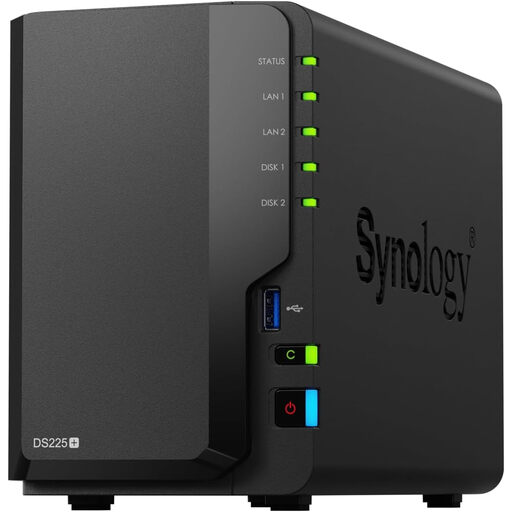 Image unavailable
Synology DS225+ two-bay diskless NAS
Consider this two-bay enclosure if your planned catalogue and backup versions fit the usable capacity of a two-drive setup. It is sold as diskless, so choose compatible drives separately; plan an independent copy rather than relying on the NAS alone.
View on Joybuy
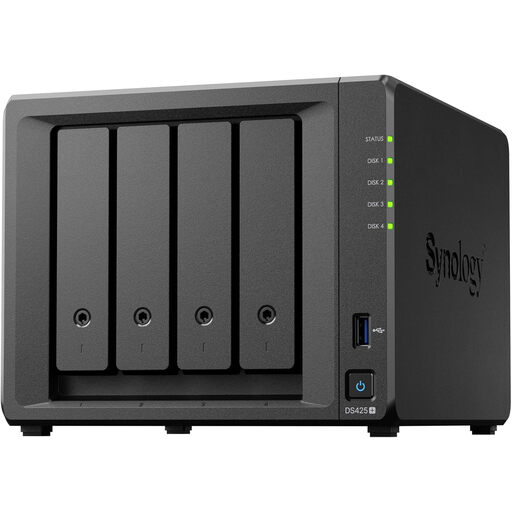 Image unavailable
Synology DS425+ four-bay NAS
The four-bay layout is worth considering if your photo library needs more disk-placement flexibility as it grows. Check the listing's drive bundle contents and exact drive compatibility, and arrange a separate copy for recovery beyond the NAS.
View on Joybuy
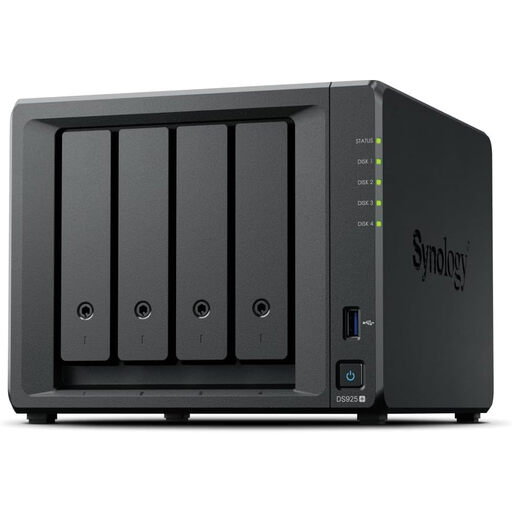 Image unavailable
Synology DiskStation DS925+ four-bay NAS
This four-bay model is another enclosure to assess for a growing catalogue. Confirm compatible drive models, bundle contents and the required expansion unit before planning extra capacity; if transfer time matters, check its network ports against the complete wired path. Plan and test a separate backup copy.
View on Joybuy
Questions about photo backups
Is RAID enough to protect a photo catalogue?
No: RAID can help with a disk problem, but it is not a separate backup of the catalogue. Snapshots can provide earlier local versions where supported and configured, yet a connected NAS may still be affected by a shared incident; the National Cyber Security Centre advises keeping backups isolated. Maintain another offline or offsite copy and test a restore.
Do I need 2.5GbE for a home photo backup?
2.5GbE is worth considering when large transfers affect your routine and the workstation and wired network path can use it. A 2.5GbE NAS port cannot increase the speed of a connection limited to 1GbE elsewhere.
Are hard drives included with a NAS enclosure?
Check the exact listing rather than assuming drives are included: QNAP specifies that its TS-464 ships without HDDs, and the Synology DS225+ listing describes a diskless enclosure. Confirm bundle contents and compatible drives before ordering any model.
Can I put an existing photo drive straight into a NAS?
Make another copy first. Synology's DS923+ setup manual warns that installing a drive containing data will format and erase it; check the instructions for your chosen model and verify a restore from the new backup before removing the old copy.


