For routine presentation copies and team hand-offs, start with a NAS that can synchronise the folders you use, control access and restore earlier file versions; a two-bay model may be sufficient if its capacity meets your needs. Faster networking becomes more relevant for frequent transfers of large media-rich decks, but the computers and network equipment must support the faster connection too. Keep a separate backup: RAID alone does not protect every recoverable copy.
Who needs a NAS for presentation files?
Solo presenters protecting current decks
If you copy presentations from a laptop to one central location, the deciding feature may be whether you can recover an earlier deck after a mistaken edit. Synology documents file-history policies for Synology Drive; whichever NAS you choose, retain a separate backup as well.
Small teams sharing slide decks
When several people use the same presentation folder, check how the NAS assigns access and synchronises files between their computers. Synology Drive and QNAP Qsync document sharing or sync features, but the folder and user permissions still need setting up for your team.
Presenters working with large media files
Repeatedly copying decks with large videos, images or linked assets may make network capability more important. QNAP and ASUSTOR list dual 2.5GbE on the TS-264 and AS5402T respectively; the computers and network equipment must also support a faster path for it to be useful.
What matters when choosing a NAS?
Decide how the presentation folder should synchronise and recover files before choosing drive bays or faster network ports. Then check the complete copying path and plan a backup outside the NAS.
| Concern |
What to check |
Who this matters to |
| Earlier file versions |
Check version-history settings for the presentation folder and try restoring one file. |
If I overwrite a deck shortly before a meeting, I need the previous version back without restoring everything else. Around 36% of consumers put version recovery first. |
| Team synchronisation |
Check desktop compatibility, shared-folder permissions and whether one-way or two-way sync suits the workflow. |
When colleagues update a shared deck, I need authorised people to receive the current file without losing track of access. Team synchronisation is the primary concern for around 29% of consumers. |
| Large-file transfers |
Check the NAS, computer and switch ports together; consider M.2 capability only for a workload that needs it. |
If I repeatedly move presentations with large videos or linked assets, copying time can interrupt my work. Around 21% of consumers mainly prioritise transfer speed. |
| Separate backup |
Choose a separate backup destination and test restoring a presentation from it. |
I want a recoverable copy even if the NAS or files on it are affected, rather than relying on mirrored drives alone. For around 14% of consumers, independent backup is the primary need. |
Mistakes to avoid
-
Treating RAID as the only backup
RAID can help keep storage available after a drive failure, but Seagate notes that it is not a backup and does not cover every hardware failure. An unwanted change can also affect files you can access on the NAS.
Maintain a separate copy and practise restoring a presentation. The National Cyber Security Centre also advises separating backup-management access from the route used to add backup data.
A separate backup destination needs maintaining, and a trial restore takes time.
-
Choosing 2.5GbE without checking the rest of the network
A faster NAS port does not create a faster end-to-end connection if a computer or switch uses a slower link. ASUSTOR also cautions that its laboratory transfer results can differ from everyday setups.
Check the Ethernet capability of the computers, adapters and switch before choosing faster networking for recurring large transfers.
A compatible adapter, switch or suitable cabling may be needed to use the intended connection.
-
Assuming the enclosure includes drives
QNAP specifies that the TS-264 is supplied without hard drives. An enclosure alone cannot hold the presentation files you intend to copy.
Check what is included with the exact model, which drives the manufacturer supports and how the chosen drive arrangement affects usable capacity.
-
Enabling sync without planning for unwanted edits
Two-way sync can pass an accidental overwrite or deletion to linked computers. Synology Drive and QNAP Qsync document version-restoration features, but they need to fit the folder and users in your setup.
Assign appropriate access to the presentation folder, configure file history where supported and restore a test deck before relying on the workflow.
Relevant brands to consider
Synology
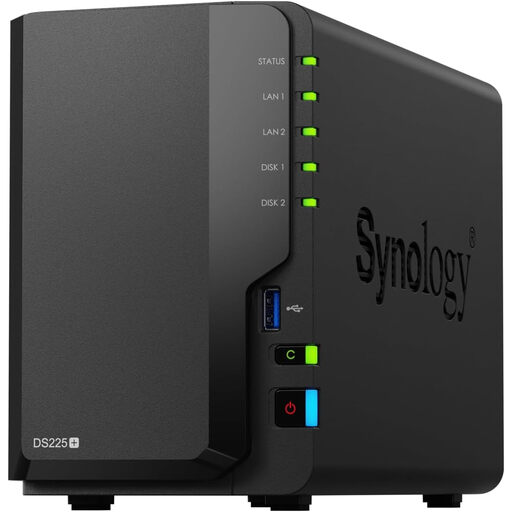
Relevant to presentation workflows built around central storage, sharing and recoverable file history. Synology positions the two-bay DS224+ for file management and sharing across devices.
- Synology documents shared-folder history policies and point-in-time file restoration for Synology Drive.
- Confirm package and file-system support on the exact NAS model. A two-bay arrangement also needs a separate backup rather than relying on RAID alone.
QNAP
Relevant when team synchronisation accompanies frequent transfers of larger presentation assets. QNAP lists two bays, dual 2.5GbE ports and two M.2 slots for the TS-264.
- QNAP documents team folders, sync and multi-version restoration through Qsync.
- The TS-264 is supplied without hard drives, and using its faster network ports depends on compatible equipment elsewhere in the connection.
ASUSTOR
Relevant to presentation work that also involves substantial content-creation assets. ASUSTOR lists two SATA bays, dual 2.5GbE ports and four M.2 NVMe slots for the AS5402T.
- The AS5402T offers several storage and network connection options for a suitably equipped setup.
- ASUSTOR says its published transfer figures come from laboratory conditions and can vary with the network and storage configuration.
Joybuy NAS choices
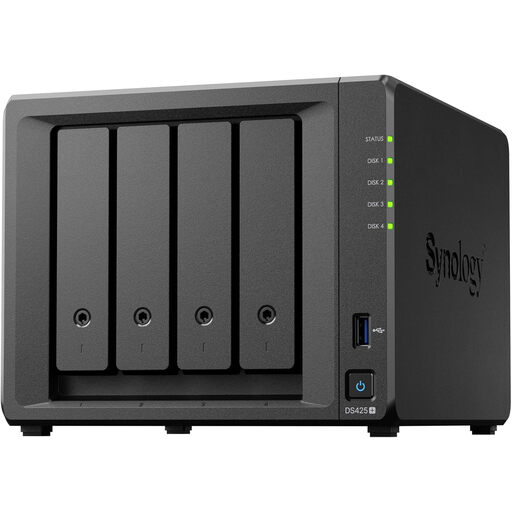
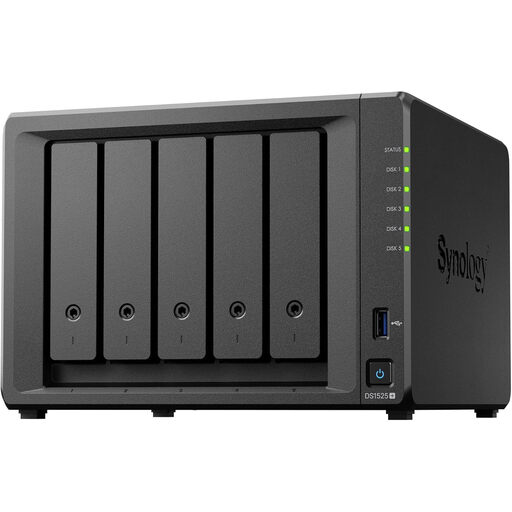
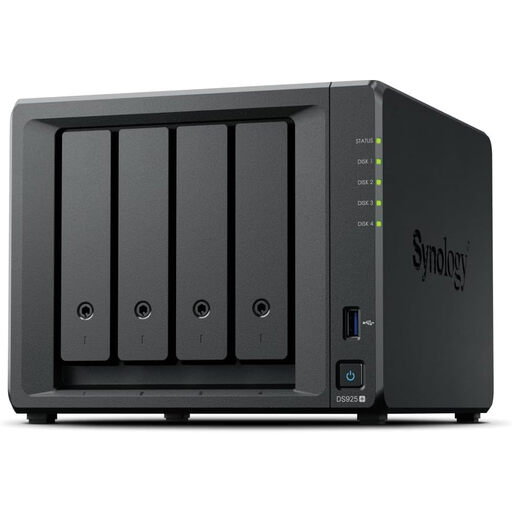
These two-, four- and five-bay NAS enclosures offer different starting points for central presentation storage. Match the number of drive bays to your storage plans, then check sync, file restoration and drive requirements for the exact model before ordering.
 No image available
Synology DS425+ 4-Bay NAS
Consider this four-bay model if you want central storage for presentation files and need to plan for several drives.
Check desktop sync, presentation-folder permissions and file-level restoration for your intended setup. Keep an independent backup.
View on Joybuy
 No image available
Synology DS225+ 2-Bay Diskless NAS
This two-bay enclosure is a starting point if your presentation storage needs fit a smaller drive arrangement.
Drives are not included in a diskless configuration. Check compatible drives, desktop sync, folder permissions and file-version restoration before relying on it for shared decks.
View on Joybuy
 No image available
Synology DS1525+ 5-Bay Diskless NAS
Consider this production-focused, five-bay enclosure if presentations are part of a larger shared-media workflow and you need that drive capacity.
Drives are not included in a diskless configuration. Confirm that your computers and network suit the intended transfers, and check file-level restore separately from any project version-control feature.
View on Joybuy
 No image available
Synology DiskStation DS925+ 4-Bay NAS
This four-bay model may suit a growing collection of shared presentation files if its drive arrangement meets your plans.
Check the manufacturer's drive compatibility list. If you plan to expand the enclosure, confirm the compatible expansion unit; also check sync, permissions and file-version recovery for the presentation folder.
View on Joybuy
Common questions
Is RAID 1 enough to protect presentation files?
No: RAID 1 can help a NAS remain available after one drive fails, but it is not a separate backup. Seagate notes that RAID does not cover every hardware failure; keep another recoverable copy and test restoring a deck from it.
When is 2.5GbE worth considering for presentations?
Consider 2.5GbE when repeated copies of large, media-rich presentation files make transfer time a meaningful part of your workflow. Check the computers, adapters and switch as well as the NAS: a faster NAS port alone cannot make a slower network path run at 2.5GbE.
Can a NAS keep a presentation folder current across computers?
Yes, if the chosen model supports suitable sync software and you configure the shared folder on the computers involved. Synology documents synchronisation and file-history policies for Synology Drive, while QNAP documents team folders and one-way or two-way sync for Qsync; check the exact model and folder settings before relying on either workflow.
How should I dispose of an old NAS or drive?
Use an appropriate electrical-equipment collection or recycling route rather than putting the NAS in general waste. GOV.UK explains that waste electrical and electronic equipment rules are intended to encourage recovery and recycling; check the available retailer or local-authority route and arrange secure removal of presentation files from any drive before handing it over.


