Client-handover document custodians
You need an understandable folder structure, a way to recover files lost or changed before delivery, and a clear account of who can retrieve the scans as responsibility transfers.


For a modest archive of scanned client documents, start by considering a two-bay NAS with compatible drives, controlled access and a separate backup that you can restore. Choose more bays or performance features if several people will work from the archive or it will take on wider tasks; neither RAID nor snapshots replace an independent recovery copy. If the scans contain personal data, plan permissions, retention and the handover method around the actual processing risks.
You need an understandable folder structure, a way to recover files lost or changed before delivery, and a clear account of who can retrieve the scans as responsibility transfers.
Several staff members need to file and retrieve documents without sharing one unrestricted account. Check that the planned access arrangements still work when the client or a successor takes over.
The scanned archive may become part of a broader file-sharing or backup setup. Capacity, concurrent access and recovery arrangements then need planning beyond the immediate handover.
Decide how the client will receive and retrieve the files, then plan access and an independent recovery copy before choosing capacity or faster hardware.
| Concern | What to check | Who this matters to |
|---|---|---|
| Recovering documents | Check the intended backup and versioning options, arrange a separately protected destination and test a restore. | If a scan is deleted or changed before handover, I need a copy I can actually recover. Around 36% of consumers put document recovery first. |
| Controlled access | Check account permissions and decide who will control administrator access and backup keys. | When scans contain personal data, I need to limit access as staff and client responsibilities change. For around 29% of consumers, controlled access is the primary concern. |
| Client handover | Agree whether the client receives an export, controlled access or the NAS, and document how the files can be retrieved. | I need the recipient to find the right scans and understand how to use them after the transfer. A clear handover is the first priority for around 21% of consumers. |
| Capacity and growth | Estimate archive growth and simultaneous use; check drive compatibility, usable capacity and the surrounding network. | If scanning volume grows or more staff use the archive, I need room for that workload without choosing features solely for their specifications. Around 14% of consumers prioritise capacity and performance. |
Mirroring can help with a drive failure, but it does not create an independent copy if files are deleted, altered or affected by an incident. The National Cyber Security Centre recommends regular backups and highlights the importance of a recent offline copy of important data.
Set up a separately protected backup and restore representative scans before handover.
The separate copy needs its own destination and ongoing attention to whether backups can be restored.
Client scans may contain personal data, while accounts and shared access can remain in place after people no longer need them.
Assign distinct accounts and review access to shares, backups and administrator credentials when staff roles or client ownership change.
QNAP states that its TS-264 is shipped without HDDs. For any NAS, usable capacity depends on the drives and storage configuration rather than the enclosure name alone.
Check the exact listing, compatible drives, intended drive-failure resilience and separate backup destination before ordering.
Extra network ports and SSD slots do not resolve unclear permissions, file ownership or recovery arrangements.
Establish archive size, scan volume, simultaneous users and the recipient’s access method before deciding whether faster networking or SSD options serve a specific need.
The two-bay DS225+ is a reference point for a document archive centred on sharing and backup workflows.
The TS-264 is a two-bay option to examine when the archive will also support active shared-file or backup work.
Lockerstor 2 Gen2 is relevant if the archive may develop into a wider local storage workflow with SSD options.
These Synology models offer two-bay and four-bay enclosure choices for a scanned-document archive. Choose the storage layout around the planned workload, then confirm drives, permissions and a separate backup for the handover.
 No image available
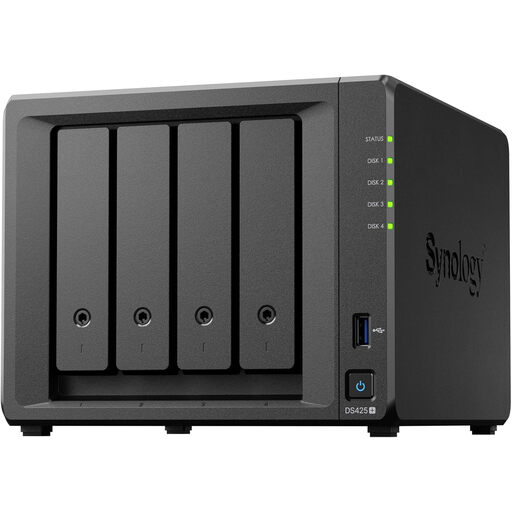
Consider this four-bay model if the shared document archive needs a storage layout beyond two bays. Confirm whether drives are included and which models are compatible; plan a separate recovery copy rather than relying on the NAS alone.
 No image available
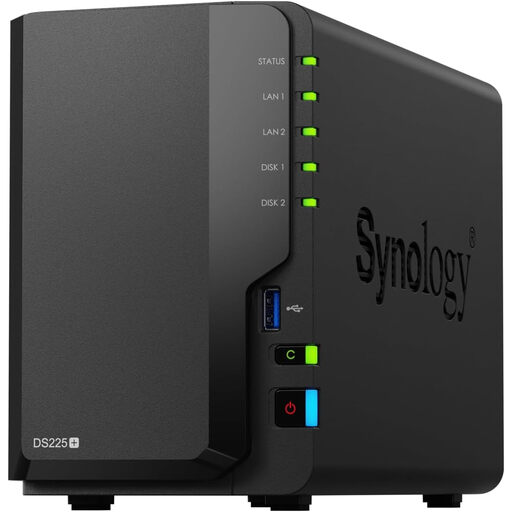
The two-bay layout suits consideration for a modest archive with occasional retrieval. This model is listed as diskless, so choose compatible drives separately; its built-in 2.5GbE port does not remove the need for an independent backup. Check the supported system and Btrfs configuration if snapshots are part of the recovery plan.
 No image available
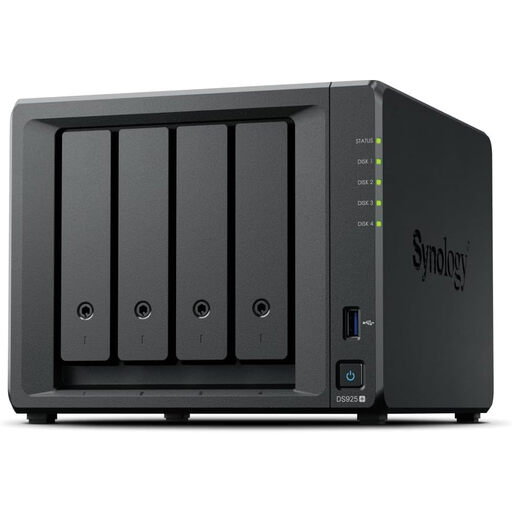
Consider this four-bay model if the archive is expected to grow into a wider file-storage setup. Confirm drive inclusion, compatible drives and the expansion unit for the exact variant before ordering; expansion is not a substitute for a separately protected backup.
No: buying a NAS does not establish compliance. If the scans contain personal data, the Information Commissioner’s Office says security measures must be appropriate to the processing and its risks. Assess permissions, sharing, backup protection and what happens to access and retained copies at handover.
No. Mirroring addresses a different problem from keeping an independent recovery copy if documents are deleted, changed or affected by ransomware. The National Cyber Security Centre recommends regular backups and highlights a recent offline backup for important files; test that you can restore the handover scans.
Agree the recipient and transfer method before configuring access: an export, a temporary controlled share or transfer of the NAS require different arrangements. Document the folder structure, permissions, necessary credentials or keys, backup status and restore instructions, then review access and retained copies after handover.
Not always: QNAP states that the TS-264 ships without HDDs, and the Synology DS225+ product here is listed as diskless. Check the exact listing and drive compatibility, then work out usable capacity for the storage configuration you intend to use.
Consider it when several people need the archive or large batches of scans are transferred regularly. A faster NAS port alone cannot establish faster transfers: check the connected computers, switch and cabling, and keep the backup decision separate from network speed.