Choose a compact two-bay NAS if desk space is tight and its usable capacity will hold your raw-file archive with room to grow. A four-bay NAS offers more internal storage-layout flexibility but takes up more space. Whichever you choose, check capacity after the intended RAID layout, make sure your wired network can use the NAS ports, and keep a separate backup.
Who needs which approach?
Photographer short on desk space
If the NAS will sit beside your editing workstation, measure the space available for the enclosure and its cables. QNAP lists the two-bay TS-264 at 105 mm wide and 226.5 mm deep; ASUSTOR lists the two-bay AS5402T at 114 mm wide and 230 mm deep. A smaller chassis still needs enough usable storage for your planned drive layout.
Owner of a growing photo archive
If shoots are steadily adding to your raw-file collection, work out capacity after the intended RAID layout rather than relying on the drives’ combined raw capacity. More drive bays can give you additional layout options, but a separate backup remains necessary; the National Cyber Security Centre advises keeping at least one backup offline or digitally disconnected when it is not in use.
Photographer transferring large batches
If you frequently move large sets of files from an editing computer, check the complete wired path before choosing a NAS for its Ethernet ports. Synology, QNAP and ASUSTOR specify 2.5GbE ports on the models discussed here, but the computer, adapter or dock and switch also need to support the intended link speed.
What matters when choosing?
Compact two-bay NAS
Choose it when: desk width is scarce and two drive bays can provide enough usable space for your archive in the layout you intend to use.
Allow for: less internal room to change your drive arrangement as the archive grows. A redundant two-drive layout also leaves less usable capacity than the drives’ combined raw capacity.
Four-bay NAS
Choose it when: archive growth makes additional drive bays and storage-layout flexibility more important than a narrow enclosure.
Allow for: a larger footprint. Synology specifies a 199 mm width for the four-bay DS925+, compared with the 105 mm and 114 mm widths QNAP and ASUSTOR specify for the two-bay examples above.
| Concern |
What to check |
Who this matters to |
| Usable capacity and protection |
Calculate usable space for the intended drives and RAID layout. Plan a backup separate from the live NAS. |
When my raw-file archive grows, I need space I can actually use without making the NAS my only copy. Around 40% of consumers put usable capacity and file protection first. |
| Desk footprint |
Compare chassis width and depth with the available surface, leaving room for cables. |
If the NAS must sit beside my editing equipment, its installed footprint can decide whether it fits. Roughly 30% of consumers prioritise desk space. |
| Large-file transfers |
Check the computer, adapter or dock, switch and NAS ports along the wired path. |
Frequent transfers of large batches make a compatible wired connection important to me. For around 20% of consumers, transfer speed is the primary concern. |
| Future expansion |
Confirm the exact model’s drive bays, supported M.2 uses and any expansion options you expect to use. |
I would rather plan for later archive changes than choose extra features without a use for them. About 10% of consumers put expansion options first. |
Common buying mistakes
-
Treating RAID as the only protection for raw files
Synology’s Storage Manager guidance identifies Basic, JBOD, RAID 0 and a single-drive SHR pool as layouts without data protection. A redundant layout can address a drive failure, but it is not a separate backup. The National Cyber Security Centre also warns that connected network storage can be affected during ransomware incidents.
Choose the drive layout with its capacity trade-off in mind, then maintain a separate backup that is not continuously exposed to the live NAS.
A separate backup also needs its own storage destination and an ongoing routine for updating it.
-
Planning for the enclosure but not the drives
QNAP specifies that the TS-264 ships without hard drives. Without compatible drives and a backup destination, the enclosure alone does not complete the raw-file storage setup.
Check what is included with the exact product, which drives it supports and what else your intended configuration requires.
The setup may also call for backup storage or a compatible network adapter or switch.
-
Assuming a 2.5GbE NAS guarantees faster transfers
A 2.5GbE port on the NAS cannot establish a 2.5GbE link through a connection limited to 1GbE elsewhere. Manufacturer throughput figures also depend on their stated configurations and test conditions.
Check each wired connection between the editing computer and NAS, and assess quoted transfer figures against the setup you will use.
-
Choosing by raw capacity or a compact label alone
Raw drive capacity is not necessarily usable archive capacity after a redundant RAID layout. Likewise, two-bay enclosures differ in their stated dimensions, and a four-bay chassis may need substantially more desk width.
Calculate usable space for your planned drives and layout, then measure the desk area before deciding which chassis fits.
Brands and models to consider
These model-specific examples help compare bay counts, connections and physical size; check the exact configuration before choosing an enclosure.
Synology
The DS925+ is a four-bay option for an archive that needs more internal drive-layout flexibility than a two-bay enclosure.
- Synology specifies four SATA drive bays, two M.2 NVMe slots and two 2.5GbE ports for the DS925+.
- Synology lists a 166 × 199 × 223 mm chassis. Check its model-specific drive compatibility guidance before selecting drives.
QNAP
The TS-264 is a two-bay option if a narrow chassis and a potential PCIe expansion path both matter.
- QNAP specifies two 3.5-inch drive bays, two M.2 slots, dual 2.5GbE ports and one PCIe slot in a 165 × 105 × 226.5 mm chassis.
- QNAP states that the TS-264 ships without hard drives. Check the contents of the exact configuration you select.
ASUSTOR
The AS5402T is a compact two-bay model to consider when comparing M.2 slots alongside desk dimensions.
- ASUSTOR specifies two drive bays, four M.2 slots and dual 2.5GbE ports in a 170 × 114 × 230 mm chassis.
- Its listed maximum internal raw capacity is 36 TB; usable capacity depends on the drives and RAID layout selected.
TerraMaster
The F2-423 offers another two-bay reference point for comparing footprint, ports and drive-layout choices.
- TerraMaster specifies two SATA drive slots, two M.2 slots, two 2.5GbE ports and RAID 1 support.
- TerraMaster’s stated 26.4 dB(A) noise figure uses two specified Seagate NAS drives at idle; it does not describe every drive configuration or desk environment.
Joybuy four-bay option
This four-bay model is relevant if your raw-file archive calls for more drive-layout flexibility and you can accommodate its enclosure on your desk. Work out usable capacity and your backup plan separately.
 No image available
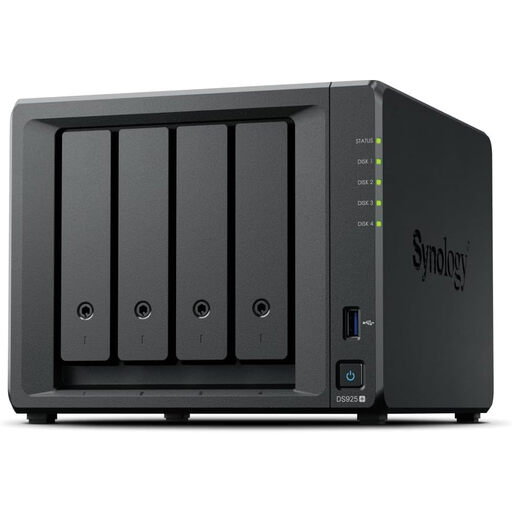
Synology DiskStation DS925+ 4-bay NAS
The four-bay DS925+ is a choice for a growing raw-file archive when additional internal drive options justify the desk space.
Synology specifies four SATA drive bays and two 2.5GbE ports. Check that your wired network can use the intended connection speed.
Confirm the chassis dimensions against your desk space and Synology’s model-specific supported-drive list. Check whether drives are included and which expansion unit is compatible before planning the complete setup.
Calculate usable capacity for your intended drives and RAID layout, and keep a separate backup of irreplaceable files.
View on Joybuy
Questions about raw-file storage
Is a two-bay NAS enough for raw camera files?
A two-bay NAS can be enough if its usable capacity after your chosen drive layout accommodates the archive and expected growth. It can support a redundant layout such as RAID 1, but offers fewer internal drive options than a four-bay model; maintain a separate backup either way.
Does RAID count as a backup of my photos?
No. A supported redundant RAID layout can reduce the impact of a drive failure, but it does not create a separate copy of your files. The National Cyber Security Centre advises keeping at least one backup offline or digitally disconnected when it is not in use.
When is 2.5GbE worth considering for a photo NAS?
Consider 2.5GbE if you frequently transfer large batches and the editing computer and wired network can support that link speed. A 2.5GbE NAS port alone does not establish the speed of the full connection, and manufacturer throughput figures depend on the tested configuration.
Are hard drives included with a NAS enclosure?
Check the exact product before assuming drives are included. QNAP specifies that the TS-264 ships without hard drives; for any enclosure, confirm its contents and supported drives before planning your storage layout.


