Home workstation file keepers
You want a central place to copy, organise and retrieve presentations from a desktop or laptop. A two-bay NAS is worth considering if access after one drive fails matters more to you than keeping the enclosure simple.


For presentation files copied from one home workstation, start with a two-bay NAS and two compatible drives if access after a single drive failure matters. A one-bay unit is a simpler storage option if you already keep an independent backup; choose faster networking chiefly when you move large files or serve multiple devices and the rest of your network can use it. Neither drive redundancy nor snapshots replace a separate, protected backup.
You want a central place to copy, organise and retrieve presentations from a desktop or laptop. A two-bay NAS is worth considering if access after one drive fails matters more to you than keeping the enclosure simple.
Losing business, study or client presentations would be disruptive, so you need a recovery copy separate from the working computer. The National Cyber Security Centre advises protecting backups against destructive changes and planning how to restore them.
You regularly move presentations containing video or high-resolution images, or expect several devices to access the NAS. Faster network ports may be relevant, provided the workstation and network path can use them.
Decide how you will recover important files before choosing the number of drive bays. Then check drive compatibility and the workstation’s network connection before considering faster ports or expansion features.
| Concern | Buying checks | Who this matters to |
|---|---|---|
| Simple file access | Check drive-bay count and supported drives; confirm whether the enclosure includes disks. | If I mainly copy presentations from one computer, I want to find them again without building a more elaborate setup. Around 46% of consumers put straightforward file access first. |
| Recovery | Check the intended RAID configuration and drive compatibility, then plan a separate backup that you can restore. | When a lost or altered presentation would disrupt my work, I need a way back to an earlier, protected copy. Recovery is the primary concern for roughly 36% of consumers. |
| Transfer and expansion | Check the workstation, switch or router and NAS network ports together; assess whether additional bays or expansion options serve a real need. | With large media-rich decks or several devices accessing files, I may care more about transfer capacity than a simple setup. About 18% of consumers prioritise speed and room to grow. |
QNAP specifies that the TS-262 and TS-264 ship without hard drives. A diskless enclosure cannot hold your presentation files until suitable drives are installed.
Check what is included and choose compatible drives alongside the enclosure.
Using 2.5GbE or maintaining a separate backup may also call for network equipment or another storage destination.
Two-drive redundancy addresses a drive failure, not every way files can be deleted or damaged. The National Cyber Security Centre advises protecting backups from destructive actions and retaining a route to earlier versions.
Keep a separate, protected copy of important presentations and periodically test restoration.
A separate backup also needs ongoing management and time for recovery checks.
Extra NAS ports do not make a Gigabit-only workstation connection run at 2.5GbE. QNAP’s higher quoted TS-264 transfer figures depend on a two-port trunking configuration, not an ordinary single-workstation connection.
Identify the workstation’s network capability and every connection between it and the NAS before choosing faster networking.
Western Digital states that its WD Red range includes both SMR and CMR recording technologies. The family name therefore does not identify the technology of a particular drive.
Check the exact drive model’s data sheet and the NAS manufacturer’s compatibility guidance for your planned configuration.
Its TS-262 and TS-264 illustrate two-bay choices with different network and expansion provisions.
The DS224+ is a two-bay reference point for buyers interested in centralised files and planned recovery.
The F2-423 is a two-bay option to examine if network and SSD expansion features matter to your workflow.
The Lockerstor 2 Gen2 is relevant when a two-bay setup needs more expansion options than basic file copying requires.
IronWolf is a hard-drive line to assess when filling a NAS enclosure, not an alternative enclosure.
These Synology enclosures range from a two-bay option for central file storage to larger models aimed at broader storage or media workloads. For copying presentations from one home workstation, choose the bay count for your actual storage and recovery plan rather than assuming more bays will make routine copies faster.
 No image available
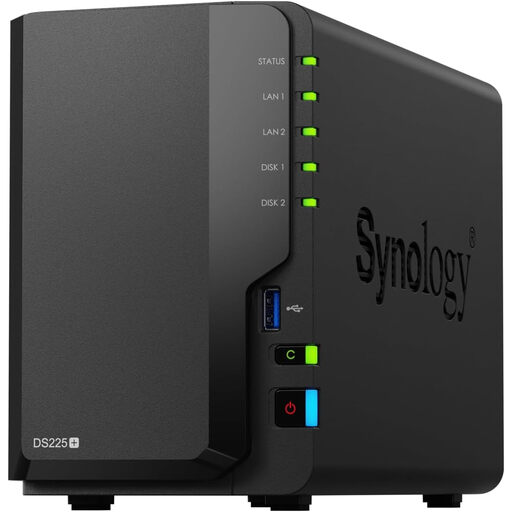
Consider this for centralising presentations from one workstation when a two-drive enclosure fits your recovery plan.
Two bays; supplied as a diskless model. Choose compatible drives separately and check the workstation connection you intend to use.
 No image available
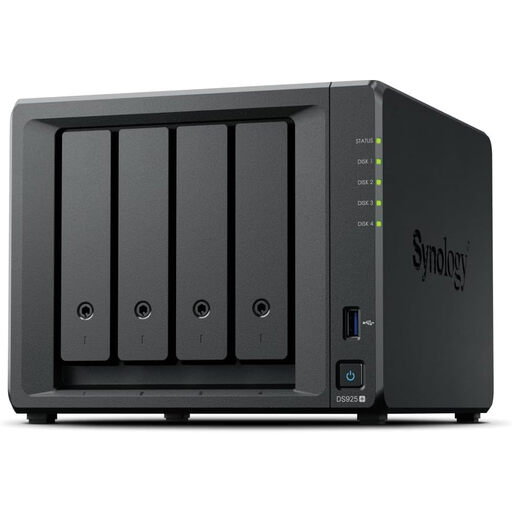
Consider four bays if your storage plan extends beyond the two-drive arrangement discussed for a simple workstation setup.
Four-bay enclosure. Check the exact supported drive models and whether drives are included before choosing a configuration.
 No image available
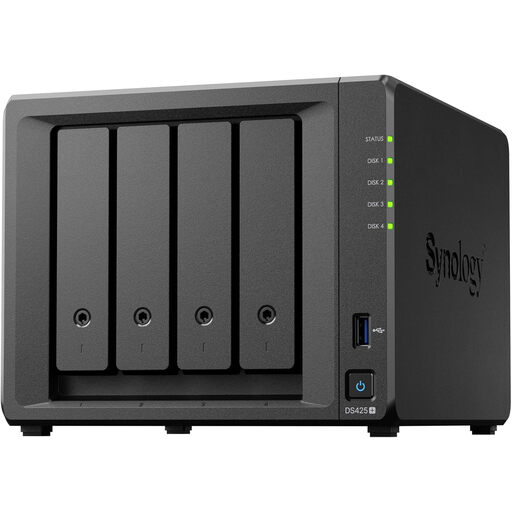
This is another four-bay option if you plan to keep more drives or files than a basic two-bay presentation workflow calls for.
Four-bay enclosure. Confirm drive inclusion and compatibility for the configuration you want.
 No image available
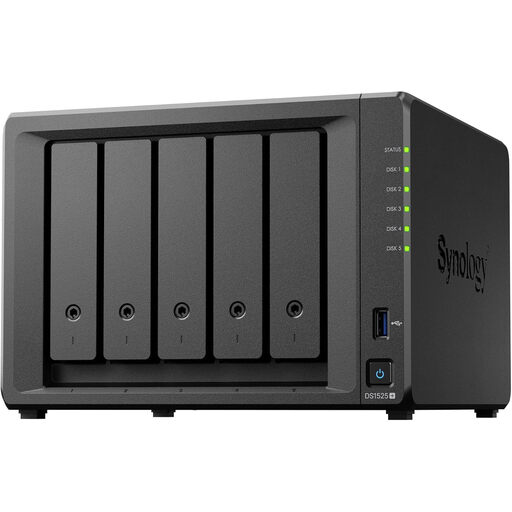
Consider this only if your presentation work extends into substantial shared media storage; its video-production focus goes beyond routine copying from one workstation.
Five bays; supplied as a diskless model. Plan for compatible drives and check the complete network path for your intended connection.
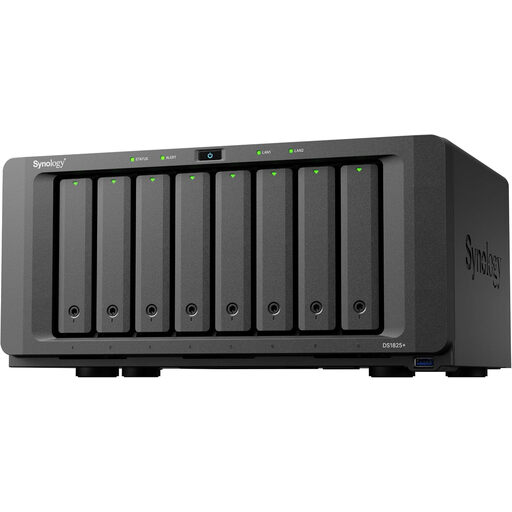 No image available
This enterprise-oriented enclosure is relevant only if your needs extend well beyond storing presentations from a single home workstation.
Eight bays; supplied as a diskless model. Select compatible drives separately and check the network configuration your workload requires.
Choose two bays if you want the option of redundancy against one drive failing through an appropriate two-drive RAID configuration. Synology describes that capability for the DS224+; a one-bay enclosure cannot provide two-drive RAID internally, so an independent backup is particularly important.
No. RAID 1 addresses a drive failure, while files can also be changed or destroyed in other ways. The National Cyber Security Centre advises protecting backups from destructive actions and retaining a way to recover earlier versions; keep a separate copy and test restoration.
Consider it when you frequently move large presentation assets or several devices need NAS access, provided the workstation and network path also support 2.5GbE. A faster NAS port alone will not raise the speed of a Gigabit-only connection.
Check the exact model and listing rather than assuming drives are included. QNAP specifies that its TS-262 and TS-264 ship without hard drives, so those enclosures need compatible storage before they can hold files.
Check the enclosure maker’s compatibility guidance and the exact drive model, including its recording technology, for your intended RAID configuration. Western Digital says WD Red includes both SMR and CMR models, while Seagate describes the IronWolf drives in its cited data sheet as CMR.