Fixed-desk reading loggers
If readings are entered at the same computer, a battery-free wired pad can keep the routine simple, provided the computer has a suitable port.


For a computer that stays at one home-office desk, a wired USB keypad avoids batteries and pairing. Choose wireless if flexible placement matters more, or programmable keys if you regularly use commands beyond digits. Before buying, check the connection, operating-system support and the functions of any extra keys.
If readings are entered at the same computer, a battery-free wired pad can keep the routine simple, provided the computer has a suitable port.
A separate wireless pad can be positioned away from a compact keyboard or moved between work areas. The connection method and battery requirements still need checking.
If logging readings repeatedly involves calculator, Tab, Escape or custom commands, dedicated keys may reduce trips back to the main keyboard. Check which functions work with your computer.
Start with where the keypad will sit and how it will connect. Then decide whether your reading log calls for digits alone or regularly uses extra commands.
| Concern | What to check | Who this matters to |
|---|---|---|
| Ready-to-use entry | Confirm a free USB-A port or a suitable adapter, and check the keypad’s stated operating-system support. | If I enter readings at one desk, I want the pad ready without pairing or battery upkeep. Around 40% of consumers put that fixed-desk need first. |
| Flexible placement | Distinguish Bluetooth from a 2.4 GHz USB receiver; check Bluetooth support or an available port, as appropriate. | When I move the pad or set it beside a compact keyboard, keeping a cable off the desk matters more to me. That flexibility is the primary concern for around 30% of consumers. |
| Repeated commands | Look for the specific calculator, Tab or editing keys you use. For custom keys, check the configuration software and its operating-system support. | If the same commands interrupt every logging session, I want keys assigned to those actions rather than reaching for the main keyboard. Around 20% of consumers prioritise that shortcut workflow. |
| Legible, suitable layout | Inspect the exact variant’s key labels and layout, including any operating-system limits on special keys. | When I enter figures, clearly labelled keys and familiar positions matter most to me. Layout and compatibility lead the decision for around 10% of consumers. |
A receiver-based keypad occupies a USB port; a Bluetooth keypad instead needs compatible Bluetooth hardware and pairing.
Check the stated connection method against your computer before ordering. Trust specifies a 2.4 GHz USB receiver for the Xalas Wireless, while HP specifies Bluetooth for the 430.
Depending on the model and computer, you may also need a suitable USB-A adapter or replacement batteries.
Support for basic number entry does not establish that shortcut keys behave identically across platforms. Kensington says some K79820WW shortcuts are Windows-only.
Check both the model’s operating-system list and any separate qualifications for its extra keys.
Custom keys add setup without helping much if entering readings rarely involves commands beyond numbers and corrections.
Name the actions you would assign before choosing a programmable model; otherwise, compare simpler number pads first.
Key legends, layout and connector can differ between variants. CHERRY lists multiple versions of its G84-4700.
Check the part number, key layout and required connector on the specific product page before ordering.
These product lines illustrate different ways to add number entry; their features should be checked against the particular model and variant.
The wired K79820WW is an add-on for a laptop or compact keyboard at a fixed desk.
The Bluetooth HP 430 combines a number-pad layout with configurable shortcuts.
The compact G84-4700 is a wired option for frequent numeric entry and software macros.
The Xalas models offer basic wired or receiver-based wireless number entry.
Its PERIPAD models include large-print layouts and different connection arrangements.
For a cable-free home-office setup with repeated logging commands, this Bluetooth keypad offers number entry alongside configurable keys. Check software compatibility if those custom commands are central to your choice.
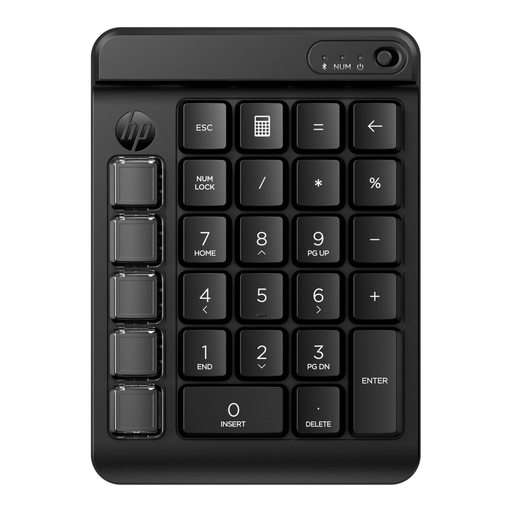 No image available
Consider this for entering readings on a Bluetooth-capable computer when you also expect to use repeated non-numeric commands.
HP lists a standard number-pad layout, nine programmable keys and swappable keycaps. Custom commands use HP Accessory Centre; check that the software supports your operating system before relying on them.
The keypad uses one AA battery and requires Bluetooth pairing. HP claims battery life of up to 24 months, so plan for battery replacement rather than treating that figure as a guaranteed interval.
A wired USB keypad is the simpler choice if it will stay at one desk and your computer has a suitable port. Kensington specifies battery-free, plug-and-play operation for its wired model; choose wireless instead if movable placement is worth pairing or using a receiver and managing batteries.
Some models list macOS and Chrome OS support, but check the exact keypad and its extra keys. Kensington lists both systems for the K79820WW while noting that some shortcuts are Windows-only; HP also lists both for its 430, but custom commands need a separate software-compatibility check.
Yes, a separate keypad can provide number entry beside a keyboard without a dedicated number pad. Logitech describes connecting one to an open USB port; check whether the particular keypad instead needs Bluetooth or a USB receiver.
Not for every model or function: Kensington says its wired keypad needs no software installation. Configuring the HP 430’s custom commands uses HP Accessory Centre, so confirm software compatibility if those commands matter to your logging routine.