Who needs which setup?

Fixed-desk stock-count operators

If you enter quantities repeatedly at one workstation, a standalone wired keypad can sit where you need it without a pairing step. Targus and Kensington offer models with full-size or scissor keys and non-slip pads or feet; check the connector before choosing one.

Shared-desk inventory users

If you carry your keypad between work areas or want keys for recurring commands, a movable wireless model may suit your routine. HP lists programmable keys on its 430 keypad; check Bluetooth support and whether your work computer permits the configuration software.

All-day users replacing their main keyboard

If the main keyboard layout also needs changing, consider a keyboard package with a separate number pad rather than treating the keypad as the whole decision. HP offers this arrangement with its 960 keyboard, but it replaces more of the workstation than a standalone keypad does.

What matters when choosing?

Wired standalone keypad

Choose when: You enter quantities at a fixed PC or dock and want the keypad ready without battery or pairing steps.

Trade-off: The cable needs a suitable port and a practical route across the desk.

Programmable wireless keypad

Choose when: Movable placement or assignable keys matter to your stock-count workflow.

Trade-off: Pairing, battery management and permitted configuration software become part of the setup.

Keyboard with a separate keypad

Choose when: You also intend to replace the main keyboard used throughout the day.

Trade-off: This changes the wider workstation and needs room for both keyboard and keypad.

Concern What to check Who this matters to
Repeated number entry Check the number-key layout, Num Lock indication and whether the base stays in place on your desk. When I enter one quantity after another at the same workstation, I want the keys to stay within reach and the keypad to be ready each time. Around 36% of consumers put dependable fixed-desk entry first.
Flexible placement and shortcuts Check the wireless connection and whether assignable keys work with your stock application and permitted software. If I change desks or repeat the same stock-system commands, I want room to position the keypad and assign useful actions. For around 29% of consumers, that flexibility is the primary need.
Connector and key behaviour Match USB-A, USB-C or Bluetooth to the computer or dock; check operating-system support and any shortcut restrictions. I need the keypad to connect to the equipment already on my desk and produce the entries my stock system expects. Avoiding a connection or key-behaviour mismatch comes first for around 21% of consumers.
Whole-workstation layout Decide whether the main keyboard also needs replacing, then check the separate keypad arrangement and available desk space. When stock counts are only part of a full day at the keyboard, I may want to change the main typing setup as well. Around 14% of consumers make that wider workstation decision their priority.

Mistakes to avoid

  • Expecting the keypad to fix the screen layout

    A numeric keypad handles input; it does not detect monitors or place stock-system windows.

    In Windows, use the display settings to identify and arrange the screens to match their physical positions before assessing how smoothly the desk setup works. Microsoft Support explains how to identify displays in a multiple-monitor setup.

  • Choosing a wired keypad without checking the ports

    A USB-A-only connection and a model offering USB-A and USB-C will not fit every computer or dock in the same way. Cable reach also affects where you can place the pad.

    Check the available ports and measure the intended cable route, including any distance around the monitors or dock.

  • Assuming every extra key works in every application

    Shortcut behaviour can depend on the operating system and stock software. Kensington states that some shortcuts on its K79820WW are Windows-compatible only.

    Choose a suitable numeric layout first, then confirm any shortcut or programmed action you plan to rely on in the actual work setup.

  • Replacing the whole keyboard for a number-pad problem

    A package such as the HP 960 changes the main keyboard as well as providing a separate keypad. That is a wider decision than adding movable number keys.

    If the current keyboard otherwise meets your needs, consider a standalone keypad; assess a full keyboard replacement when its layout and separate-pad arrangement both matter to you.

Relevant brands to consider

Targus

A wired standalone option for a fixed desk where USB connection choice and keypad placement matter.

  • Targus specifies 18 full-size keys, a tilt angle, non-slip pads and a 5-foot USB-A/USB-C cable for the AKP13GL.
  • Its stated Windows, macOS and ChromeOS compatibility applies to this model; check the required behaviour in your stock application.

Kensington

A wired choice for users considering a 21-key layout and a visible Num Lock indicator.

  • Kensington specifies 21 scissor keys, four shortcut keys, USB-A connectivity and anti-slip feet for the K79820WW.
  • Kensington says some of this model's shortcut keys are Windows-compatible only.

HP

Options include the standalone programmable 430 keypad and the 960 keyboard package with a separate keypad.

  • HP lists nine programmable keys for the 430 and a separate keypad with 20 programmable keys for the 960.
  • The 960 also replaces the main keyboard; with either model, check that the required connections and programmed actions suit the work computer.

Joybuy product choices

For stock-count work where movable placement and programmable keys are useful, consider this standalone wireless keypad alongside the wired and full-keyboard routes above.
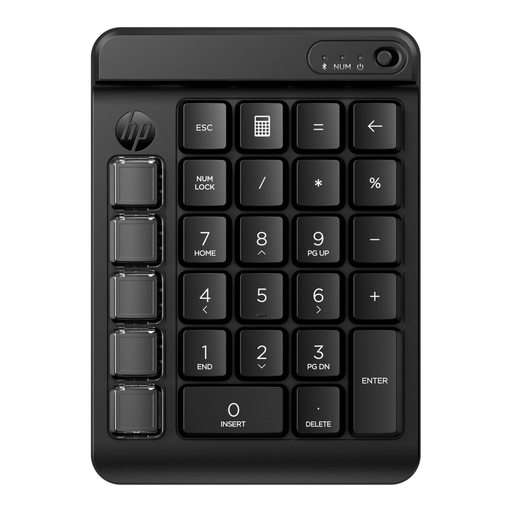
HP 430 Programmable Wireless Keypad

HP 430 Programmable Wireless Keypad

Consider it when you want a separate number pad that can move around the desk and have keys assigned to recurring stock-system actions.

HP lists Bluetooth connectivity, nine programmable keys and one AA battery for this model. Programming requires HP Accessory Centre; confirm that the software is permitted on your work computer and that assigned actions behave as needed in the stock application.

View on Joybuy

Common questions

Do two screens require a special numeric keypad?

No. Choose the keypad for number entry, connection and placement, then arrange the monitors separately. For a Windows setup, Microsoft Support explains how to identify displays so their on-screen arrangement can match the desk.

Is a wired keypad a sensible choice for daily stock counting?

Yes, if you work mainly at one desk and want to avoid battery and pairing steps. Targus specifies USB-A/USB-C connectivity for its AKP13GL, while Kensington specifies USB-A for the K79820WW; match the exact model to your computer or dock.

Will a keypad work with Windows, macOS or ChromeOS?

Check the exact model and the keys you intend to use. Targus states that its AKP13GL supports all three operating systems, but operating-system support alone does not establish how a particular stock application will handle every key. Kensington also notes that some K79820WW shortcuts are Windows-compatible only.

When are programmable keys worth setting up?

They are worth considering when your stock workflow includes recurring actions beyond entering numbers. HP lists nine programmable keys on the 430; before relying on them, confirm Bluetooth compatibility, permission to use HP Accessory Centre and the assigned actions in your stock system.