What matters when choosing?
Start with the keys needed to enter and correct expenses, then check the computer connection and whether extra controls would serve a real part of your workflow.
| Concern |
What to check |
Who this matters to |
| Controlled expense entry |
Look for a conventional number layout and the Enter and correction keys your process uses; keep receipt and approval checks separate. |
If I correct figures while maintaining expense records, I need entry controls that fit the task without mistaking them for financial checks. Around 36% of consumers put controlled entry first. |
| Spreadsheet workflow |
Check for the decimal point, Tab, Backspace and other keys you regularly use in your spreadsheet or accounts software. |
Entering rows of amounts is easier to manage when I can reach the actions I use repeatedly. Speed of entry is the primary concern for around 29% of consumers. |
| Computer compatibility |
Confirm the exact model’s operating-system requirements, connection method and need for a free USB port. |
If a shared or port-limited computer cannot connect to the pad, its other features will not help me enter expenses. Compatibility comes first for around 21% of consumers. |
| Desk placement |
Decide whether the pad will stay beside a keyboard, be put away or move between workstations. |
I may need to position the pad differently when workspace is limited or the desk is shared. Placement and sustained workstation use lead the choice for around 14% of consumers. |
Joybuy product choices
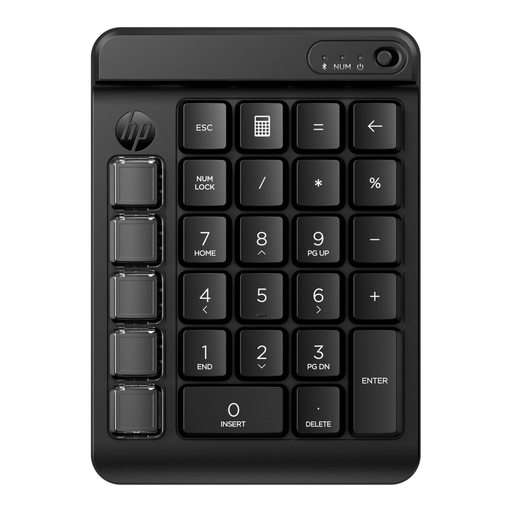
This programmable keypad is relevant if charity expense entry involves both repeated amounts and shortcuts you would configure for recurring tasks.
 No image available
HP 430 Programmable Wireless Keypad
Consider this for repeated expense amounts when you also have commands worth configuring. HP describes a standard numpad layout with five blank keys and nine programmable keys. Before buying, check the decimal, Enter and correction keys your workflow needs, and whether the intended shortcuts work with your computer and finance software.
View on Joybuy
Common questions
Does using a numeric keypad meet a charity’s expense-control requirements?
No. A keypad is an input device, not an approval or record-keeping process. For charities in England and Wales, Charity Commission guidance links internal financial controls to adequate accounting records and timely information; follow the charity’s own expenses policy and procedures when recording costs.
Should I use a wired or wireless pad for expense entry?
A wired pad suits a fixed, compatible setup if a direct connection matters more than movable placement. Trust describes its Xalas USB for Windows laptops with a 1.5 m cable; its 2.4 GHz Xalas Wireless offers Tab, Esc, Backspace and calculator access, but needs a USB receiver and the model’s battery arrangements checked.
What does a 2.4 GHz keypad need to connect?
A receiver-based keypad needs a suitable USB port and the setup specified for its exact model. Trust’s receiver setup guidance calls for a free USB port rather than a hub or extension cable, with batteries fitted where required.
Will a separate keypad resolve workstation comfort concerns?
Not on its own. The Health and Safety Executive says display-screen-equipment rules apply to workers who use screen equipment daily for continuous periods of an hour or more; where they apply, the employer’s assessment should consider the whole workstation rather than treating the keypad as the solution.
Will any numeric keypad work with my computer?
No; check the requirements of the exact model and its connection. Trust describes the Xalas USB for Windows laptops, while Apple specifies a Mac with Apple silicon and macOS 15.1 or later for its Touch ID Magic Keyboard with Numeric Keypad. Those requirements should not be assumed for other models.


