Frequent material-quantity calculators
People who repeatedly enter dimensions, quantities or spreadsheet figures and want a familiar number cluster with suitable Enter and Num Lock behaviour.


Choose a wired numeric keypad for a fixed, battery-free number-entry setup, or a wireless pad if you need to move it around your standing desk. Programmable keys are worth considering when your calculations involve commands you repeat often enough to justify configuring them. Before buying, check the connection and operating-system support, and make sure the keypad can sit within comfortable reach without moving your main keyboard or screen off-centre.
People who repeatedly enter dimensions, quantities or spreadsheet figures and want a familiar number cluster with suitable Enter and Num Lock behaviour.
People who change desk positions or move between laptop locations and want to place the keypad independently of the main keyboard.
People who repeat spreadsheet commands often enough to consider configuring dedicated keys or macros.
Start with the number-entry layout and where the pad needs to sit. Then check its connection and consider programmable controls only if they serve commands you actually repeat.
| Concern | What to check | Who this matters to |
|---|---|---|
| Routine number entry | Check the numeric layout, Enter key and Num Lock behaviour. Confirm any shortcut keys work on your operating system. | When I enter dimensions and quantities repeatedly, I want a familiar number cluster instead of relying on a compact keyboard’s top number row; around 33% of consumers put straightforward number entry first. |
| Placement and connection | Check the available USB ports, receiver or Bluetooth requirements, battery type and whether a cable reaches your preferred position. | When I rearrange my standing desk, I want to move the pad without an awkward cable or connection change; about 25% of consumers put placement flexibility first. |
| Repeatable shortcuts | Identify the commands you would assign to keys, then check the configuration software and operating-system support. | If the same spreadsheet actions recur during estimates, I want dedicated controls rather than using the same key combinations repeatedly; roughly 25% of consumers prioritise reusable shortcuts. |
| Workstation fit | At standing height, keep the screen and main keyboard central and try the keypad beside them without pushing the mouse out of comfortable reach. | I need space for both the keypad and mouse without twisting or reaching across the desk; around 17% of consumers make workstation fit their primary concern. |
Kensington’s wired K79820WW uses USB-A, so the laptop needs a matching port or a compatible connection through an adapter or hub.
Check the laptop’s ports and the compatibility of any hub or adapter before choosing the keypad.
An adapter or hub is an additional accessory if you do not already have a suitable one.
Trust’s Xalas Wireless uses a 2.4 GHz USB receiver and AAA batteries. Its cable-free placement still requires a free port and battery changes.
Check the wireless connection and power requirements for the exact model; choose a wired pad if a fixed, battery-free arrangement suits you better.
Configuring keys adds setup work, while ordinary figure entry may need only a conventional numeric layout.
List the spreadsheet or calculation commands you repeat, then check whether the keypad’s software can assign them on your computer.
A keypad placed too far away can still lead to reaching or twisting. The Health and Safety Executive advises keeping the screen and keyboard central and the keyboard just below elbow height.
Set your standing-desk height, then try the keypad and mouse positions together before settling on cable routing or a permanent layout.
Its K79820WW is a conventional wired pad for adding a numeric cluster to a laptop or compact keyboard.
Its Xalas range offers both wired and wireless approaches to routine number entry.
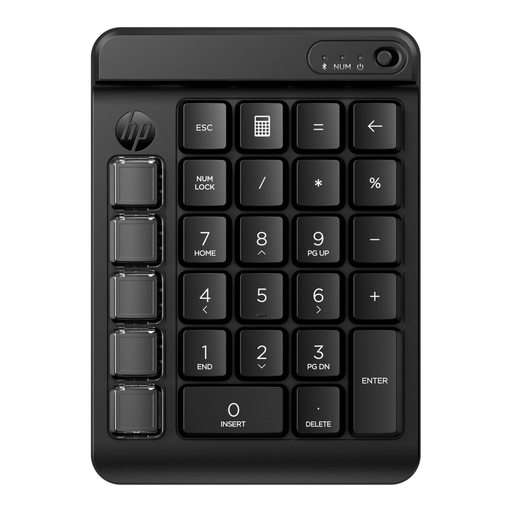
The HP 430 combines a standard numeric layout with wireless, configurable controls.
The Q0 Max is a custom mechanical number pad for users interested in programmable layouts and multiple connection options.
The G84-4700 is a compact wired pad aimed at frequent figure entry in a Windows workstation.
The HP 430 shown here is a wireless, programmable option for calculations involving repeated commands. If you only need a fixed number-entry pad, consider whether those extra controls are necessary for your work.
 No image available
For material estimates that involve repeatable commands, its nine programmable keys offer controls you can configure, while Bluetooth allows placement without a cable.
It uses one AA battery. Check that HP Accessory Centre supports your computer before relying on the programmable keys, and confirm the exact Enter and Num Lock behaviour for your number-entry workflow.
Place it where you can use it without twisting or pushing the mouse beyond comfortable reach. The Health and Safety Executive advises keeping the screen and main keyboard central, with the keyboard just below elbow height; try the complete arrangement at your standing-desk height.
A wired pad suits a fixed workstation with a compatible port and no need to move the pad; Kensington specifies USB-A plug-and-play without batteries for its K79820WW. Wireless suits a pad you reposition, but check the exact connection and power requirements: Trust’s Xalas Wireless uses a USB receiver and AAA batteries.
No. A dedicated calculator key provides access to calculator functions, while a programmable key needs a command assigned to it. Trust specifies direct calculator access on Xalas Wireless; HP specifies nine programmable keys on its 430, so consider the latter when you have commands worth configuring.
Compatibility depends on the exact model, connection and keys you intend to use. Kensington lists Windows, macOS and ChromeOS for its K79820WW but says some shortcuts are Windows-only; CHERRY lists Windows for the G84-4700. Check both the connector and shortcut support before buying.