Volunteer treasurers at one fixed laptop
When several people enter takings, costs and cash-count figures at the same Windows workstation, a straightforward connection helps leave the keypad ready for the next person.


For a fixed shared desk with a compatible Windows computer, a wired USB keypad keeps handover simple. Choose a 2.4 GHz receiver model if volunteers need to move the keypad around paperwork, provided the receiver can stay with the desk. A Bluetooth programmable keypad makes more sense when the computer supports it and the group will maintain clear labels for shortcuts used repeatedly.
When several people enter takings, costs and cash-count figures at the same Windows workstation, a straightforward connection helps leave the keypad ready for the next person.
If budget sheets, donation forms and a laptop all need space, a movable keypad lets each user position it around the paperwork. A wireless receiver still needs a consistent place to be kept.
A group that uses the same shortcuts regularly may benefit from programmable keys, provided everyone can recognise their labels and the shared computer supports the required setup.
Decide how the keypad will connect to the shared computer before weighing extra keys: a convenient layout is little use if the next volunteer cannot connect it.
Choose when: The keypad will stay at one desk with a compatible computer, and plug-in handover matters most.
Trade-off: The cable takes up space and limits placement; check the computer’s port and operating system.
Choose when: Users need to shift the keypad around paperwork without a cable across the desk.
Trade-off: The receiver must be kept available, and batteries need replacing.
Choose when: A compatible computer and a repeatable group workflow make labelled shortcuts useful.
Trade-off: Pairing and maintaining the shortcut labels add work for a shared desk.
| Concern | What to check | Who this matters to |
|---|---|---|
| Easy handover | Check the computer’s USB port and operating system before choosing a plug-in keypad. | If I am handing the desk to another volunteer, I want them to enter figures without finding a receiver or pairing a device. Around 36% of consumers put straightforward handover first. |
| Flexible placement | Check whether a USB receiver can stay with the desk and how the keypad is powered. | With paperwork spread around the laptop, I need to move the keypad to a comfortable working position. For around 29% of consumers, placement is the primary concern. |
| Entry keys and device fit | Check the keys used in your budget sheets, plus the exact model’s connection and compatibility. | When moving between figures, cells and corrections, I need controls that suit the task and work with our computer. Device fit and entry controls come first for around 21% of consumers. |
| Repeatable shortcuts | Check Bluetooth support, programming requirements and whether key functions can be labelled clearly. | If our group repeats the same spreadsheet actions, I want shortcuts that the next person can understand too. Around 14% of consumers make that shared shortcut workflow their main priority. |
Trust’s Xalas Wireless connects through a 2.4 GHz USB receiver, while the HP 430 uses Bluetooth. The wrong connection method can complicate use with the shared computer.
Check for a free USB port before choosing a receiver model, and decide where its receiver will be kept. For Bluetooth, confirm support on the computer and who will manage pairing.
Trust positions the Xalas USB for Windows laptops; that does not establish compatibility with every operating system or port arrangement.
Record the shared computer’s operating system and available USB-A or USB-C ports, then check the requirements of the exact keypad and any adapter needed.
A shortcut known to one volunteer may be unclear to the next. HP specifies swappable keycaps for its 430, but the group still needs to agree what each programmed key does.
Reserve shortcuts for actions the group repeats, label them consistently and leave a short key reference at the desk.
A separate keypad still needs to fit alongside the laptop, mouse and paperwork. The Health and Safety Executive advises attention to workstation setup for people covered by display-screen-equipment requirements.
Place the keypad where the current user can reach it without crowding the mouse, and reconsider the layout when the desk or regular user changes.
Trust offers Xalas wired USB and 2.4 GHz receiver keypads for numerical entry.
The HP 430 is a Bluetooth keypad aimed at workflows that use programmable shortcuts.
Perixx offers the wired PERIPAD-303 for users considering mechanical keys and built-in shortcuts.
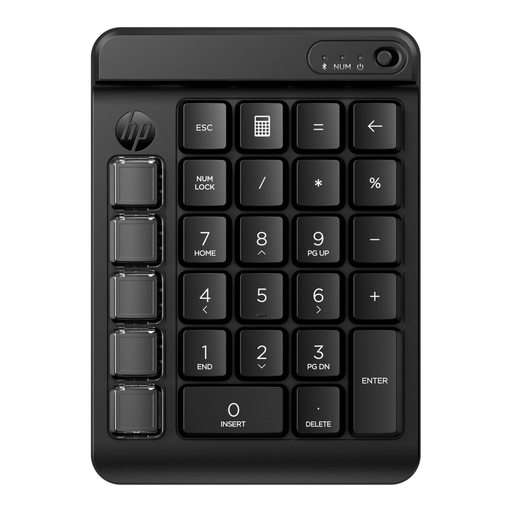
This Bluetooth keypad is a choice for a shared budgeting desk where users will repeat the same actions and can keep programmable shortcuts clearly labelled.
 No image available
Consider this model if the shared computer supports Bluetooth and the group can maintain labelled shortcuts for repeated budgeting tasks.
HP specifies nine programmable keys and swappable keycaps. Programming requires HP Accessory Center, so check that the software will work with the computer used at the desk.
HP states that it uses one AA battery and claims up to 24 months of battery life; actual replacement timing can vary.
Use wired USB when the keypad stays at a compatible computer and quick handover is the priority. A 2.4 GHz receiver model gives more freedom to position it, but someone must keep track of the receiver and batteries; Bluetooth needs a compatible computer and pairing arrangements.
Do not assume it will. Check each laptop’s operating system and ports against the exact model: Trust describes its Xalas USB for Windows laptops, which does not establish support for macOS, tablets or a USB-C-only laptop without a suitable connection.
They are useful when volunteers actually repeat actions such as using Tab, Backspace or clearly documented spreadsheet shortcuts. For straightforward number entry, choose based on the keys the group uses rather than the number of added functions.
They may apply depending on who uses the desk and how they work. The Health and Safety Executive says the rules apply to workers who use display-screen equipment daily for continuous periods of an hour or more; do not assume that every volunteer arrangement meets that condition or that buying a keypad settles workstation responsibilities.