Choose a wired USB keypad if the shared desk normally uses one compatible computer and straightforward number entry matters most. Choose wireless for more freedom to position the keypad, accepting receiver or pairing and battery upkeep; choose programmable keys when users can agree and maintain shortcuts for repeated calculations. For regular screen work, consider the keypad’s position as part of the whole workstation, as the Health and Safety Executive advises.
Who needs a separate keypad?
Fixed-desk quantity calculators
If several people enter material quantities at one workstation, a separate number layout can stay in a familiar position. RS describes numeric keypads as devices for frequent number entry; the computer connection and required keys still need checking.
Hot-desk and left-handed users
A separate keypad can be placed on either side of the keyboard to suit the current user. Trust describes its wired Xalas as suitable for right- and left-handed users, while its wireless Xalas allows placement without a keypad cable.
Repeat-workflow shortcut users
Where the same labels or software actions recur in calculations, programmable keys may be useful if everyone sharing the desk knows what they do. HP and CHERRY describe programmable functions on their respective keypad models.
What matters when choosing?
Start with the shared computer’s connection and the keys the calculation workflow needs. Then decide whether moving the keypad or maintaining shared shortcuts is more important than a simple fixed-desk setup.
| Concern |
What to check |
Who this matters to |
| Dependable fixed-desk entry |
Check the host’s USB port and operating-system compatibility, plus whether the cable reaches the intended keypad position. |
I enter quantities repeatedly at one computer and want a familiar number layout without managing wireless setup. Around 44% of consumers put dependable fixed-desk entry first. |
| Flexible placement |
Check whether wireless means a USB receiver or Bluetooth, and which batteries the model uses. |
Different people need the keypad on different sides of the desk, so I want to move it without a trailing cable. For around 33% of consumers, placement is the primary concern. |
| Repeatable shortcuts |
Check the programmable keys, required software and whether labels can make agreed functions clear to every user. |
We repeatedly enter the same units or commands and can keep a shared shortcut plan. Programmable functions come first for around 23% of consumers. |
Shared-desk buying pitfalls
-
Assuming any USB keypad will suit the shared computer
A matching plug alone does not establish operating-system compatibility. Trust specifies its wired Xalas for Windows laptops, while HP states Windows, macOS and ChromeOS support for the HP 430.
Check the exact model against the computer’s operating system and available USB or Bluetooth connections before buying.
-
Leaving wireless setup to the next desk user
Trust’s wireless Xalas uses a 2.4 GHz USB receiver and two AAA batteries; HP’s 430 uses Bluetooth and one AA battery. A misplaced receiver or unclear pairing process can interrupt shared use.
Keep the receiver with its assigned workstation, where applicable, and document pairing steps for regular users.
Battery-powered models also need replacement cells during use.
-
Programming keys without shared labels
A shortcut that helps one person can send an unexpected command when another person uses the same estimating or spreadsheet software.
Agree stable functions, label them clearly and leave a short shortcut reference at the desk.
-
Treating the keypad as an ergonomic fix by itself
The Health and Safety Executive’s display screen equipment guidance considers the whole workstation, including equipment, furniture and working conditions. A separate keypad does not replace that assessment for workers to whom the guidance applies.
Position the keypad without crowding the mouse or forcing an awkward reach, and review the arrangement when the user or workstation changes.
Relevant brands to consider
Trust
Trust lists straightforward wired and 2.4 GHz wireless Xalas keypads for number entry.
- The wired Xalas is specified with 23 full-size low-profile keys and a 1.5 m USB cable; Trust also describes it as suitable for right- and left-handed users.
- The wired model is described for Windows laptops. The wireless model needs its USB receiver and two AAA batteries.
HP
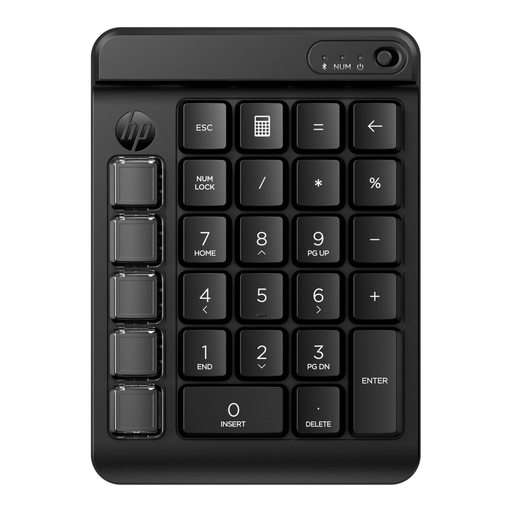
HP offers the Bluetooth HP 430 for number entry alongside programmable shared-workflow shortcuts.
- HP specifies nine programmable keys and swappable keycaps for the HP 430.
- Users need to configure and maintain agreed shortcuts and manage Bluetooth pairing and its AA battery.
CHERRY
CHERRY describes the compact, wired G84-4700 as a keypad for frequent figure entry and software-defined macros.
- CHERRY specifies USB-A connectivity and user-definable software macros.
- CHERRY lists regional variants, so check the selected part number and key layout rather than assuming they are identical.
Joybuy programmable keypad choice
This Bluetooth keypad is relevant when the shared desk needs agreed shortcuts as well as number entry. For straightforward fixed-desk input, compare the extra setup with the wired and receiver-based options discussed above.
 No image available
HP 430 Programmable Wireless Keypad
Consider this model when desk users can agree on and label shortcuts for repeated calculation tasks.
HP specifies nine programmable keys, swappable keycaps, Bluetooth connectivity and power from one AA battery. Check that the physical key layout includes any calculator, Tab or Backspace keys your workflow requires, and plan how users will manage pairing and shortcuts.
View on Joybuy
Common questions
Should a shared desk use a wired or wireless numeric keypad?
Use wired USB when the keypad normally stays with one compatible computer and simple plug-in access matters most. Choose wireless if changing its position matters more, and check whether the model needs a USB receiver or Bluetooth pairing, as well as battery upkeep.
Can a programmable keypad handle repeated calculation shortcuts?
Yes, if the model supports the functions you need and desk users agree on what each key does. HP states that the HP 430 has nine programmable keys configured through HP Accessory Center; CHERRY describes software-defined macros for the G84-4700. Label shared functions before relying on them.
Does adding a keypad replace a workstation assessment?
No. The Health and Safety Executive says employers must assess the whole workstation for workers who use display screen equipment daily for continuous periods of an hour or more. Consider where the keypad sits alongside the keyboard, mouse and other equipment.


