Rotating match statisticians
People taking turns at one desk need a connection that is easy to hand over and keys that make moving between fields and correcting entries straightforward.


For a shared match-statistics desk with one regular computer, choose wired USB if quick handovers matter more than moving the keypad freely. A 2.4 GHz receiver model removes the cable but needs a spare port and a way to keep track of the receiver; a Bluetooth programmable model makes more sense when repeatable shortcuts justify managing pairing and shared settings. Check the keys your statistics software uses, and assess the whole workstation rather than treating the keypad alone as a comfort solution.
People taking turns at one desk need a connection that is easy to hand over and keys that make moving between fields and correcting entries straightforward.
People using a laptop without a built-in number pad may want a separate keypad they can position beside the main keyboard or move aside between sessions.
People entering repeated codes or commands may find labelled programmable keys useful, provided the statistics software accepts the shortcuts and everyone at the desk follows the same setup.
Start with how the keypad connects to the shared computer; then check the entry keys and desk setup against a real match-entry session.
Choose when: One computer stays at the desk and users need to start entering numbers without pairing or managing a receiver.
Trade-off: The cable limits placement; confirm the computer has a suitable port and the exact keypad supports its operating system.
Choose when: The computer usually stays put but users want to move the keypad without a trailing cable.
Trade-off: The receiver needs a suitable USB port and a reliable place to stay; the keypad also needs battery upkeep.
Choose when: The statistics workflow has repeatable commands that all desk users can recognise and use consistently.
Trade-off: Pairing, shortcut settings and batteries need managing at handover; programming adds little to number-only entry.
| Concern | What to check | Who this matters to |
|---|---|---|
| Handover and compatibility | Check the shared computer's ports and operating system, and decide who keeps any receiver or manages Bluetooth pairing. | When different people sit down at the same computer, I need number entry to start without hunting for a receiver or pairing again; around 31% of consumers would make dependable handover their primary concern. |
| Entry and correction keys | Check the exact layout against the application's Tab, Esc, Backspace, Enter and shortcut commands; try its Num Lock behaviour. | If entries involve frequent corrections or field changes, I want the controls my application uses within reach; about 25% of consumers would put entry controls first. |
| Placement and comfort | Try the keypad on both sides of the main keyboard and check the complete workstation during routine use. | I need to shift the keypad to whichever side leaves room for the mouse and main keyboard. Roughly 25% of consumers would prioritise placement and comfort. |
| Noise and shared upkeep | Try the key sound in the room, and check the exact model's cleaning and battery instructions. | With others nearby and several people using the same surface, I want key noise and upkeep that fit our routine; around 19% of consumers would put shared-use maintenance first. |
A cable-free desk does not remove pairing steps when users change computers. The HP 430, for example, needs Bluetooth enabled and pairing mode used during setup.
If the keypad stays with one shared computer, compare wired USB and receiver-based operation too. For Bluetooth, agree on a pairing and shortcut procedure that every user can follow.
Layouts differ: Trust lists calculator, Tab, Esc and Backspace on its Xalas Wireless keypad. Those keys help only if they match the commands used in your statistics application.
List the actions used during an entry session, then check the exact layout and try its Num Lock, Enter and correction behaviour in the application.
The UK Health and Safety Executive advises considering the whole display-screen workstation, the task and individual requirements, including when people change desks.
Try the keypad alongside the chair, display, mouse and main keyboard. Where staff use display-screen equipment daily for continuous periods of an hour or more, include the shared setup in the workstation assessment.
HP describes the 430 as spill-resistant and sanitizable, but those are claims about that model, not about numeric keypads generally.
Check the exact model's approved cleaning method before using cleaning products, especially if the keypad is cleaned between users.
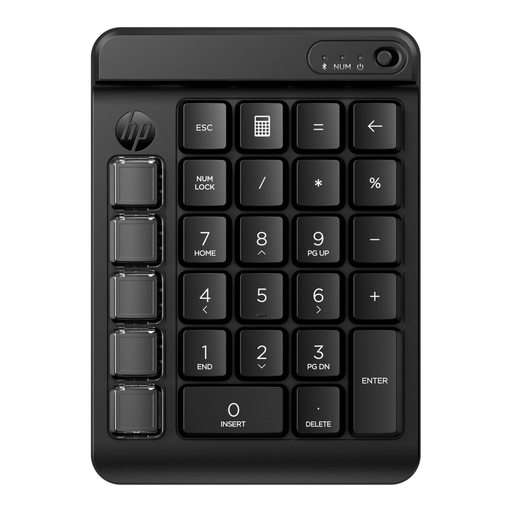
The HP 430 is a Bluetooth option for a shared workflow that can make practical use of programmable commands.
Trust's Xalas models offer a choice between a wired USB keypad and a 2.4 GHz receiver-based keypad.
The Cherry G84-4700LUCUS-2 is a separately listed wired USB option for a conventional numeric-keypad setup.
This Joybuy option is for shared desks where programmable shortcuts could help with repeated match-statistics entry and users can manage Bluetooth pairing.
 No image available
Consider this keypad if repeated commands in your statistics application can be shared consistently between desk users.
HP describes the 430 as a Bluetooth keypad with nine programmable keys and swappable keycaps. Check that the planned shortcuts work in the application and that HP Accessory Centre can be used on the shared computer.
Plan for pairing at handover. Confirm the exact navigation and correction-key layout, and follow the model's cleaning instructions rather than assuming its stated spill resistance permits a particular cleaning product.
Wired USB suits one regular computer when users need to start without pairing or tracking a receiver. A 2.4 GHz model suits a cable-free setup if its receiver can stay with the computer; Bluetooth is worth considering when shared shortcuts justify managing pairing and settings.
Yes, a separate keypad can be positioned independently of the main keyboard. Try both sides with the actual mouse position, desk space and statistics-entry task rather than assuming one arrangement suits every user.
The UK Health and Safety Executive says employers must assess workstations for workers who use display-screen equipment daily for continuous periods of an hour or more and reduce identified risks. Its guidance also addresses hot-desking and basic assessments when workers change desks; the assessment covers the workstation, task and individual needs, not just the keypad.
Do not assume that every keypad tolerates the same cleaning products. HP describes the 430 as sanitizable and spill-resistant, but use the care instructions for the exact model before cleaning it.