What to prioritise when choosing an office monitor
Start with the issue that could make a screen unsuitable for your setup, then compare the relevant model specifications and connection requirements.
| Concern |
What to check when buying |
Who this matters to |
| A connection that works with your computer |
Match the computer’s video output to the monitor’s video input. For USB-C docking, check video support and the monitor’s stated power delivery; Dell specifies the P2425H’s USB-C port as downstream and data-only. |
If I am replacing a screen, I need a connection that works with the computer I already use. About 36% of consumers put computer connection first. |
| Readable space for documents |
Compare diagonal size in inches and native resolution in pixels, then consider text scaling and the applications you use. Which? highlights ports and integrated features as factors in everyday monitor use. |
If I regularly compare documents or work in spreadsheets, I want enough room to arrange what I need to read. About 29% of consumers prioritise document space. |
| Desk fit and viewing position |
Check the screen and stand dimensions against your desk, along with the specified height and tilt adjustments. HSE guidance addresses screen height and viewing distance for display-screen work. |
If desk space is limited, I need the screen and stand to fit while allowing a workable viewing position. About 21% of consumers put desk fit first. |
| The right audio arrangement |
Look for an explicit built-in-speaker specification; an audio-out socket is not the same thing. If you use separate speakers, check that your computer or connection provides a compatible audio output. |
If I want sound without separate speakers taking up desk space, I need to know whether the display actually has built-in audio. About 14% of consumers prioritise the audio setup. |
Joybuy office monitor options
These Joybuy options relate to office and home-office monitor setups, including portable screens, integrated-audio models and monitors listed with USB-C or hub features.
 No image available
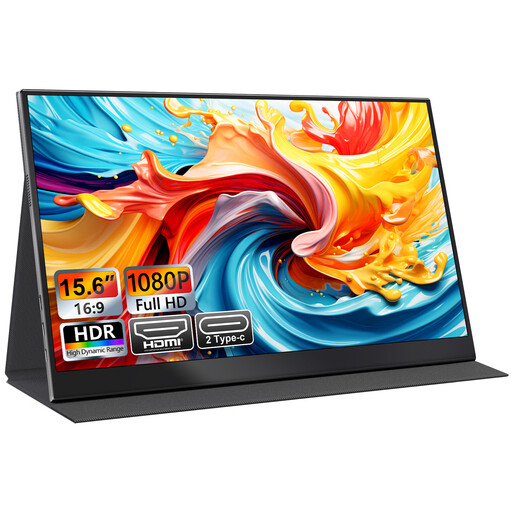
UFYQL M156F04 15.6-inch FHD IPS Portable Monitor, USB-C and HDMI, Black
A compact option for a work setup that needs an additional screen; check that the computer supports the chosen connection and that the portable format suits your desk.
The product name specifies a 15.6-inch FHD 1080p IPS display, USB-C and HDMI, plus a smart-cover stand and VESA mounting support.
Joybuy
 No image available
BenQ MA270UP 27-inch 4K UHD Nano Glossy IPS HDR P3 USB-C Monitor
Consider this for a larger work area where USB-C is relevant; check your computer’s video support and charging requirements before relying on a single cable.
The product name specifies a 27-inch 4K UHD display, Nano Glossy IPS, HDR, P3 and USB-C.
Joybuy
 No image available
AOC Q32V4 31.5-inch 2K IPS LED Monitor with Built-in Speakers
This may suit a setup where a larger screen and monitor-based audio are priorities; check the screen and stand dimensions against your available desk space.
The product name specifies a 31.5-inch 2K IPS LED display and built-in speakers.
Joybuy
 No image available
MSI MD272UPSW 27-inch 4K UHD Smart Monitor with Google TV, Dolby Audio and USB-C 65W
Consider this if a smart-monitor format and USB-C feature in your work setup; check the computer’s connection and charging requirements against the exact model.
The product name specifies a 27-inch 4K UHD display, USB-C 65W, Dolby Audio and Multi-Control.
Joybuy
 No image available
ASUS ProArt PA278CV IPS WQHD Monitor
A WQHD option for document-focused work; check the exact model’s ports and power delivery against your computer and peripheral setup.
The product name identifies an IPS WQHD display.
Joybuy
Office monitor FAQs
Will any USB-C port on my laptop run a USB-C monitor?
No; the connector shape alone does not confirm video support. Check the laptop’s documented video output, the monitor’s upstream video input and, for single-cable charging, whether its stated power delivery meets your laptop’s requirement.
How should I position a screen for prolonged work?
The UK Health and Safety Executive advises placing the screen directly in front of you, with its top around eye level and roughly an arm’s length away. For prolonged laptop use, HSE also discusses using a separate display, keyboard and mouse.
Do UK employers have display-screen duties for home workers?
HSE says the Display Screen Equipment Regulations apply to workers who use display-screen equipment daily for continuous periods of an hour or more, including qualifying home workers. It identifies employer duties such as workstation assessment, risk reduction and training; this is conditional workplace guidance, not a monitor requirement for every private buyer.
What if a monitor bought online arrives faulty or is unsuitable?
For an applicable consumer purchase, GOV.UK describes remedies for faulty or misdescribed goods and says distance-selling customers can generally notify the seller of cancellation within 14 days of receiving the item, then have another 14 days to return it. Business purchases may not have the same consumer protections, so establish who is buying and check the applicable terms.
Is there UK energy information to compare between monitors?
GOV.UK lists electronic displays among products covered by energy-information requirements. Compare the energy label and product information for the exact models you are considering; an energy class does not indicate screen or audio quality.


