What matters when choosing?
Start with a working video connection and a screen position that suits your desk. Then decide whether integrated connections or audio would simplify your work, and compare the exact model’s ownership terms.
| Concern |
What to check |
Who this matters to |
| Connection compatibility |
Match the computer’s video output to a monitor input. For USB-C video, check DisplayPort Alt Mode; check charging requirements separately. |
If I am keeping an older computer, I need to know the replacement screen will receive its video signal before I consider extra features. Roughly 36% of consumers would put connection compatibility first. |
| Desk positioning |
Measure the available space and check stand height adjustment and footprint. If using an arm, confirm mounting and desk compatibility. |
When I work at the same desk for long stretches, I need a screen I can place directly in front of me at a suitable height. Around 29% of consumers would make positioning their primary concern. |
| Integrated connections |
List the peripherals you want to connect, then check the monitor’s upstream connection, USB functions and any charging capability. Confirm speakers separately if you need basic desk audio. |
If I connect a laptop at my desk each day, fewer separate connections could make setup easier, provided my computer supports the functions I want. Approximately 21% of consumers would prioritise desk consolidation. |
| Warranty and support |
Compare the exact model’s warranty duration, service process, exclusions and any pixel policy under the applicable seller terms. |
For a screen I rely on for work, I want to understand what happens if a fault develops and which service terms apply. Roughly 14% of consumers would put ownership support first. |
Monitor brands to consider
These office-oriented ranges offer different connections and stand options; check the particular model rather than treating a brand name as a specification.
Dell
Dell’s P Series and selected UltraSharp models are relevant when stand adjustment and office connections are priorities.
- Dell lists tilt, swivel, pivot and height adjustment for its P Series. Its U2424HE is an example with an integrated USB hub and 90W power delivery.
- Dell lists no speakers for the U2424HE. Its stated P Series warranty and exchange service should not be assumed to apply to every Dell monitor.
Lenovo ThinkVision
ThinkVision includes office monitors with adjustable stands and models intended for USB-C docking.
- Lenovo lists USB-C docking and up to 140W power delivery for the P27QD-40; it describes the T27-40 as having a stand that lifts, tilts, pivots and swivels.
- Those features belong to different models. Check the exact monitor’s ports, charging capability and applicable service terms before choosing.
Philips
Selected Philips Business Monitors combine a display with docking or call-related features.
- Philips lists USB-C docking and a pop-up webcam for the 27B1U5601H, giving buyers a model-specific option for a fixed desk.
- Philips says USB-C video on that model requires DisplayPort Alt Mode on the connected device. Its stated five-year warranty concerns its TCO Certified range, not every Philips monitor.
BenQ
Selected BenQ home-office monitors combine stand adjustments with USB-C and integrated call or audio features.
- BenQ lists USB-C data and 65W power delivery, adjustable positioning, a microphone and speakers for the GW2486TC.
- BenQ notes a Mac-specific daisy-chaining condition for that model. Its UK warranty information also says terms can vary, so check the model and computer you intend to use.
Joybuy monitors for desk work
These displays offer options for a replacement office screen, from straightforward monitor connections to USB-C or built-in-audio arrangements. Match the chosen model’s inputs, positioning options and any additional functions to your own computer and desk.
 No image available
BenQ MA320UP 32-inch 4K USB-C Mac monitor
Consider this Mac-focused display if you want a USB-C connection at a fixed desk; confirm that your computer supports the video and charging functions you intend to use.
The product name specifies a 32-inch Nano Glossy IPS 4K UHD display, HDR, P3 and a height-adjustable stand. Check the exact warranty terms for the model and seller.
View on Joybuy
 No image available
Samsung S40GD LS22D400GAUXXU 22-inch Full HD monitor
For an office desk where a 22-inch display suits the available space, check that its video connection and stand positioning fit your setup.
If you intend to connect peripherals through the monitor, confirm which upstream connection carries their data. Read the exact model’s warranty terms before ordering.
View on Joybuy
 No image available
AOC Q32V4 31.5-inch IPS monitor with speakers
Consider the built-in speakers if you want basic desk audio without a separate speaker set. Check whether their sound suits your calls and whether your chosen connection carries audio.
The product name specifies a 31.5-inch IPS display and built-in speakers. Check how its stand or a compatible mount would position a screen of this size on your desk.
View on Joybuy
 No image available
Samsung Essential S3 S31D (LS24D310EAUXXU)
For a straightforward replacement display, compare this model’s inputs with the outputs on the computer you are keeping.
Check whether its stand provides the position your desk requires and read the exact model’s warranty terms before purchase.
View on Joybuy
 No image available
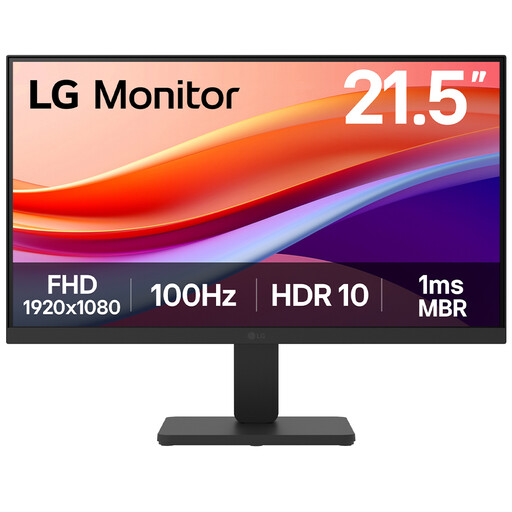
LG 22U401A-B 22-inch Full HD 100Hz monitor
If you are keeping a computer with an HDMI output, this model’s stated HDMI connection gives you a connection to check against it.
The product name specifies a 22-inch VA Full HD display and 100Hz refresh rate. Confirm the position you can achieve at your desk and the applicable warranty terms.
View on Joybuy
Common questions
Will any USB-C port run a monitor and charge my computer?
No. USB-C video requires a compatible display-capable output, such as DisplayPort Alt Mode for monitors that specify it; charging separately requires compatible USB Power Delivery and adequate power for the computer. Check both devices’ specifications rather than relying on the connector shape.
Can an adapter connect my old computer to a new monitor?
Yes, if the computer has a suitable display-capable output and the adapter supports the monitor’s input and the signal you need. The Video Electronics Standards Association describes adapters from DisplayPort over USB-C to HDMI, DVI and VGA, but the computer must support DisplayPort Alt Mode for that route. Check resolution, refresh rate and audio requirements too; an adapter cannot create a video capability the output lacks.
Where should I position a replacement screen?
Place it directly in front of you, with the top around eye level and the screen roughly an arm’s length away, following Health and Safety Executive guidance. Check whether the supplied stand can achieve that position within your desk space, or whether a suitable riser or compatible arm would help.
Does an employer need to assess a changed monitor setup?
The Health and Safety Executive says employers must assess workstations for workers who normally use display screen equipment daily for continuous periods of an hour or more. An assessment considers the whole workstation, working conditions and individual requirements; a change to an existing setup can call for reassessment, rather than an assessment of the monitor alone.
Can I rely on a brand’s advertised monitor warranty?
Rely on the terms for the exact model and applicable seller, not a claim about another range. Dell states a three-year Limited Hardware Warranty and Advanced Exchange Service for its P Series, while Philips states a five-year warranty for its TCO Certified monitor range; BenQ says its UK terms can vary. Check coverage, exclusions and the service process for the monitor you plan to buy.


