People starting routine online tasks
Someone learning to browse, send email or make video calls may benefit from a home screen they can recognise and a few tasks they can practise repeatedly. Leave room to add apps as their confidence grows.


Choose around the online tasks the person will repeat and the controls they can use comfortably. A tablet is worth considering for touch-based browsing and video calls, a computer for longer forms and typing, and a smartphone when calls, messages and portability matter most. Before handing any device over, check its accessibility settings, software support and charging routine, and agree who will help with accounts and updates.
The person’s first tasks and available help matter more than their age alone. The Department for Science, Innovation and Technology’s 2025/2026 UK survey reports lower recent internet use and confidence with digital tasks among older age groups; it does not determine which device will suit an individual.
Someone learning to browse, send email or make video calls may benefit from a home screen they can recognise and a few tasks they can practise repeatedly. Leave room to add apps as their confidence grows.
A relative or friend can help arrange contacts, recovery details and suitable controls with the user’s permission. Apple describes supporter-assisted setup for iPhone Assistive Access; the right display and input settings still need to be tried on the chosen device.
Someone who regularly types longer answers or reads detailed pages may prefer a physical keyboard, mouse and computer-style workspace. A tablet with suitable input accessories may also be worth trying if touch use remains important.
Consider it when: Calls, messages and a device to carry out of the house are central tasks.
Allow for: Its smaller screen and controls may make lengthy reading or forms uncomfortable.
Consider it when: The person mainly wants touch-based browsing, apps and video calls on a larger screen than a phone.
Allow for: Touch gestures and typing still need practice, and a larger screen can be less convenient to carry.
Consider it when: Longer forms, documents or regular keyboard use are the main tasks.
Allow for: A computer needs space for its input setup and a manageable routine for accounts and updates.
| Concern | What to check | Who this matters to |
|---|---|---|
| A manageable starting screen | Try opening essential apps and returning home. Check text size and whether a simpler layout still gives access to the required tasks. | If getting back to a familiar starting point is the main hurdle, an uncluttered layout matters more than adding apps at once. About 31% of consumers put a repeatable starting interface first. |
| Readable, usable controls | Test the actual screen and input method. Check whether display changes work in the apps the person needs. | When reading prompts or reaching controls is the primary difficulty, I would need to try the device rather than judge it by screen size alone. About 25% of consumers chiefly need controls that work for them. |
| Help after setup | Agree who manages account recovery and updates, and find a charging arrangement the user can follow. | If a forgotten password or an unexpected prompt could interrupt regular use, knowing who to ask is my first priority. Roughly 25% of consumers place ongoing help and continuity first. |
| Longer online tasks | Try a form with the intended keyboard or mouse. Check the connection and the exact device’s software-support information. | For someone whose main task is typing answers into detailed forms, a comfortable way to work through a page may outweigh portability. About 19% of consumers prioritise longer-form tasks. |
A larger display does not tell you whether the person can reach controls, type a password, hold the device or connect its charger.
Try the exact device together: open an important app, type a short message, return to the home screen and plug it in. Add a stand or input accessory if it solves a difficulty you have observed.
Passwords, recovery prompts, updates and charging remain part of using the device after it has been handed over. An account set up by someone else can be difficult to recover if responsibilities are unclear.
With the user’s consent, agree who owns the accounts, how recovery works, where the device charges and whom to contact for help. Practise a small set of tasks before adding more apps.
Google notes that Android font-size changes do not affect every app, while Samsung says feature availability varies by model and software version.
Test the required setting on the exact device, using the websites or apps the person expects to use.
A computer’s remaining support matters if it will be used for regular online tasks. Google ties a Chromebook’s automatic-update information to its device platform.
Identify the exact model before choosing a refurbished or older computer. For a Chromebook, check its applicable date in Google’s automatic-update information.
These examples point to settings worth trying, not a reason to choose a brand without testing the device and the person’s tasks.
The iPhone and iPad offer accessibility settings; Apple also provides Assistive Access specifically for iPhone.
Galaxy phones and tablets offer display and interaction settings that may be relevant to a particular user.
Android display adjustments and ChromeOS update information provide separate checks for phones, tablets and Chromebooks.
Windows provides tools to explore when a keyboard-and-mouse computer suits the main tasks.
These models cover tablet use and computer-based online tasks. Compare the controls and intended apps with the person who will use the device; the child-focused tablet in this selection needs particular care before considering it for an adult’s tasks.
 Image unavailable
Consider this Chromebook for web-based tasks that involve longer reading or typing. Its listing specifies a 14-inch WUXGA display, a full-size backlit keyboard, 8GB RAM and a 512GB SSD.
Check that the required services and applications work on ChromeOS rather than relying on Windows or macOS desktop software. Check this model’s automatic-update end date and try its accessibility controls before choosing it.
 Image unavailable
This Windows 11 Home laptop is an option for someone who expects to type and read detailed pages using a conventional keyboard. The listing specifies a 14-inch WUXGA anti-glare display, Snapdragon X, 16GB RAM and a 512GB SSD.
The screen is non-touch, so it will not suit someone who expects to navigate primarily by tapping it. Check software compatibility, remaining support and the accessibility settings needed for the user’s tasks.
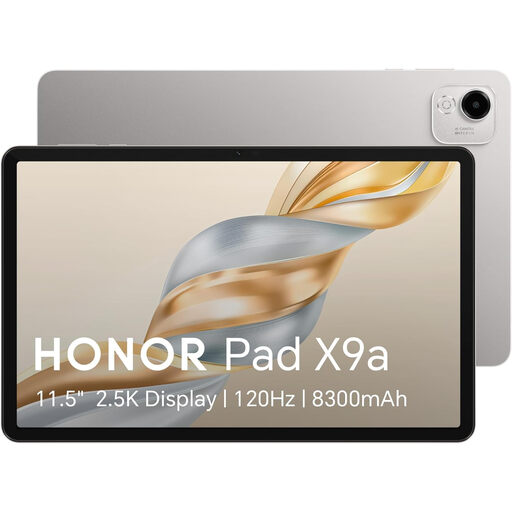 Image unavailable
Consider this Android tablet for touch-based browsing and video calls where Wi-Fi is available. The listing specifies an 11.45-inch 2K display, 128GB storage and a front camera.
This version has no SIM slot for mobile data. Try text and display settings in the intended apps, and check which charging accessories are supplied.
 Image unavailable
This Windows 11 Home model offers both keyboard and touchscreen interaction for someone who wants to try each with their regular online tasks. Its listing specifies a 14-inch touchscreen, a 360-degree hinge, 16GB RAM and a 1TB SSD.
Try the device in both laptop and touch modes rather than assuming either will be comfortable. Check its software-support information and the exact accessibility settings the user needs.
 Image unavailable
If considering a smaller tablet for an adult, first check whether this child-focused model permits every required online task. Its product name specifies Android 15, an 8-inch display, 3GB RAM, 32GB storage and Child Lock.
Try the intended apps and accessibility settings before deciding whether its interface fits the user. The product name states that an adapter is not included, so plan a compatible charging arrangement.
Start with the tasks they will repeat: try a tablet for touch-based browsing and video calls, a phone if calls and portability lead, or a computer for lengthy forms and regular typing. Have the person try those tasks on the intended controls before choosing.
Agree who owns the accounts and who can help with recovery, updates and problems later. Set up essential contacts, a manageable screen lock, internet access and a charging place with the user’s consent, then practise a few repeatable tasks together. Apple describes trusted-supporter help for setting up iPhone Assistive Access.
Test the exact device and software version with the user’s real tasks: reading a prompt, reaching a control, entering text and returning home. Google, Samsung and Microsoft document relevant display or interaction tools, but an option’s availability and behaviour can differ by device or app.
Find the exact model and check its applicable automatic-update date in Google’s ChromeOS information. Google describes a 10-year update period measured from platform release, not from the day an individual Chromebook is purchased.