Who these choices are for
The useful distinction is not the user’s age alone, but which everyday task becomes difficult and whether a setting, a different device or another input method addresses it.
Older users who need clearer visual access
Small text or touch targets can make reading and navigation difficult. RNIB notes that a tablet’s larger screen can help someone with some remaining sight who struggles to see a phone screen; spoken feedback offers a different route when enlarging content is not enough.
Users who need to follow calls and alerts
If calls, notifications or video conversations are hard to follow, assess audio and alert options on the intended device. Anyone using hearing aids should check the particular handset and hearing-aid arrangement rather than relying on a general compatibility description.
Users or carers seeking simpler control
Dense menus or direct touchscreen use may be the main obstacle. Apple documents a simplified iPhone interface called Assistive Access, while Google documents Android Switch Access for interaction through switches; the right route depends on which tasks the user needs to complete.
What matters when choosing
Decide where the device will be used and whether seeing content, following audio or operating the interface is the primary barrier; then try the essential tasks on the exact model.
| Concern |
What to check |
Who this matters to |
| Seeing and reading content |
Try the physical screen size and text controls in essential apps. RNIB notes that a tablet’s larger screen can help people with some remaining sight who find a smaller screen difficult to see. |
If I can still see content but struggle with a small phone screen, I need enough viewing area—or a workable spoken-feedback option—to complete everyday tasks. About 40% of consumers put visual access first. |
| Following calls and alerts |
Try calls and notification options in a realistic setting; if hearing aids are used, confirm the exact handset and connection method. |
When calls or message alerts are easy to miss, I need to know that I can follow conversations and notice someone trying to reach me. This is the primary need for about 30% of consumers. |
| Operating the device |
Have the user try calls, messages and charging. Check essential apps in any simplified mode, or device and accessory compatibility if an alternative to touch is needed. |
If menus are confusing or touch is difficult, I need a way to complete familiar tasks without depending on controls I cannot reliably use. Roughly 30% of consumers prioritise simpler operation or alternative input. |
Screen size and connectivity should be considered together. RNIB notes that most tablets do not have mobile data, though individual tablets can differ. A tablet used mainly at home may suit reading and video calls; for communication while out, check whether the chosen device has the mobile connection the user needs. Neither a larger screen nor an accessibility feature list establishes that the user can comfortably grip, reach or navigate the device.
Mistakes to avoid
-
Assuming a larger screen solves every access problem
A tablet provides more physical viewing area, but it still requires a workable way to hold and operate it. RNIB also notes that most tablets lack mobile data.
Try the user’s core touch actions and grip, then check whether the specific tablet’s connectivity fits where it will be used.
-
Assuming Android features work identically on every model
Google says TalkBack setup can vary by manufacturer and Android version. Samsung notes that some Galaxy accessibility features depend on the model or One UI version.
Check support information for the exact model and software version, and let the intended user try the interaction before relying on it.
-
Taking a hearing-aid claim as a complete compatibility check
Doro describes hearing-aid compatibility ratings for its devices, but a rating alone does not establish how a particular phone will work with the user’s own hearing aids for calls or streaming.
Confirm the handset, hearing-aid model and intended connection method with the seller, manufacturer or hearing-aid provider.
-
Choosing a simplified interface before checking essential tasks
A focused layout can make navigation less demanding, but it may reorganise apps and require someone to manage configuration. Apple’s Assistive Access and Doro’s simplified Android approach should be assessed against the user’s actual tasks.
Check access to calls, contacts, messages and any essential apps after the interface is configured, including who can manage its settings.
Brands and platforms to consider
These examples indicate which accessibility approaches to investigate; a platform feature or brand description is not a substitute for checking the chosen model.
Apple
The iPhone and iPad route for buyers considering built-in visual tools, with a simplified Assistive Access option on iPhone.
- Apple documents VoiceOver, Zoom, Magnifier and display controls for iPhone and iPad.
- Check the selected device, software and essential apps; Assistive Access does not establish that every user will find the interface easy to operate.
Google (Android platform)
An Android route for buyers considering spoken feedback or an alternative to direct touchscreen input across devices from different manufacturers.
- Google documents TalkBack for spoken on-screen feedback and Switch Access for interaction using switches.
- Google notes that setup can differ by manufacturer and Android version; confirm the required controls on the exact device.
Samsung
A Galaxy phone and tablet route for buyers investigating Samsung’s visual accessibility options alongside Android controls.
- Samsung lists spoken feedback and visual display options for its mobile devices.
- Samsung notes that some options depend on the model specification or One UI version.
Doro
A simplified Android smartphone route for someone who wants familiar apps but finds a standard layout difficult to navigate.
- Doro describes a simplified layout with larger text and icons for its Aurora smartphones.
- Doro’s audio and hearing-aid descriptions are manufacturer claims; check the exact handset, required apps and the user’s hearing-aid arrangement.
Joybuy tablets and a smartphone to consider
These products include larger-screen tablets for reading and online tasks, plus a 5G smartphone for communication away from Wi-Fi. Choose by the user’s tasks and handling needs, and check accessibility controls on the exact model.
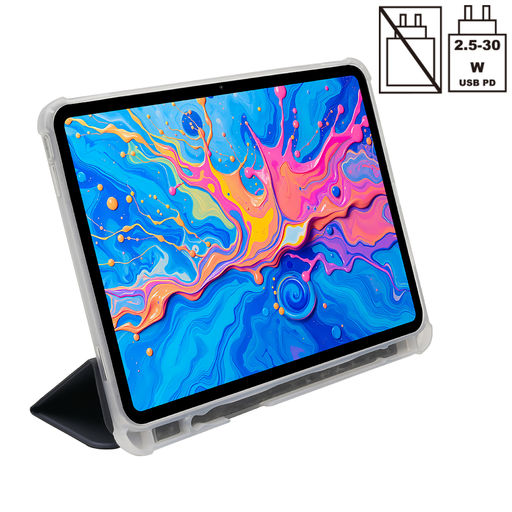 Image unavailable
TECLAST ArtPad Pro 12.7-inch 2K 4G LTE tablet
Consider this if the user wants tablet-sized viewing area but also needs a listed mobile-data option away from Wi-Fi. The product name specifies a 12.7-inch 2K display, 4G LTE, 256GB storage and an included case. Try its size and touch controls with the user, and confirm the required accessibility features on this model.
Joybuy
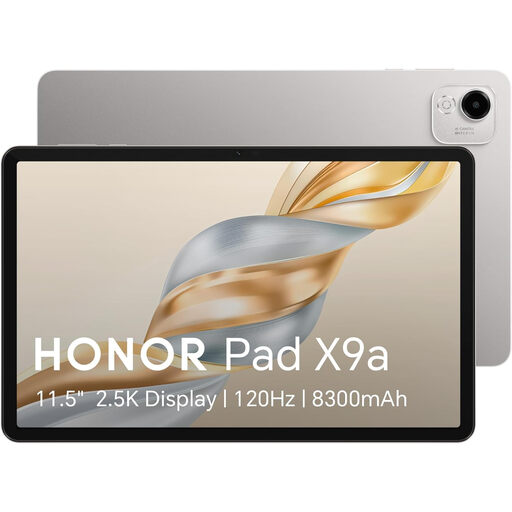 Image unavailable
HONOR Pad X9a 11.45-inch Wi-Fi 128GB, grey
Consider this for reading or online communication where Wi-Fi is available and the user can handle a tablet. The product name specifies an 11.45-inch display and 128GB storage; this listed variant is Wi-Fi-only, so it does not provide mobile data on its own. Confirm the accessibility controls on the exact model and let the user try its reach and grip.
Joybuy
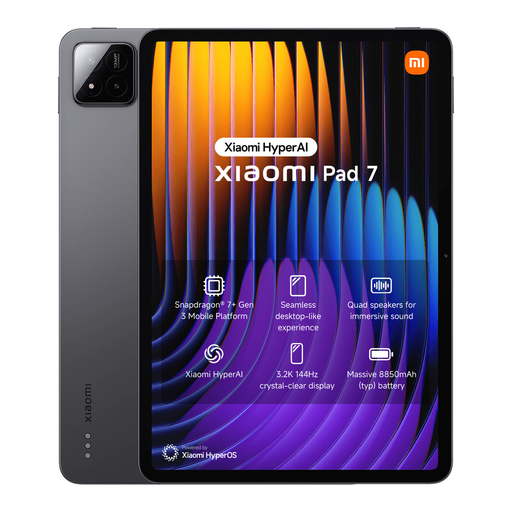 Image unavailable
Xiaomi Pad 7, grey, 8GB/128GB with Focus Pen
Consider this if a tablet suits the user’s reading and online tasks and the included pen is relevant to how they prefer to interact. The product name lists 8GB RAM, 128GB storage and a Focus Pen. Check whether Wi-Fi-based use meets the user’s needs, and try the exact model’s display controls and touch interaction before choosing it.
Joybuy
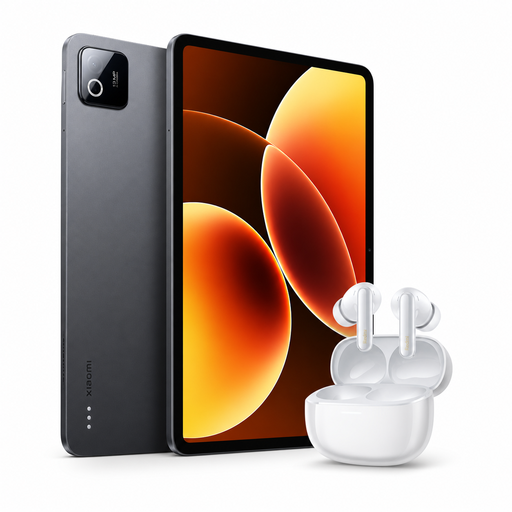 Image unavailable
Xiaomi Pad 8, grey, 8GB/128GB with Redmi Buds 6 Pro Glacier White
Consider this bundle if the user wants a tablet for home-based online tasks and would use the included earbuds. The product name identifies the Wi-Fi tablet variant and the Redmi Buds 6 Pro Glacier White bundle. Confirm the exact device specifications, required accessibility controls and connectivity before relying on this combination for the user’s tasks.
Joybuy
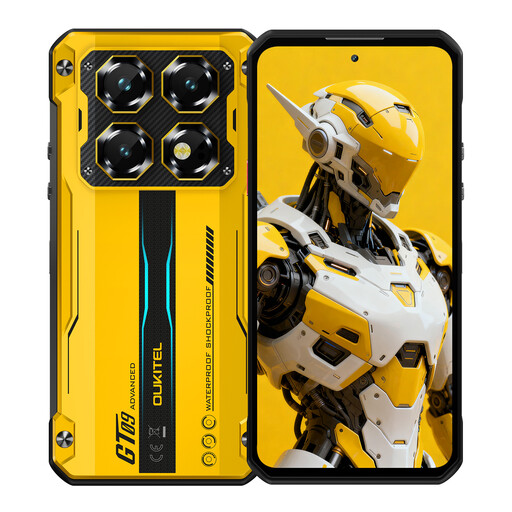 Image unavailable
OUKITEL WP60 5G rugged phone, yellow, 7.2-inch
Consider this smartphone if calls and online access away from Wi-Fi are more important than a tablet-sized screen. The product name specifies a 7.2-inch HD+ display, Android 15, 5G and dual SIM. Check whether the user can comfortably handle and navigate the phone, and confirm its exact-model accessibility controls before buying.
Joybuy
Questions before buying
When might a tablet suit an older user better than a smartphone?
A tablet may suit home-based reading, video calls and online tasks when the user has some remaining sight and benefits from more physical screen area. RNIB notes this advantage but also says most tablets lack mobile data, so check the chosen model’s connection and whether the user can comfortably hold and operate it.
Can a mainstream phone be used without relying on sight?
It may be workable if the user can learn and use its screen-reader interaction. Apple documents VoiceOver on iPhone, and Google documents TalkBack on Android; both provide spoken information about on-screen content. Try the exact device with the user, because screen-reader gestures differ from ordinary touch navigation.
Can an iPhone have a simpler interface without changing phones?
Apple’s Assistive Access offers a focused iPhone interface that a trusted supporter can help personalise. Before choosing it, check that the user can reach the apps and contacts they need and that the support arrangement works for them.
What if hearing or speech difficulties affect phone calls?
In the UK, Ofcom says phone and broadband providers must offer extra support for disabled customers, including access to text relay for people with hearing or speech difficulties. Ask the intended provider what is needed to use the service, and separately check call audio and any hearing-aid connection on the chosen handset.


