
24/7 Customer Support

Free returns

Same-day & Next-day Delivery

Quality Guaranteed

Unlock Your Welcome Offers: FREE Delivery | Up to 80% OFF | Free 30-day JoyPlus trial
Download the APP
By Joybuy Product Recommendation Officer
OLED gaming monitors combine self-emissive pixels, deep blacks and fast pixel transitions with refresh rates designed for modern gaming. They can suit PC gamers, console players and content creators, but premium pricing makes specification checking particularly important.
A high refresh rate alone does not guarantee a suitable display. Before choosing, consider your graphics hardware, desk space, preferred games, connection standards and how you plan to manage OLED panel care.
A 240Hz OLED monitor or 500Hz gaming monitor needs a compatible graphics card and a game capable of producing high frame rates. At 4K, reaching 240 frames per second can require considerably more graphics performance than playing at QHD. For many single-player games, a 4K 144Hz or 240Hz display may be more practical than prioritising an extreme refresh rate.
Console users should check supported modes carefully. PlayStation 5 and Xbox Series X|S commonly target up to 120Hz, so HDMI 2.1 and variable refresh rate support may be more relevant than a monitor’s maximum PC refresh rate.
Many OLED displays list a 0.03ms gaming monitor response time. This describes a specified pixel transition measurement, but it does not determine input lag, frame rate or overall smoothness on its own. Check the refresh rate, adaptive-sync range, connection bandwidth and the games you play.
OLED panels can be susceptible to image retention and burn-in when static elements are displayed repeatedly for long periods. This does not make OLED unsuitable for desktop use, but it does mean buyers should look for practical safeguards such as pixel shifting, panel refresh, logo dimming, static-screen detection or a stated burn-in warranty.
Use the monitor’s OLED care functions, vary desktop content and avoid leaving menus or taskbars displayed unnecessarily at high brightness.
A 4K OLED gaming monitor with a 3840 × 2160 resolution provides a detailed image on 32-inch screens and can suit cinematic games, editing and general desktop work. It also places a greater load on the graphics card.
QHD, usually 2560 × 1440, is a sensible fit for 27-inch displays and can make it easier to reach 240Hz. Ultrawide formats such as 3440 × 1440 or 5120 × 1440 provide additional horizontal space, but game compatibility varies. Check whether the titles you play support the chosen aspect ratio without stretched menus or unused areas.
Refresh rate indicates how often the panel can update each second. A 240Hz OLED monitor can show more frequent frame updates than a 120Hz display when the computer supplies the necessary frame rate. Adaptive sync helps coordinate the monitor’s refresh rate with compatible graphics output, reducing tearing and uneven motion.
Look for the specific standard rather than assuming compatibility. Available options include NVIDIA G-SYNC Compatible, AMD FreeSync Premium Pro and manufacturer-specific VRR modes. Features can differ by input, so check whether they work through HDMI 2.1, DisplayPort or USB-C.
An OLED monitor with HDMI 2.1 is useful for current consoles and high-bandwidth PC connections. However, confirm the supported resolution and refresh rate for each port. USB-C may also provide video, data and laptop charging, although power delivery varies between models.
Check stand adjustment, VESA mounting, viewing distance and desk depth. A curved OLED gaming monitor with an 800R curve needs a different seating position from a flat 27-inch model. A 49-inch ultrawide OLED monitor also requires substantial desk width and may be unsuitable for smaller rooms.
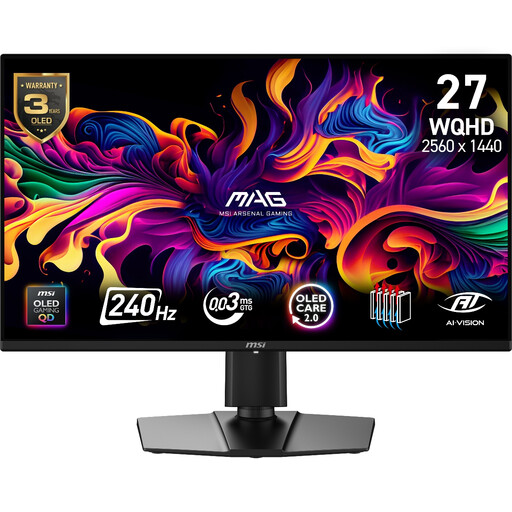
Why This Fits Their Persona: A compact 26.5-inch QHD format suits first-time OLED buyers with a standard UK desk and a PC or console setup.
It uses a 240Hz QHD panel rather than charging for a refresh rate that may be difficult to reach at 4K, and includes OLED Care 2.0 and a three-year warranty including panel burn-in.
QD-OLED, 240Hz refresh rate, 0.03ms GtG response time, HDMI 2.1 and support for 1440p at 120Hz on compatible consoles.
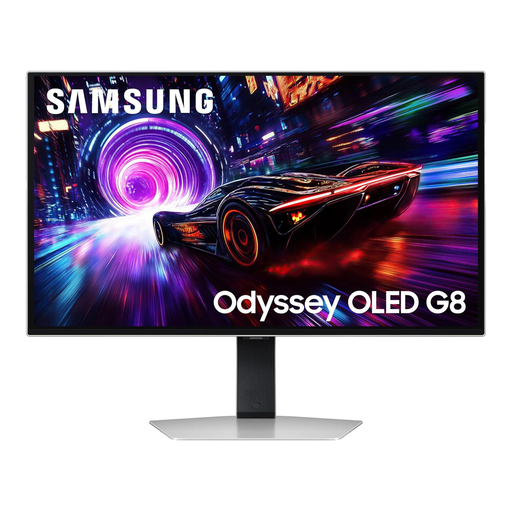
Why This Fits Their Persona: Suitable for gamers and creators who want 4K detail, broad colour capability and a flat 16:9 screen for mixed use.
Its OLED Safeguard+ system, anti-glare coating and 4K 240Hz specification address concerns about static content, reflections and clarity.
32-inch 3840 × 2160 QD-OLED panel, 240Hz refresh rate, 0.03ms GtG response time and VESA DisplayHDR TrueBlack 400 support.
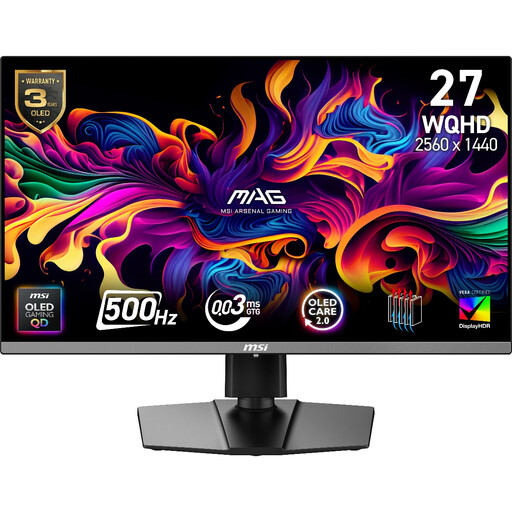
Why This Fits Their Persona: Built around high-frame-rate competitive play, particularly fast shooters and esports titles where QHD resolution and rapid updates are priorities.
The 500Hz mode is paired with QHD resolution, HDMI 2.1 and adaptive-sync support, while pixel shift, panel protection and static-screen detection address OLED care.
500Hz refresh rate, 0.03ms GtG response time, AMD FreeSync Premium Pro, NVIDIA G-SYNC Compatible and a three-year burn-in warranty.
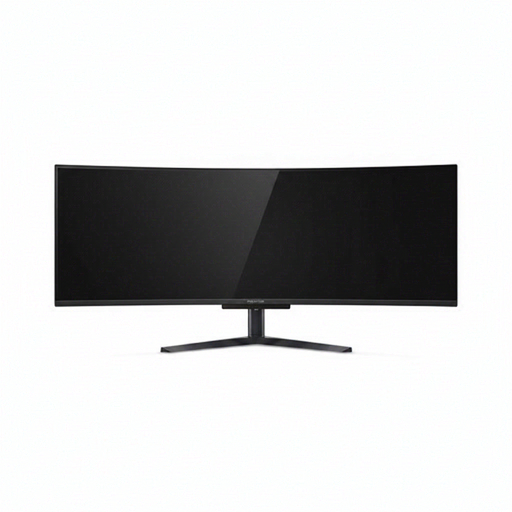
Why This Fits Their Persona: Designed for users who want one expansive screen for racing games, simulation titles, multitasking and multiple content sources.
Its 5120 × 1440 resolution makes the wide format more useful than a low-resolution oversized panel, while PIP/PBP and KVM support help with multi-device work.
49-inch 32:9 QD-OLED display, 1800R curve, 240Hz refresh rate, HDMI 2.1, USB-C with up to 90W Power Delivery and 99% DCI-P3 coverage.
We have compiled a complete, real-time list of products that fully satisfy these strict selection criteria and UK safety regulations.
Power use varies with brightness, HDR content, screen size and usage time. Larger ultrawide and 4K panels may consume more electricity than smaller QHD models. Check the manufacturer’s typical power rating and reduce brightness when full HDR output is unnecessary.
They can be, particularly when they include anti-glare treatment, USB-C connectivity and OLED care features. Buyers who display static spreadsheets, taskbars or application panels for many hours should use automatic screen-off settings, varied content and the panel’s protection functions.
PlayStation 5 and Xbox Series X|S generally support gaming modes up to 120Hz. A 240Hz display will not make a console output 240 frames per second, but HDMI 2.1, VRR and 120Hz compatibility can still make it a suitable choice if you also use a gaming PC.