What matters when choosing?
Start with the service you must use, then choose a workable way to see, navigate and enter information. Test that combination before treating a device feature or accessory as the solution.
| Concern |
What to check |
Who this matters to |
| Readable content and screen feedback |
Try your essential sites with text and display settings, and with VoiceOver or TalkBack if you need spoken feedback. Complete a sign-in or form, not just the home page. |
If I struggle to read controls or need to navigate without seeing the screen, I need feedback that works throughout the task; around 36% of consumers put readable or spoken access first. |
| Lower-effort physical input |
Try the keyboard or mouse shape and position; check its connection with your chosen device and whether you can use the setup for the required task. |
When gripping, typing or repeated touch is uncomfortable, I need a different input arrangement rather than another standard control; roughly 29% of consumers make physical-input comfort their primary concern. |
| Hands-free control |
Check the operating-system version, microphone and voice-feature availability. Try entering and correcting text in an actual online form. |
If touch or keyboard use is the main obstacle and speaking is workable for me, I need to know how far voice commands take me; about 21% of consumers prioritise hands-free control. |
| Setup and ongoing support |
Decide who will configure accounts and accessibility shortcuts. Check the exact model’s update schedule and use your routine services before committing. |
If I cannot confidently set up or maintain a complex device, a manageable routine matters more than a long feature list; around 14% of consumers put setup and support first. |
For a portable touchscreen route, Apple documents VoiceOver and other built-in controls, while Google documents Android TalkBack and Voice Access. Check the features on the exact phone or tablet and try its required apps. For longer writing or a physical keyboard and mouse, a computer offers a different setup: Microsoft says Windows Voice Access can control a PC and author text, but it requires Windows 11 version 22H2 or later. If most tasks run in a browser, check whether ChromeOS works with your services and peripherals; Google publishes a device-specific final-update date for Chromebooks.
Joybuy devices and accessories
These keyboards, pointing devices, tablets and Windows computer offer different ways to arrange input and viewing for home online tasks. Match each option to the controls and services you actually use; a product’s shape or screen specification cannot establish personal comfort or accessibility.
 No image available
HP 960 Ergonomic Split Layout Wireless Keyboard with padded wrist rest
Consider its different typing arrangement if a conventional keyboard is uncomfortable. The named variant has a split layout, wireless connection and padded wrist rest; try the layout and check key feel against your needs.
View on Joybuy
 No image available
V7 MW500BT Bluetooth vertical mouse with 2.4GHz mode
Consider the vertical shape if you want to try a grip other than that of a conventional mouse. The named variant has six buttons and an adjustable sensor listed at up to 1600 DPI; check its fit in your hand and the connection mode your device can use.
View on Joybuy
 No image available
HP OmniBook X Flip 16-as0004na, 16-inch touchscreen
This convertible Windows computer is an option if you want to try both laptop and touch input for home tasks. The named configuration has an Intel Core Ultra 5 226V, 16GB RAM, 512GB SSD and Windows 11 Home. If Voice Access matters, confirm that the installed version is Windows 11 22H2 or later and try it with your microphone and services.
View on Joybuy
 No image available
TABWEE T20 10.1-inch tablet with keyboard, mouse and stylus
This bundle offers physical input to try alongside the touchscreen. Its name lists 24GB (8+16) RAM and 256 GB storage. The device information conflicts between Android 15 and Android 16, so confirm the supplied version and test the accessibility features and bundled controls you need.
View on Joybuy
 No image available
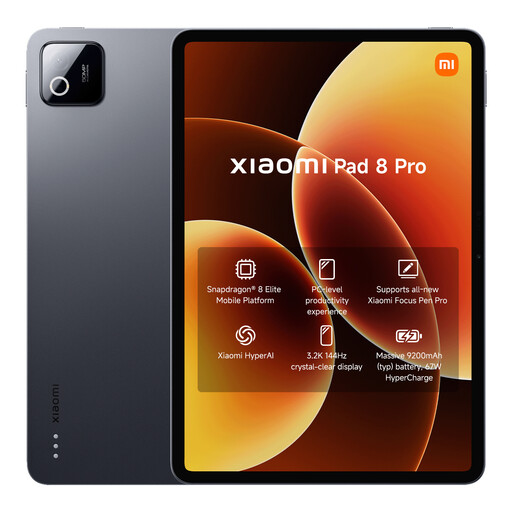
Xiaomi Pad 8 Pro Grey, 12G RAM and 512G storage
Consider this tablet if you want to assess a larger handheld screen for reading and navigation. Its product information describes an 11.2-inch display at 3200 × 2136; those figures alone do not establish visual comfort. Check the supplied accessibility settings, required apps and any external-input compatibility with your routine tasks.
View on Joybuy
Common questions
Can Access to Work help with equipment I use when working from home?
It may be relevant to work-related equipment needs, but it is not a general grant for a home device. GOV.UK describes Access to Work support for starting or staying in work in England, Scotland and Wales, including workplace aids and equipment; check the scheme’s conditions for your circumstances. Northern Ireland has a different service.
Can I buy study equipment before a Disabled Students’ Allowance assessment?
If you intend to claim for that equipment through DSA, wait for the needs assessment. GOV.UK says equipment bought before the assessment will not be reimbursed; follow the resulting equipment and supplier instructions before purchasing.
How do I check a Chromebook’s software-support life?
Check the update schedule for the specific Chromebook, rather than relying on its purchase or listing date. Google says Chromebooks receive 10 years of automatic updates and provides a way to see the device’s final-update date; consider whether that date suits the period you plan to use it.
Can voice control replace a keyboard or mouse for forms and email?
Voice control can provide another input method for some tasks, but it is not a guaranteed replacement throughout an online service. Microsoft describes browsing and text entry through Windows Voice Access on Windows 11 version 22H2 or later, while Google documents spoken navigation and text editing through Android Voice Access. Try sign-in, form entry and corrections on the services you use.


