Choose a console, tablet or Windows PC around the games your child intends to play and the account, multiplayer and sharing rules your household can manage. A console may suit shared-TV play if the model connects to a TV; a tablet suits app-based games, while a Windows PC calls for deliberate setup of child accounts and app limits. Whichever route you choose, check the game’s online requirements, communication settings and purchase controls before play begins.
Who is choosing?
Families setting up a first child gaming account
A parent or guardian choosing a device for online play needs the child’s own account, with age, communication, playtime and spending settings. Ofcom advises registering children with their correct age because platforms use it to restrict some features and content.
Households sharing a device
Where siblings use the same console, account-level permissions, device-wide restrictions and rules for sharing games or online memberships can all affect the setup. Nintendo, PlayStation and Xbox describe different conditions for these arrangements.
Families playing across devices
Families considering a tablet, Windows PC and console need to know which accounts and app limits they can manage together. Apple, Google and Microsoft each describe controls with different device and payment-system boundaries.
What matters when buying?
Start with the child’s intended games and where they will play, then compare account setup and online access. For any route, check that the particular game works on the chosen device.
Games console
Consider it when: The household wants console games, potentially on a shared TV where the model supports TV play.
Allow for: Online memberships and sharing rules vary by platform and game; Nintendo says many Switch parental controls apply to the whole system.
iPad or Android tablet
Consider it when: The child’s intended games are tablet apps and the family can set up a separate child account.
Allow for: Apple’s Ask to Buy applies to eligible purchases, while Google says Family Link purchase approvals cover Google Play billing, not every payment route.
Windows gaming PC
Consider it when: The intended games run on Windows and the family also wants to manage app and game limits on connected devices.
Allow for: Microsoft Family Safety limits depend on the child using the connected account and device; check each game and store separately.
| Concern |
What to check |
Who this matters to |
| Child accounts and communication |
Check for a separate child account, age settings and controls for multiplayer communication. Establish which settings apply per child. |
If my child will play online, I want their communication and access settings attached to their own account rather than mine. About 29% of consumers put child-account controls first. |
| Shared-home multiplayer |
Check whether siblings need separate accounts and how the platform handles the household’s intended online play and shared games. |
With siblings using one device, I need to know who can play together and what each account can access. A workable sharing arrangement is the primary concern for about 29% of consumers. |
| Memberships and purchase approvals |
Check each game’s online-service requirement and renewal terms, then identify which payment routes the child-account approvals cover. |
Before committing to a device, I want to understand recurring online access and where purchase approval applies. About 21% of consumers chiefly need that clarity. |
| Cross-device controls |
Identify the devices and game stores the child will use, and check where account-based app limits apply. |
If play moves between a tablet, PC and console, I need controls I can manage across the relevant accounts. That flexibility comes first for about 21% of consumers. |
Checks that are easy to miss
-
Buying before checking the intended games
A game’s availability on a device does not by itself establish how its online multiplayer works. Sony Interactive Entertainment says most PS4 and PS5 online multiplayer games require PlayStation Plus; Nintendo Switch Online covers online play in compatible games.
List the games the child wants to play and the devices their friends use. Check device compatibility, cross-play and any membership requirement for each game before choosing hardware.
-
Using an adult account as the child’s profile
Playtime, communication and purchase settings need to apply to the person playing. Ofcom advises entering a child’s correct age because platforms may restrict features and content accordingly.
Set up a separate child account and configure its family manager, content, communication and purchase settings before installing games.
-
Assuming shared-console controls differ for each child
Nintendo Support says many Switch parental controls are system-wide. The same restriction can therefore affect siblings who use one console.
Check which settings apply to the device and which apply to individual accounts. Where a shared restriction is needed, account for the youngest user’s access needs.
-
Treating one device type as inherently safer
Account permissions and game settings affect online play whichever hardware a child uses. Choosing a tablet, console or PC alone does not settle communication or purchase access.
Review the child account, the intended game’s communication settings, payment route and age rating at setup and when a new game is added.
Relevant brands and account systems
Nintendo
Relevant to families considering Nintendo Switch or Switch 2 online play and Nintendo Account family settings.
- Nintendo describes playtime, activity and communication controls; a Nintendo Switch Online family membership can cover up to eight accounts in one family group.
- Nintendo Support says many Switch parental controls are system-wide rather than specific to each user. Check online-game compatibility and account-level purchase restrictions separately.
PlayStation
Relevant to households considering PS4 or PS5 child accounts and online multiplayer.
- Sony Interactive Entertainment describes mobile-managed settings for a child’s playtime, spending, messaging and access.
- Sony says most PS4 and PS5 online multiplayer games require PlayStation Plus. Sharing selected membership benefits depends on its designated-console conditions.
Xbox / Microsoft
Relevant where a household is considering Xbox alongside a Windows gaming PC.
- Microsoft Xbox Support describes per-member settings for screen time, content and multiplayer; Microsoft Family Safety app and game limits can extend across connected Windows, Xbox and Android devices.
- Cross-device limits require the connected account and device. Microsoft Xbox Support says digital sharing through Home Xbox is tied to one designated console at a time.
Apple
Relevant to families considering iPad games with Apple Family Sharing and a child account.
- Apple Support describes Screen Time and parental controls for a child’s device, with Ask to Buy requests for eligible downloads and in-app purchases.
- Ask to Buy depends on the Family Sharing setup and the purchase circumstances; it should not be assumed to approve every game payment.
Google
Relevant to Android-tablet households using Family Link and Google Play.
- Google describes Family Link settings for a child account, apps and Google Play purchases.
- Google says Family Link purchase approval settings apply to transactions using Google Play billing, not purchases processed elsewhere.
Joybuy console selections
These two Nintendo Switch 2 listings are for families considering a console that can be used for handheld or TV play. Before choosing either edition, check the child’s intended games, online requirements and the contents of the particular listing.
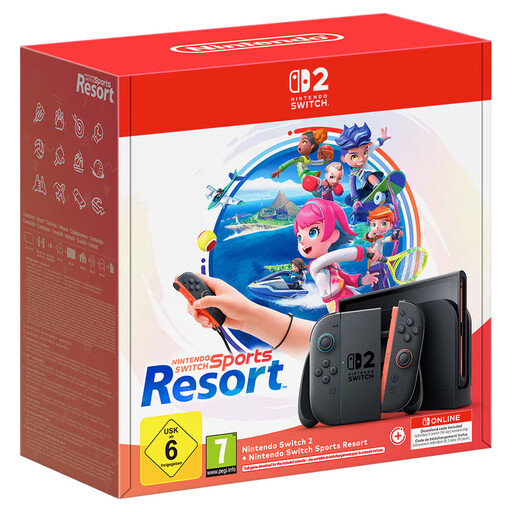 Image unavailable
Nintendo Switch 2 Console + Nintendo Switch Sports Resort
Consider this named console-and-game bundle if the household wants the Sports Resort edition. Check the included contents and the game’s online and cross-play features before relying on it for play with friends. Nintendo says many Switch parental controls apply across the shared console.
View on Joybuy
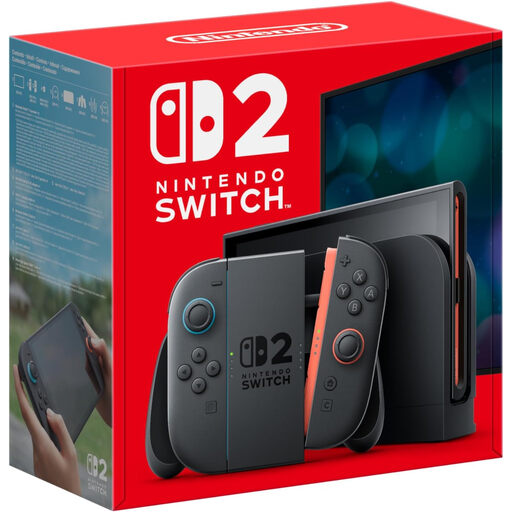 Image unavailable
Nintendo Switch 2 Console (UK Version)
Consider this edition if the family wants a Switch 2 console rather than selecting the named Sports Resort bundle. Confirm its included contents and whether the child’s intended games support the required online features. For a shared console, check which Nintendo parental controls apply to every user.
View on Joybuy
Common questions
Should my child use my adult gaming account?
Set up a separate child account where the chosen ecosystem supports one, then apply its family, communication and purchase settings. Ofcom advises registering children with their correct age because platforms use age to restrict some features, games and content.
Does online play always need a membership?
No single rule covers every game and device. Sony Interactive Entertainment says most PS4 and PS5 online multiplayer games require PlayStation Plus; Nintendo Switch Online provides online play for compatible titles. Check the intended game’s requirements before buying a membership.
Can siblings share one membership or digital game library?
Sharing depends on the platform and setup. Nintendo says its Switch Online family membership can cover up to eight accounts in one family group. Sony limits sharing of selected PlayStation Plus benefits to its designated-console arrangements, while Microsoft Xbox Support ties Home Xbox game sharing to one designated console. Check account and simultaneous-use conditions for the games your household intends to play.
Will a parental-control app approve every in-game purchase?
Do not assume an account setting covers every payment route. Apple says Ask to Buy can request approval for eligible downloads and in-app purchases; Google says Family Link purchase approvals apply to Google Play billing. Check how each intended game processes payments and which child-account controls apply there.


