Choose around the tasks the adult wants to do, not their age: a tablet or larger-display phone may suit short messages, calls and quick information checks, while a laptop or desktop is worth considering for frequent typing and longer forms. Try those tasks on the intended screen and input method, then check Wi-Fi setup, account recovery, software updates and whether an accessory or regular practice would help.
Who is this for?
Adults building confidence with online tasks
For someone learning to manage messages, video calls, email and everyday services, a familiar setup and opportunities to practise matter alongside the device. Age UK advises starting with a device the person feels comfortable using.
People who need clearer viewing or different controls
If reading text or using touch controls is difficult, adjustable display settings, spoken feedback or an external input device may matter more than the category of device. Apple, Google and Microsoft document different controls for their respective platforms; check the intended device and setup.
People who often write or fill in forms
Longer emails, documents and detailed websites put more emphasis on a comfortable keyboard and usable work area. AbilityNet recommends choosing around the individual’s tasks rather than assuming one type of computer suits everyone.
What matters when choosing?
Start with the tasks that need to feel manageable, then compare the device and input setup needed to complete them. Accessories can address a particular difficulty, but they do not replace choosing a suitable main device.
Tablet
Consider it when: a portable touch screen will mainly be used for calls, reading and straightforward online tasks at home.
Trade-off: repeated long forms or messages may make an on-screen keyboard less comfortable; try the planned external keyboard if typing is important.
Laptop
Consider it when: regular emails, documents or longer forms call for a physical keyboard, but the device needs to move around the home.
Trade-off: the keyboard, trackpad, screen and charging routine all need to work for the intended user.
Larger-display smartphone
Consider it when: calls, messages, confirmation codes and quick service access are the main tasks, particularly away from a desk.
Trade-off: even a larger phone display leaves less room for reading and completing forms than a tablet or computer.
Desktop
Consider it when: a fixed home workspace can accommodate a separately chosen monitor and input devices for regular forms or documents.
Trade-off: it needs dedicated space, and the display, keyboard and pointer still have to be set up for the person using them.
| Concern | What to check | Who this matters to |
|---|
| Simple communication |
Try reaching key contacts and returning to essential apps; check home Wi-Fi and a repeatable charging routine. |
If calls and messages are my main reason to get online, I need to find the right contact without getting lost in menus. Around 29% of consumers put manageable communication and basic access first. |
| Typing and forms |
Try a typical form with the intended keyboard and navigation method; check keyboard compatibility if using a tablet. |
Longer emails and service forms are difficult for me on a small touch keyboard, so comfortable writing is the deciding need. Roughly 29% of consumers prioritise typing and forms. |
| Reading and control |
Test text sizing or magnification and the intended touch, keyboard, pointer or spoken controls on the exact device. |
I need to read the screen and reliably select its controls before other features will be useful. Around 21% of consumers place adaptable viewing and input first. |
| Ongoing setup and support |
Check the exact model’s update commitment and make a workable plan for passwords, account recovery and help at home. |
If I cannot keep the device updated or recover an account, routine online services become harder to manage. About 21% of consumers make maintainable setup and support their primary concern. |
What should you avoid?
-
Choosing by age label or screen size alone
A larger display may help with reading, but it does not settle questions about navigation, typing or confidence. AbilityNet advises choosing around the individual’s tasks.
Pick a few tasks the adult wants to complete independently and try them on each shortlisted setup.
-
Assuming a tablet replaces a keyboard-first computer
Long messages and forms can make an on-screen keyboard awkward. AbilityNet notes that alternative keyboards and mice need suitable connections, so compatibility matters as well as comfort.
Compare a laptop or desktop with the tablet and the exact external keyboard you intend to use.
-
Assuming every model has the same accessibility controls
Controls and update availability can vary by device and software version; Samsung UK specifically says available updates depend on the Galaxy model.
Open the relevant settings on the intended model and check its remaining software support before deciding.
-
Leaving setup and practice until after purchase
A new device alone will not teach someone how to return to an app or complete a familiar task. AbilityNet recommends training tailored to the person’s tasks and spread over time.
Agree who will help with the initial setup, write down key steps plainly and make time to practise the tasks that matter.
Brands and platforms to consider
Apple
iPad and iPhone are relevant to households considering touch-first use and adjustable controls.
- Apple Support describes iPad options including larger text, zoom, screen reading, spoken commands and external-keyboard use.
- Feature availability can vary by region and language. Check the intended model’s features and software eligibility.
Google Pixel
Pixel is relevant when a larger-display Android phone and its accessibility controls suit the main tasks.
- Google documents Android display sizing, magnification, spoken feedback and alternative controls. Google Store UK states a seven-year update commitment for qualifying current Pixel phones.
- Check the precise phone’s controls and remaining support; the Pixel commitment does not extend to every Android phone.
Samsung
Galaxy phones and tablets are another Android route to assess against the person’s screen and input needs.
- Samsung UK provides model-specific guidance for checking and installing Galaxy software updates.
- Samsung says update type and version depend on the device model. Confirm support and the needed controls for the exact unit.
Microsoft Windows
Windows is relevant to laptop and desktop setups built around typing, forms and a chosen display and input method.
- Microsoft Support documents Magnifier, Narrator, voice typing, Voice Access and input adjustments in Windows.
- Windows features do not determine whether a particular computer’s physical screen, keyboard or pointer will feel comfortable; try the complete setup.
Joybuy product choices
These laptop, tablet and larger-display phone options offer different starting points for everyday online tasks. Compare each with the adult’s actual typing, viewing and setup needs; a fixed desktop setup remains worth considering if that better fits their routine.
 No image available
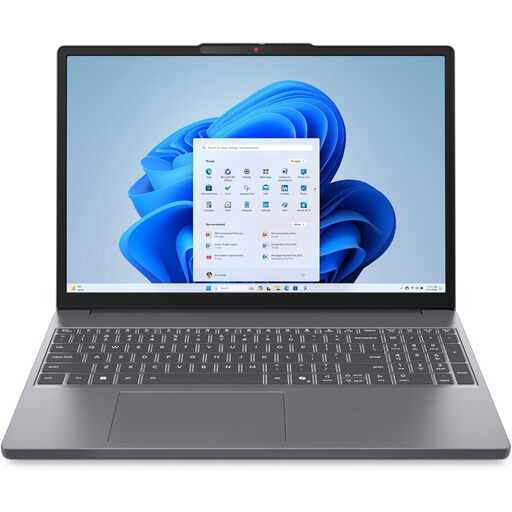
Lenovo IdeaPad Slim 3 15.3-inch laptop, Ryzen 5 7535HS, 24GB RAM, 512GB SSD (83K7009MUK)
Consider a keyboard-first laptop if longer emails and forms are regular tasks.
The listed configuration has a 15.3-inch WUXGA display, Windows 11 Home and Wi-Fi 6. Try the screen, keyboard and trackpad with a representative task, and check software support for this model.
View on Joybuy
 No image available
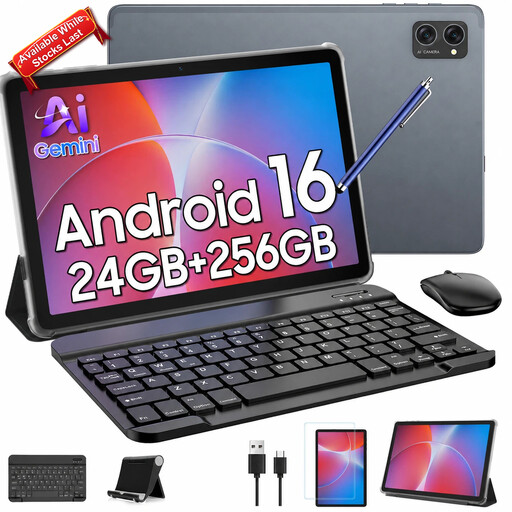
TABWEE T20 10.1-inch tablet, 256GB, with keyboard, mouse and stylus
This tablet bundle is worth examining if touch use appeals but an alternative to on-screen typing is needed.
The title lists a 10.1-inch display and keyboard, mouse and stylus. Confirm the supplied unit’s operating-system version and update support, and try connecting and using the input devices.
View on Joybuy
 No image available
Xiaomi Pad 8 tablet, 8G RAM, 128GB, Wi-Fi, Gray
Consider this touch-first tablet for reading, browsing or calls if its size and controls feel manageable.
The listed display is 11.2 inches. For frequent forms, check compatible keyboard options; also confirm the model’s update support and try typical tasks on the screen.
View on Joybuy
 No image available
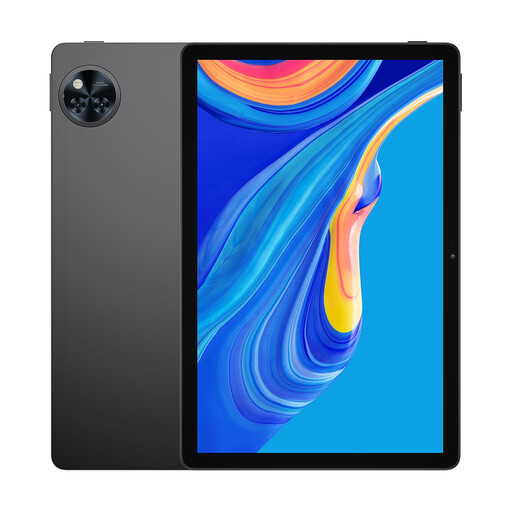
DOOGEE U11 PRO 11-inch tablet, 30GB RAM, 256GB, Black
This is another touch-screen option to try for routine browsing and video calls at home.
The title lists an 11-inch display and 90Hz IPS screen. Test text readability and handling, and check keyboard options and exact-model update support if those affect the choice.
View on Joybuy
 No image available
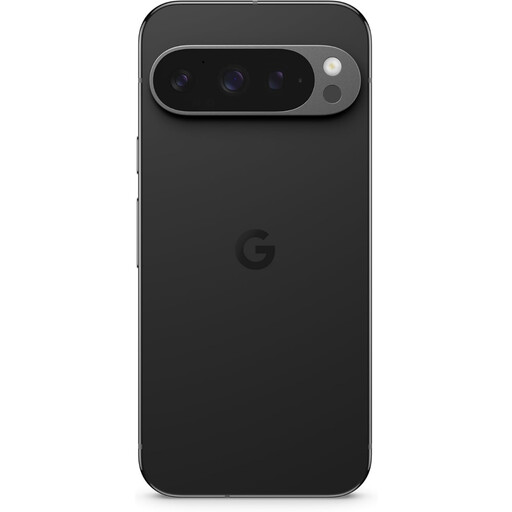
Google Pixel 9 Pro XL, 256GB, Obsidian
A larger-display phone may suit calls, messages and quick service access when a phone is already a comfortable way to work.
The listed display is 6.8 inches. Try reading and completing a typical task on the phone, and confirm the exact model’s remaining software-support period.
View on Joybuy
Common questions
Should age determine which device to buy?
No: start with the adult’s own tasks and preferred way of using a screen. AbilityNet advises choosing around individual needs, so try a few familiar activities rather than relying on an age label.
What should we try for longer online forms?
Compare a laptop or desktop with a tablet using the exact external keyboard planned for it. Complete a representative form to see whether the screen layout, typing and navigation work together comfortably; touch-first tasks alone may not reveal the difficulty.
What should be ready before the adult starts using the device?
Set up home Wi-Fi, available updates, readable text and easy access to the contacts and services they use. Make account-recovery arrangements and practise a few real tasks together; AbilityNet recommends training tailored to those tasks over time.
Can accessibility settings make any screen or keyboard suitable?
Not necessarily: settings can change how content is displayed or controlled, but the physical setup still needs to fit the person. Try reading, positioning the device and completing a task using the intended controls before relying on a particular configuration.
How do we check software-update support?
Check the exact model and its remaining support period, not just its brand. Google Store UK states a seven-year update commitment for qualifying current Pixel phones, while Samsung UK says Galaxy update availability depends on the model; neither statement establishes support for every phone or tablet.


