Regular home-desk users
If you connect the same laptop at home repeatedly, you may want a screen, charging and everyday peripherals ready without rearranging cables each time.


Build your home setup around the task your existing laptop makes hardest: an external monitor for screen space, a dock for several wired connections, or camera and audio accessories for frequent calls. Before choosing a one-cable or multi-monitor arrangement, check the laptop’s video output, supported display count and charging requirements; a matching connector alone does not establish compatibility.
If you connect the same laptop at home repeatedly, you may want a screen, charging and everyday peripherals ready without rearranging cables each time.
If your work involves multiple peripherals, wired networking, storage or more than one external screen, the laptop’s port capabilities and display limits matter as much as the dock’s socket count.
If calls are the main difficulty, assess camera placement, lighting, microphone pickup and listening needs before adding more desktop connections.
Start with what your existing laptop can connect to, then decide whether your priority is a desk you reconnect daily, clearer communication or equipment you can move between locations.
| Concern | What to check | Who this matters to |
|---|---|---|
| Display compatibility | Check the exact laptop port’s video capability and supported number of external displays before choosing a monitor or dock. | If I need an extended screen for focused work, I want to know that my laptop can drive it rather than relying on the shape of its USB-C socket. Around 33% of consumers put connection and display compatibility first. |
| A regular home desk | Compare the laptop’s charging requirement with the monitor or dock’s delivered power, and check which peripherals can stay connected. | When I return to the same desk, reconnecting a screen and everyday devices quickly matters more to me than carrying the setup around. For around 27% of consumers, reducing those repeated connection steps is the primary need. |
| Video communication | Check camera mounting and connection options, then assess whether a separate microphone or headset addresses your call needs. | If meetings take up much of my working day, camera position and being heard clearly take priority over another display. Around 20% of consumers primarily focus on video-call equipment. |
| Portable desk basics | Consider the connections you use when moving locations, alongside the space needed for a keyboard, mouse or laptop stand. | I need to pack my equipment away or move it between workspaces, so a simpler arrangement appeals more than a permanently connected desk. Portability and basic desk comfort come first for around 20% of consumers. |
A USB-C connector does not establish what its port can do. Anker’s support guidance for one hub, for example, says its USB-C data socket does not output video and that HDMI output requires a host port with DisplayPort Alt Mode.
Check your exact laptop model’s port specification against the hub or dock’s host requirements before relying on an external screen.
A dock’s quoted resolution and screen count can depend on the laptop. StarTech.com specifies DP 1.4 Alt Mode with DSC for one dock’s dual-4K-at-60Hz or triple-4K-at-30Hz modes; Apple says Mac external-display limits vary by model.
Confirm the laptop’s supported display count and the resolution and refresh rate you need, then match those conditions to the dock and cables.
A hub or dock may use some incoming power itself, so its charger-input rating is not necessarily the power delivered to the laptop.
Compare the accessory’s stated laptop power output with the charging requirement for your exact laptop, and check which power adapter the package includes.
Consider its USB-C hub monitors if you want a screen to anchor a regular home desk.
Its separate webcams are relevant when camera position and video-call connections matter more than desk expansion.
Its hubs and docks cover different approaches to portable port expansion and a connected desk.
Its specification-led docks are relevant when stated host requirements and display modes are central to the choice.
These choices cover external screens, wired desk connections and video-call equipment for use with an existing laptop. Choose the type that addresses your main need, then check its connections against your laptop and working space.
 No image available
Consider this if a separate camera and call-audio device are more useful to you than additional desk ports.
The product title specifies a fixed-focus camera, an adjustable 98° field of view, four microphones and two speakers. Check its USB connector and the cable supplied against your laptop before buying.
 No image available
Consider this for a desk where you want to connect displays and other wired devices through a dock.
The product title specifies dual HDMI connections and 100W power-delivery pass-through. Confirm that your laptop supports the required video mode and number of external screens, and check whether the required external power adapter is included.
 No image available
Consider an external screen if more display space is your main desk requirement.
This model is identified as an IPS USB-C monitor. Check its video and charging connections against your laptop, the supplied power accessories, and its carry weight if you plan to move it regularly.
 No image available
Consider this for a regular desk if a 31.5-inch external screen suits your available space and work.
The product title specifies 4K UHD resolution, an IPS panel and USB-C connectivity. Check the laptop’s video support and the monitor’s delivered USB-C charging power before planning a one-cable setup.
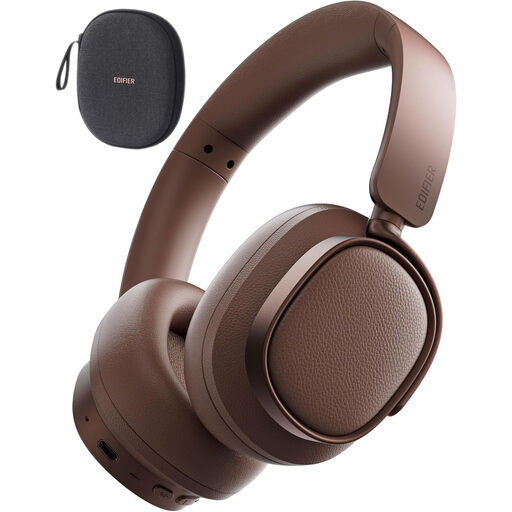 No image available
Consider a separate headset if listening and speaking on calls are your main equipment needs.
The product title identifies wired and wireless use and active noise cancellation. Check Bluetooth and microphone behaviour with your laptop and calling applications rather than assuming the listed call features will work identically in every setup.
No: the laptop’s USB-C port must support the video mode required by the dock. Check the exact laptop port specification and supported display count; Anker’s guidance for one hub specifically requires DisplayPort Alt Mode on the host for its HDMI output.
An HDMI splitter duplicates one signal rather than creating two independent displays, according to Microsoft Support. For an extended desktop, check that your laptop supports the required number of external screens and that the chosen connection arrangement matches it.
Check your exact Mac model’s supported external-display count before choosing a dock or monitors. Apple says capacity varies with the model and display configuration; if you are considering a DisplayLink-based arrangement, also check the DisplayLink Manager software requirements and limitations.