Choose a USB document camera for a defined work area and a straightforward computer-connected view, or a webcam if you mainly share your desk during calls and can position it securely. An interchangeable-lens camera offers more choice over recorded-video settings and lenses, but needs a suitable lens and overhead mount. Whichever route you take, check that your hands and stitches fit in the frame at the planned camera height; a 4K label alone does not settle that question.
Who is this for?
Solo overhead tutorial makers
If you knit and operate the camera yourself, you need a way to check the frame before recording and keep both hands visible while you work. A viewable screen, computer preview or published shooting area can help you plan the setup.
Close-stitch demonstration creators
When viewers need to follow yarn placement and individual movements, check how much of the frame the stitches occupy. Lens choice or shooting area, working distance, focus and lighting all matter alongside recording resolution.
Live knitting teachers
For a class or call, the route into your computer and teaching platform matters as much as the recorded image. Check the camera connection, software compatibility and where the cable will run once the camera is above the work.
What matters when choosing?
USB document camera
Choose it when: You want a computer-connected view of a measured desk area for a live class or desktop recording. IPEVO specifies a 342 × 255 mm maximum shooting area and USB Video Class output for the V4K.
Trade-off: IPEVO specifies live video of up to 30 fps at Full HD, rather than a high-frame-rate 4K recording mode.
Interchangeable-lens camera
Choose it when: You want to select a lens and recording mode for edited tutorials or other video projects. Canon lists 4K/30p for the EOS R50, while Sony lists 4K/60p for the ZV-E10 II.
Trade-off: The camera body and recording mode do not establish whether a particular lens can frame and focus on your work from a safe overhead position.
Webcam with desk view
Choose it when: Knitting demonstrations mainly happen during computer-based calls. Logitech describes MX Brio Show Mode as a way to tilt the webcam towards desk material.
Trade-off: A tilted desk view does not, by itself, provide a stable position directly above the knitting.
| Concern |
What to check |
Who this matters to |
| Stitch framing |
Measure the widest area your hands and knitting need. Compare it with a document camera’s stated shooting area, or check the exact lens’s field of view and focusing distance at your mount height. |
If the stitches look small once my hands are in frame, the demonstration will be hard to follow; around 36% of consumers put clear stitch framing first. |
| Solo setup |
Check how you will preview the shot and whether the chosen mount can securely hold the camera and any lens overhead. |
When I am filming alone, I need to see whether my hands stay in shot without stopping to reset the camera. Roughly 29% of consumers prioritise managing the overhead setup themselves. |
| Live connection |
Confirm the camera’s computer-connection mode, operating-system and platform compatibility, and practical cable placement before a live session. |
For a live lesson, I need the camera view to reach the call or streaming platform without interrupting the demonstration; about 21% of consumers put that connection first. |
| Edited recording |
Check the recording mode you intend to use, the included lens, storage needs and power arrangement for the planned session. |
If I plan to edit and reuse footage, I care about recording options as well as the initial desk view. Around 14% of consumers make edited-video flexibility their primary concern. |
Buying pitfalls
-
Assuming a camera body is a complete overhead kit
An interchangeable-lens camera still needs a lens that can frame and focus on the knitting at your intended height. A suitable way to hold the assembled camera above the table is a separate decision.
Check the exact bundle contents, lens working distance and mounting arrangement against your table dimensions before choosing a body or kit.
A lens, overhead arm, storage, power arrangement or lighting may add equipment to the setup.
-
Choosing by the 4K label alone
Recording resolution does not tell you how large the stitches will appear when both hands are in shot. For comparison, IPEVO publishes a maximum shooting area for the V4K, while an interchangeable-lens setup calls for checks specific to the chosen lens and position.
Mark out the full working area, including hand movement, then check the coverage and focusing distance from the planned camera height.
-
Treating desk-sharing mode as an overhead mount
Logitech describes MX Brio Show Mode as tilting the webcam down towards desk material during a call. That does not establish whether the camera will stay directly above a knitting project or keep hands and shadows clear of the view.
Plan a secure camera position and lighting placement before relying on a webcam for close stitch demonstrations.
Achieving the intended angle may require a separate clamp, arm or tripod.
-
Using Great Britain guidance as a Northern Ireland checklist
The Office for Product Safety and Standards identifies its GOV.UK electrical-equipment guidance as guidance for products placed on the market in Great Britain. That scope matters when checking documentation for equipment intended for Northern Ireland.
For a Northern Ireland purchase, consult the applicable Northern Ireland guidance and the seller’s product documentation rather than assuming the Great Britain guidance applies unchanged.
Brands to consider
These brands illustrate different camera routes for knitting demonstrations; the points below concern the named models, not every camera made by each brand.
IPEVO
The V4K is a USB visualiser for a computer-connected desk view.
- IPEVO specifies an 8 MP full-autofocus lens, USB Video Class output, a maximum shooting area of 342 × 255 mm and Mac, PC and Chromebook compatibility for the V4K.
- IPEVO’s stated live-video rate reaches up to 30 fps at Full HD; check whether its shooting area covers your knitting and moving hands.
Canon
The EOS R50 is an interchangeable-lens option for recorded tutorials that can also be used as a USB webcam, according to Canon.
- Canon lists a vari-angle touchscreen, 4K/30p recording and Dual Pixel CMOS Auto Focus II for the EOS R50.
- Check the exact lens, its working distance and field of view, plus the mount and power arrangement for an overhead setup.
Sony
The ZV-E10 II is an interchangeable-lens route for creators considering 4K/60p recorded tutorials.
- Sony specifies 4K/60p recording from 5.6K oversampling and an E-mount lens system for the ZV-E10 II.
- Confirm that the exact lens can frame and focus on the knitting from your intended height; an overhead support is a separate part of the setup.
Logitech
MX Brio is a webcam option for computer-based calls and desk sharing.
- Logitech specifies UHD 4K at 30 fps or 1080p at 60 fps, and describes Show Mode as a way to share desk material during a call.
- Show Mode does not establish a stable vertical overhead angle or sufficiently close framing for stitches; check the physical position separately.
Panasonic
The LUMIX G100D is another interchangeable-lens option for recorded demonstrations.
- Panasonic lists 4K/30p, Full HD/60p, 5-axis Hybrid I.S., USB-C charging and a 12–32 mm kit lens for the G100D.
- Its stated 4K rate is 30p, so it does not meet a firm 4K/60p recording requirement. Check lens framing and overhead mounting for your workspace.
Joybuy product choices
These choices cover interchangeable-lens cameras for recorded knitting tutorials and a webcam for computer-connected demonstrations. Select by the view and workflow you need, then check whether the particular camera can be positioned and focused on your knitting area.
 No image available
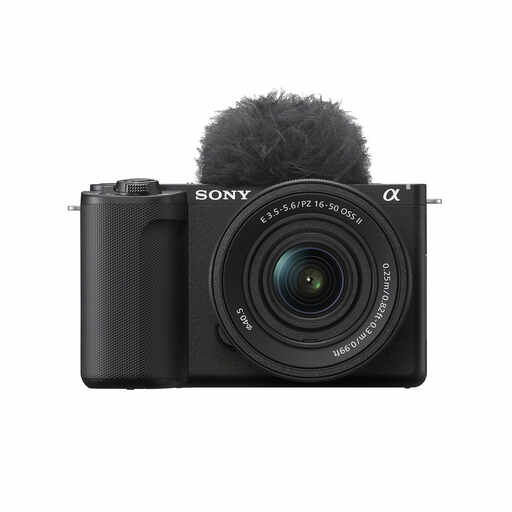
Sony Alpha ZV-E10 II K with 16–50 mm power-zoom kit lens
Consider this kit if you want an interchangeable-lens camera for edited knitting tutorials. Its listed configuration includes an APS-C camera, a 16–50 mm f/3.5–5.6 power-zoom lens and 4K/60p recording.
Before choosing it for an overhead view, check whether the included lens frames and focuses on your full working area at the planned height, and arrange a secure mount.
View on Joybuy
 No image available
j5create JVCU435 USB 4K webcam with remote control
This webcam is a choice to consider for a computer-based knitting demonstration. Its listed configuration includes 5× digital zoom and a remote control.
Check that you can mount it securely at the needed angle and that it can focus on and frame the stitches at your working distance.
View on Joybuy
 No image available
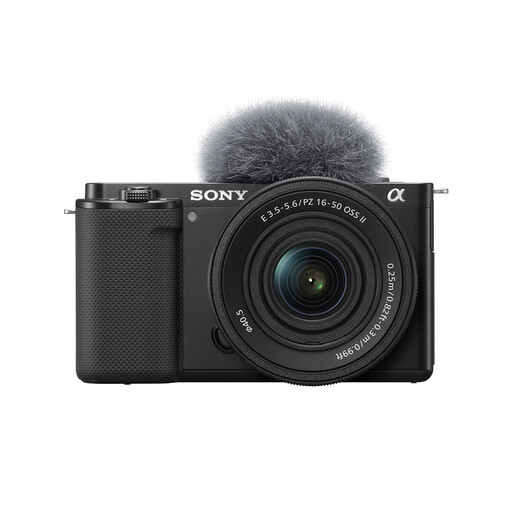
Sony ZV-E10K with 16–50 mm power-zoom lens
This interchangeable-lens kit is another option for recording knitting tutorials. The listed configuration includes a 16–50 mm power-zoom lens and 4K video recording.
Check the included lens’s close-focus and framing suitability at your intended camera height, together with the mounting arrangement. Do not confuse the ZV-E10K with the separately listed ZV-E10 II K.
View on Joybuy
Frequently asked questions
Can a document camera cover a knitting project from above?
It can if your project and moving hands fit within its usable view. IPEVO lists a maximum shooting area of 342 × 255 mm for the V4K; measure the widest area you need to show before deciding whether that coverage works for you.
Can I use the Canon EOS R50 for a knitting livestream?
Canon says the EOS R50 can function as a webcam through USB. Check compatibility with your computer and call or streaming platform, then plan the cable route, lens and overhead mount for your lesson.
Will a 4K webcam give me a directly overhead knitting view?
Not automatically. Logitech describes MX Brio Show Mode as a tilted view for sharing desk material during a call; a directly overhead knitting view depends on the mount, angle, working distance and lighting you arrange.
Does Great Britain electrical-equipment guidance also cover Northern Ireland?
Do not assume the guidance applies unchanged. The Office for Product Safety and Standards identifies its GOV.UK electrical-equipment guidance as applying to Great Britain; for equipment intended for Northern Ireland, check the applicable Northern Ireland guidance and the seller’s documentation.


