Choose controls for the places children actually use devices: child accounts and device settings for individual apps, time limits and purchases; home-broadband filters for devices on that connection; and separate TV or console controls for shared entertainment. No single layer covers every device or connection, so check each control’s scope, use separate child accounts where supported, and review the rules with children.
Who needs more than one control?
Families with mixed shared devices
When children move between tablets, phones, computers, consoles and the television, check controls on each device or account as well as the home connection. Ofcom distinguishes device controls from broadband filtering and cautions that filters and PINs do not cover every situation.
Parents setting up a child’s first account or device
A separate child account or profile can make supported app, content, time and purchase settings easier to apply to the intended child. The setup differs by platform: Apple requires a child’s own Apple Account for its Family Sharing controls, while Google and PlayStation describe supervision through their family accounts.
Households with younger and older siblings
Check whether a setting follows each child or applies to everyone sharing the hardware. Nintendo says most parental-control options on Switch and Switch 2 are system-wide, which matters when siblings need different rules.
What should you check first?
Map the devices, accounts and connections children use, then choose settings for the particular activity you want to manage.
| Priority | What to check | Your needs |
|---|
| Connection coverage |
Check whether filtering applies to the home broadband connection, an account or one device. Confirm what happens on mobile data and other Wi-Fi networks; BT says its broadband controls do not cover mobile-network use. |
I need rules that still make sense when a child leaves home Wi-Fi or switches devices. |
| Time and routines |
Check which devices and apps accept limits, whether exceptions are possible, and how downtime works. Google says Family Link daily limits apply separately to each Android device or Chromebook, and system apps cannot receive app limits. |
Bedtime limits matter to us, but I also need to check how a child can reach permitted activities. |
| Apps and purchases |
Check approvals in the relevant store or child account, age-related game settings, and any separate TV purchase PIN. Google Play, PlayStation and supported Virgin TV boxes use controls within their respective services. |
I want to approve downloads and manage purchases where they happen, rather than assume a broadband filter handles them. |
| Rules for siblings |
Check whether settings are per child, per account or system-wide. Nintendo says most Switch and Switch 2 restrictions are system-wide; PlayStation describes settings for individual child members. |
Different ages call for different rules, especially when children share a console. |
| Ongoing oversight |
Check the supported browser, account or profile requirements, protect PINs, and revisit settings as use changes. Ofcom says children may still encounter unwanted content despite filters and PINs. |
I need a setup we can review and talk about, not a one-time setting that we assume covers everything. |
Where do control setups fall short?
-
Assuming a home filter follows the child
Broadband filtering is tied to the relevant connection. BT says its controls do not protect a phone using a mobile network.
List the networks each child uses, then check device or account controls for use away from home broadband.
-
Sharing an adult account with a child
Child-specific settings may depend on a separate account. Apple requires a child’s own Apple Account for its Family Sharing control setup.
Set up the supported child account or profile before relying on individual app, content or purchase rules.
-
Assuming every rule is per child
Nintendo says most Switch and Switch 2 restrictions are system-wide. Microsoft says its web filtering requires a signed-in family member using a supported browser, with Edge supported for mature-web filtering.
Check the exact account, console and browser covered by each rule, particularly when siblings share hardware.
-
Leaving a TV PIN at its default
Virgin Media says its TV PIN is initially 1234, so leaving it unchanged can undermine restrictions on the relevant TV box.
Change the PIN during setup and check the content and purchase restrictions available on your box.
Which platforms offer relevant controls?
Choose by the devices and accounts already in use; a platform’s family settings do not automatically govern unrelated devices or services.
Apple
Family Sharing and Screen Time are relevant to households setting up controls for a child’s Apple devices.
- Apple describes controls for apps, websites, communication and device-use timing.
- The family setup requires Family Sharing and the child’s own Apple Account; available controls can vary by device.
Google
Family Link is relevant to supervised child Google Accounts and supported Android devices and Chromebooks.
- Google describes Google Play purchase approvals, app management and screen-time settings on supported devices.
- Daily limits apply separately to each Android device or Chromebook, and system apps cannot receive app limits.
Microsoft
Family Safety is relevant to supported Microsoft family-account controls on Windows devices and Xbox.
- Microsoft describes app and game controls alongside web and search filtering.
- Web filtering requires a signed-in family member using a supported browser; Microsoft identifies Edge for mature-web filtering.
Nintendo
Nintendo’s console controls are relevant when children share a Switch or Switch 2.
- Nintendo describes restrictions for content, features and play time.
- Most console parental-control options are system-wide rather than per user, although some eShop restrictions can be set per user.
PlayStation
PlayStation family management is relevant to households using child members on PS4 or PS5.
- PlayStation describes per-child settings for playtime, games and apps, communication and spending restrictions.
- Some family functions may be available only through the PS Family app; check the settings available in your region.
Joybuy tablet options
These child-oriented tablets are options for setting up controls on a child’s tablet. Check their account and control requirements separately from the settings needed for other household devices, TV services and home broadband.
 No image available
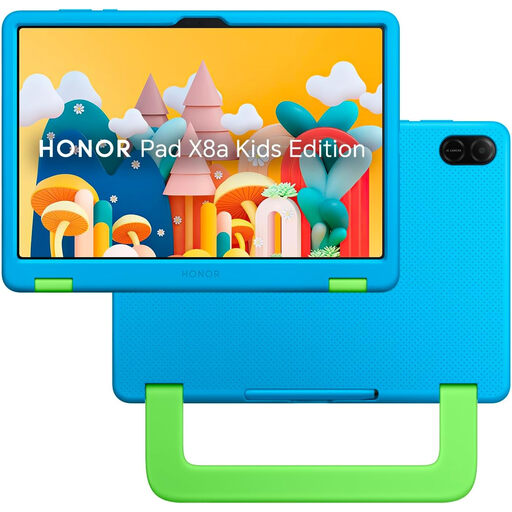
HONOR X8A Kids 11-inch WiFi tablet, 128GB, Space Grey
For a child using a dedicated tablet, the listing describes a child account, parent-approved apps, screen-time settings and activity reports.
Check the management setup and the exact purchase-control options on the delivered device; these tablet settings do not establish coverage for other household devices or connections.
View on Joybuy
 No image available
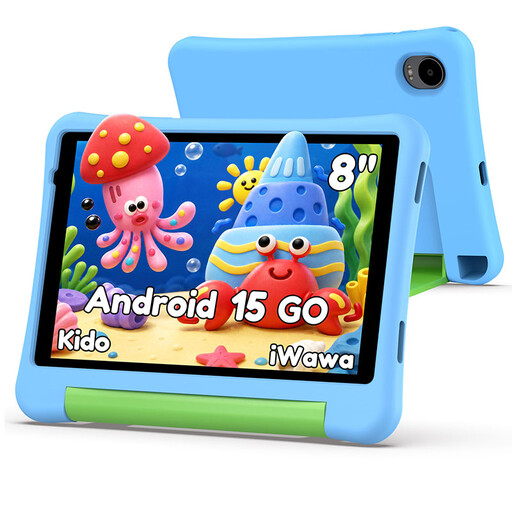
Alldocube Kido 8-inch Android 15 tablet, 32GB, blue case
For a child using their own tablet, the listing describes a child lock, content filtering and screen-time management; check the functions and account requirements before choosing it for those rules.
The stated configuration includes an 8-inch Android 15 tablet and a blue protective case. The title says no adapter is included, so check what compatible charging equipment you need.
View on Joybuy
Common questions
Will home-broadband controls work when a child leaves home?
Not on a different connection simply because they were set up on home broadband. BT says its broadband controls do not protect a device using a mobile network; check device or account controls for use away from home.
Does each child need a separate account on a shared device?
Use separate child accounts or profiles where the platform supports the individual rules you need. Apple requires a child’s own Apple Account for its family-control setup, while PlayStation describes child-member settings; Nintendo says most Switch and Switch 2 console restrictions are system-wide, so an account alone will not make every setting individual.
Can an ISP filter replace store, console and TV controls?
No. A home-broadband filter addresses activity on the relevant connection, while purchase approvals, game restrictions and TV PINs belong to the supported accounts, consoles or services. Check each one where the activity takes place.
What should I set up first on a shared TV box?
Change any default PIN and check the box’s content and purchase settings. Virgin Media says its TV PIN is initially 1234 and describes purchase PIN controls on specified boxes.
Are filters and PINs enough on their own?
No. Ofcom says children may still reach unwanted content despite filters and PINs. Review the settings as devices and habits change, and talk with children about what they do online and what to do if something troubles them.


