Parents choosing a child’s first personal device
Decide whether the main need is apps and video at home, communication while away, or gaming. That choice also determines which child account and family settings you will need to manage.


Choose around what your child will do and how much independent connectivity you are ready to supervise: a tablet fits varied activities at home, a phone adds portable personal communication, and a games console keeps the purchase focused on gaming. None removes the need to set up the child’s account and check content, contact, spending and time settings before use.
Decide whether the main need is apps and video at home, communication while away, or gaming. That choice also determines which child account and family settings you will need to manage.
Look beyond the games themselves to ratings, multiplayer contact, purchases and play-time settings. These questions matter whether games are played on a console, tablet or phone.
Check whether restrictions follow the child’s account or affect everyone using the device. Nintendo Support says most Nintendo Switch parental-control options are system-wide rather than per user.
Start with the activity that justifies the device, then check how the chosen platform handles your child’s account and permissions.
Consider it when: Your child mainly wants apps, video and games on a larger screen at home, and an adult can manage a separate child account.
Trade-off: Its range of apps and services makes content, downloads and communication settings important even if the tablet usually stays at home.
Consider it when: Portable personal communication is a genuine need and the household is ready to supervise calls, messages, apps and online services.
Trade-off: Screen-time settings alone do not decide who can contact the child or which services they can use.
Consider it when: Gaming is the main reason for the purchase rather than portable communication or a broad range of general-purpose apps.
Trade-off: Online play can still involve other players and purchases; controls differ between console platforms and may affect a shared console.
| Priority | What to check | Your needs |
|---|---|---|
| Activities and access | List the intended apps, games and video services. Decide whether access is needed away from home and check the device’s actual connectivity. | I want the device to fit its main purpose, not just what other children use. Ofcom’s 2026 report says that, among UK children aged 8–17 who go online, 77% used a mobile phone, 59% a tablet and 55% a games console. These overlapping device-use figures are not purchase preferences. |
| Content and games | Check child-account content settings, app downloads and web access. Check each intended game’s PEGI rating and the platform’s game restrictions. | Before my child starts using it, I want to decide which apps, videos and games they can access. |
| Communication | Identify the calling, messaging, chat and multiplayer features the child will use. Check who can contact the child and where each permission is managed. | Contact with friends matters, but I want to decide separately whether calls, messages or online-player chat are appropriate. |
| Family management | Confirm how to create the child account, set time and spending restrictions, and manage them from the parent’s device. Check whether settings are per account or device-wide. | If the device is shared, I need to know whose use a restriction changes. I also want to adjust settings without relying on the child’s sign-in. |
Family controls depend on the account setup. Apple’s child controls use individual Apple Accounts within Family Sharing, while Google manages supervised child accounts through Family Link.
Before buying, check who will manage the child account and whether the parent’s device can use the controls you intend to set.
Online games may involve other players and purchases. PEGI and console-platform controls provide ways to manage game access and interaction, but the household must choose the settings.
Check each planned game’s PEGI rating, then decide whether multiplayer, voice or text chat and digital purchases will be allowed.
Nintendo Support says most Nintendo Switch parental-control options apply across the system, so a restriction can also affect siblings or adults using that console.
Check whether each restriction you need is account-specific or system-wide before settling on a shared console.
The settings that matter may be spread across account, device and game controls. A restriction is more useful when the parent understands how it behaves during the child’s normal use.
With the child present, check an intended app or game and the relevant purchase and communication permissions, then confirm you can change them from the parent account.
These are account and console-platform references for comparing controls, not a list of devices available in the product selection below.
Relevant when considering an iPhone or iPad managed through Family Sharing and Screen Time.
Relevant when considering an Android device and a supervised Google Account.
Relevant when considering Nintendo Switch or Nintendo Switch 2 for a child who primarily wants to play games.
Relevant when considering a PlayStation console and family-managed gaming settings.
Relevant when considering an Xbox console with a child account in an Xbox family group.
These three Wi-Fi tablets are options for families considering a child’s device for apps, video and games. If portable communication or console gaming is the main need, make that decision separately rather than treating a tablet as a substitute.
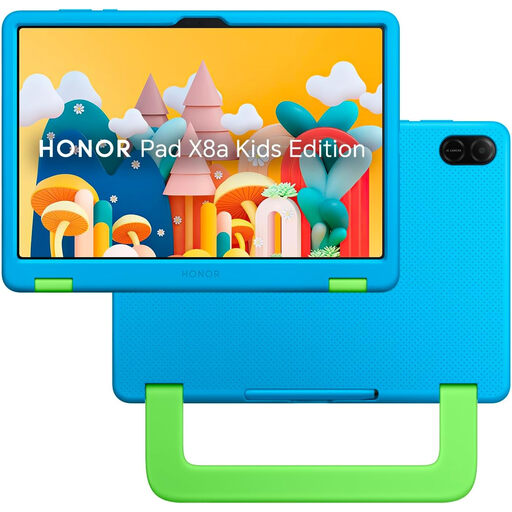 No image available
For apps and video on a larger screen at home, this Wi-Fi tablet has an 11-inch display and 128GB storage. Before choosing it for supervised access, check parent-management compatibility and the communication and spending settings you need.
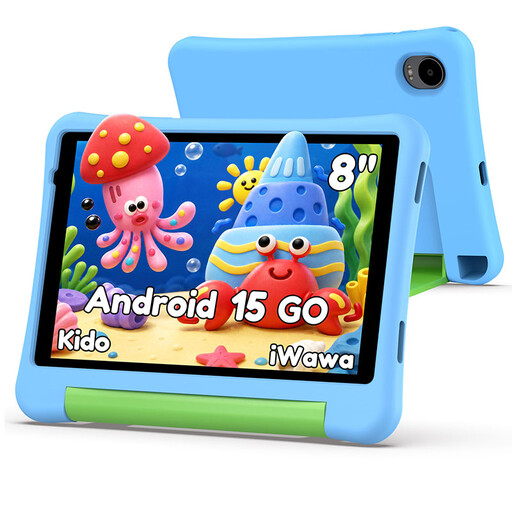 No image available
For apps, games and video on a smaller tablet, this model lists Wi-Fi, 3GB RAM, 32GB storage, a 5000mAh battery and a protective case. No adapter is included; check for a compatible charger and confirm the child-account, communication and spending controls you intend to use.
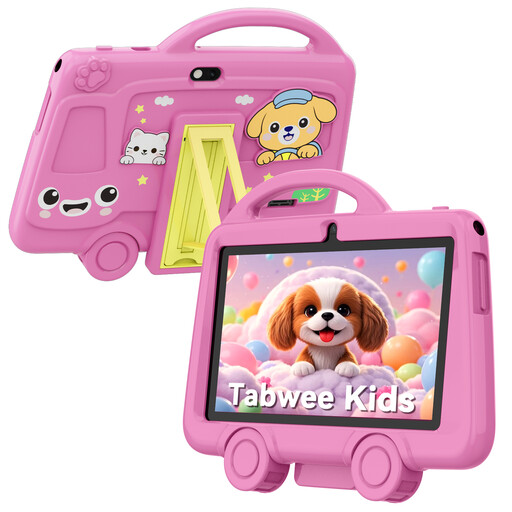 No image available
For supervised use of apps, games and video on a small Wi-Fi tablet, this model lists 2GB RAM, 32GB storage and a 3000mAh battery. Check its operating system and family-account controls before relying on it for supervised access. The listing says it is unsuitable for children under 3 and requires adult supervision.
Use a separate child account when setting up the family controls described by Apple and Google. Apple’s Family Sharing uses individual Apple Accounts, while Google Family Link manages a supervised child account; sharing a parent’s sign-in would not give the child a distinct account for those settings.
In the UK, Apple Support says a child under 13 cannot create an Apple Account without parental help and consent and must join a Family Sharing group. Google Account Help says a parent can create and manage a Google Account for a child under 13 with Family Link. Check the requirements of the platform you choose before handing over the device.
Yes, on supported services, but the available permissions differ. Apple documents controls for calls, FaceTime and Messages; PlayStation lists online-communication restrictions; and Xbox says its privacy settings can determine who communicates with a child account. Check the particular game or service as well as the device account before allowing contact.