Who needs which setup?
A shared device needs more than a general parental-controls label: consider who uses the account, which devices need managing and what activity the family is comfortable sharing.
Parents setting up a child’s first household account
If you are buying or repurposing a tablet, laptop or phone, check how to give the child their own account rather than sharing an adult login. Apple’s Family Sharing setup calls for a Child Account, while Google Family Link manages supervision through the child’s Google Account; the available approvals depend on the chosen ecosystem.
Multi-device households managing daily routines
If several devices use the same home Wi-Fi, a compatible router’s profiles and schedules may help with household routines. TP-Link describes these controls for compatible HomeShield products, although some functions require a subscription. Network settings do not take the place of controls tied to a child’s account.
Parents weighing supervision against privacy
If activity reporting matters, check who can see it and which devices and browsers it covers. Microsoft says its Family Safety web and search reporting depends on a supported browser while the child is signed in. The Information Commissioner’s Office also advises families to pay attention to the information collected when children use apps and online services.
What matters when choosing controls?
Start with individual app access and approvals, then decide whether home-wide Wi-Fi routines or activity reporting call for additional controls. Device, account and router settings can work together rather than serving as interchangeable alternatives.
Child account and device controls
Choose when: A child needs their own app, purchase or content settings on a compatible device.
Bear in mind: Setup depends on the account and ecosystem; Apple and Google describe different requirements for their child-account arrangements.
Home-network controls
Choose when: The priority is managing routines for several devices while they use the household’s Wi-Fi.
Bear in mind: Router settings apply to the managed network, while compatible hardware, firmware and subscription conditions can affect the available functions.
| Concern |
What to check |
Who this matters to |
| Child accounts and approvals |
Check child-account support on the intended device and which app or purchase requests a parent can approve. Apple requires a Child Account in Family Sharing for its setup; Google supervision uses the child’s Google Account. |
I want my child’s apps and permissions kept separate from my adult account so I can handle requests individually. Around 31% of consumers put child accounts and approvals first. |
| Household schedules |
Check the exact router or mesh model, profile and scheduling features, and any firmware or subscription requirements. |
With several devices on home Wi-Fi, I need a routine I can manage across the household. For around 23% of consumers, those schedules are the primary concern. |
| Useful access alongside limits |
Check how the chosen platform handles approved websites, contacts and app requests, including exceptions for sites your child needs. |
I need to allow learning sites and approved communication without opening access to every app or website. That balance comes first for around 23% of consumers. |
| Privacy and reporting |
Check what activity organisers can see, which browsers and devices are covered, and whether location sharing is enabled. Microsoft limits web and search reporting to supported browsers while the child is signed in. |
Before turning on reports, I want to understand what my child shares and what the reports leave out. Around 23% of consumers make that clarity their main priority. |
Relevant brands to consider
These brands illustrate different account, device and network approaches. Check the features of the particular device or service you intend to use rather than assuming a brand’s controls apply everywhere.
Apple
Apple’s Family Sharing and Screen Time approach is relevant when a child will use a compatible iPhone, iPad or Mac.
- Apple describes child-account settings for apps, websites, approvals, communication and time management.
- The setup calls for a Child Account in Family Sharing; available controls can vary by device, software, age or region.
Google
Google Family Link is relevant to households using a child’s Google Account with compatible Android or Chromebook devices.
- Google describes account supervision and remote management of supported settings from a parent device.
- Adding supervision to an existing account has conditions, including the child’s agreement, compatible devices and the parent and child living in the same country.
Microsoft
Microsoft Family Safety is relevant to households using Windows PCs, Xbox or supported Android devices.
- Microsoft describes app and game limits, content controls and activity reporting within its supported setup.
- Web and search reporting depends on a supported browser while the child is signed in; it is not a record of browsing in every browser.
TP-Link
TP-Link’s HomeShield approach is relevant when a compatible Deco system or router will manage devices on the household network.
- TP-Link describes child profiles, filtering and schedules for compatible HomeShield products.
- Some advanced controls require a subscription, and feature availability can depend on the model and firmware.
Tablets for a child-focused setup
These tablets are relevant if you are choosing a device for a child to use at home. Compare their stated variants, then check the exact child-account and supervision features you need; a tablet alone does not cover household-wide router controls.
 No image available
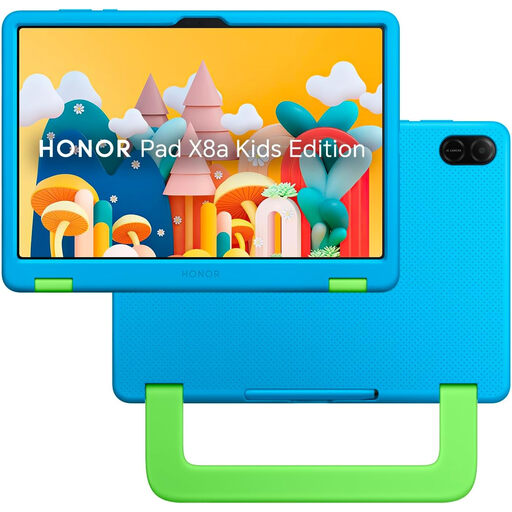
HONOR X8A Kids 11-inch WiFi-128GB, Space Grey
For a child-focused household tablet, check whether its account setup and controls cover the apps and approvals your family needs.
- 11-inch variant with WiFi-128GB designation, in Space Grey.
- Confirm the scope of activity reporting, remote management and software requirements for the exact model before choosing it for supervision.
View on Joybuy
 No image available
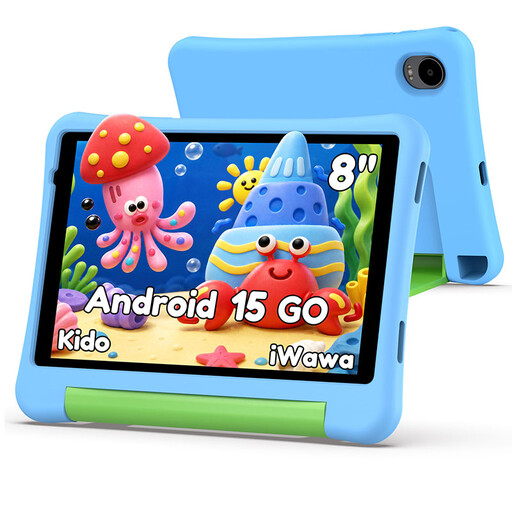
Alldocube Kido 8-inch tablet, 3GB+32GB, blue case
For a child’s household tablet, check whether its stated Child Lock provides the account and approval settings you need.
- 8-inch Android 15 tablet with 3GB+32GB and a blue protective case.
- No adapter is included; check your charging arrangements before buying.
View on Joybuy
Common questions
Can my child share my Apple Account on a family iPad?
Use a separate Child Account for Apple’s Family Sharing parental-control setup. Apple advises against sharing an adult’s Apple Account with a child because the child’s own account enables individual settings and approvals.
Will parental controls make any online service safe for my child?
No. Ofcom warns that children may still encounter unwanted content even when PINs and filters are in place. Check each service’s age and account requirements, and keep household rules, conversations and ways to report problems alongside technical controls.
Will router controls still apply when a device leaves home?
Do not rely on home-router controls for another connection. Ofcom describes network-level filters in relation to devices using the home broadband service, so check account and device settings separately if the child also uses mobile data or another Wi-Fi network.
What should I check before enabling activity reporting?
Check which activity is collected, who can view it, whether location sharing is on and which devices and browsers are covered. Microsoft says Family Safety web and search reports depend on a supported browser while the child is signed in; the Information Commissioner’s Office advises checking privacy settings as children use new apps and services.
Are advanced router controls included as standard?
Not always. TP-Link says some HomeShield time limits, off-time schedules and advanced content filtering require an Advanced Parental Controls subscription. Check the included features, compatible model, firmware and subscription terms before choosing a router for those routines.


