What matters when choosing?
Choose the speaking position and playback arrangement first. Then check how the device connects to the PC and whether the meeting app selects the intended microphone and speaker.
USB speakerphone
Consider it when: You want a single device for speaking and listening without a headset, positioned near the people taking part.
Allow for: Its stated pickup distance must suit your seating position, and loud TV or soundbar output can still cause echo.
USB microphone
Consider it when: One seated person can keep the microphone close while listening through separate room speakers.
Allow for: Playback and capture use separate devices, so select both in the app and test for echo.
Dedicated wireless microphone
Consider it when: The person speaking needs to move away from the PC or pass a microphone between local participants.
Allow for: The receiver may need an audio adapter before the PC can use it; wireless capture does not remove room-speaker echo.
Webcam microphone
Consider it when: You also need a camera and normally speak near the screen.
Allow for: Check the exact model’s stated speaking distance rather than assuming it will pick up voices across a room.
| Concern |
What to check |
Who this matters to |
| Echo with room speakers |
Check microphone placement relative to the TV or soundbar, and whether you can control playback volume and mute the microphone. |
If I need the lesson audible through a TV, I do not want my questions to send that sound back into the call; about 36% of consumers put echo control first. |
| Hands-free PC setup |
Check the PC connection and whether the meeting app can select the intended input and output. For Bluetooth, check pairing as well as app selection. |
I want to join and speak without wearing a headset or managing several audio connections; for about 29% of consumers, ease of setup is the primary need. |
| Clear questions |
Compare the microphone’s stated pickup direction or distance with where you will sit; position a directional microphone towards your voice. |
When I ask a question from my desk, being heard matters more to me than moving around the room; roughly 21% of consumers prioritise voice clarity. |
| Movement and nearby participants |
Decide whether a portable speakerphone is enough or a person needs a wireless microphone; for the latter, check the receiver-to-PC connection. |
Our lesson involves demonstrating away from the desk or letting nearby people speak; mobility or local-group flexibility comes first for about 14% of consumers. |
Joybuy products for these setups
These Joybuy selections cover a wired speakerphone, a separate desk microphone, a Bluetooth conference speaker and a webcam with call audio. Choose according to where you will speak and how you intend to hear the lesson.
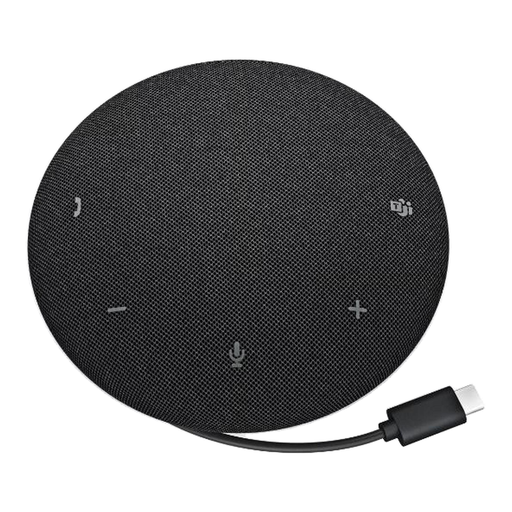 Image unavailable
DELL Pro Wired Speakerphone SP325
Consider this wired speakerphone if you want one device for speaking and listening at the PC instead of a separate microphone and TV-speaker arrangement. Position it near the people speaking, and test it at your intended playback volume; a speakerphone does not by itself rule out echo.
View on Joybuy
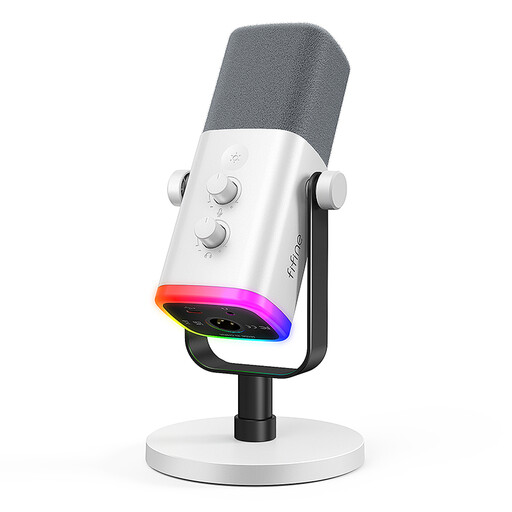 Image unavailable
FIFINE XLR/USB Dynamic Microphone, White
Consider this separate microphone if you speak from a desk and can position it close to you while using room speakers for playback. Its product name specifies XLR/USB connections, a mute button, gain knob and monitoring jack. It is not a speakerphone: select your playback device separately and test for echo before class.
View on Joybuy
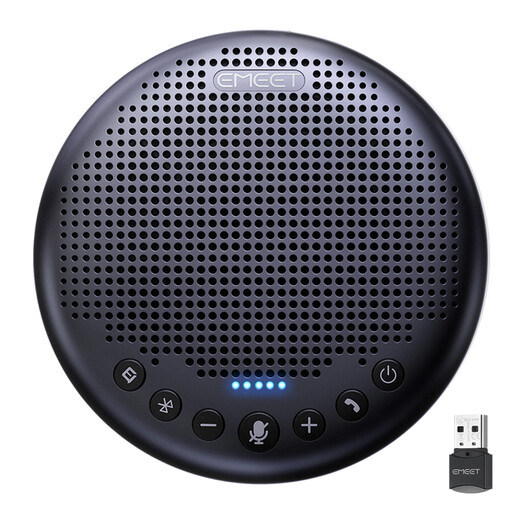 Image unavailable
EMEET Lunaplus 8-Mic Bluetooth Conference Speaker
Consider this conference speaker when nearby participants need to speak around the device. Its name specifies eight microphones, 360-degree pickup, Bluetooth and a 5W speaker; those features do not establish coverage at every seating distance. Confirm the connection you will use with your PC and select the intended input and output in the meeting app.
View on Joybuy
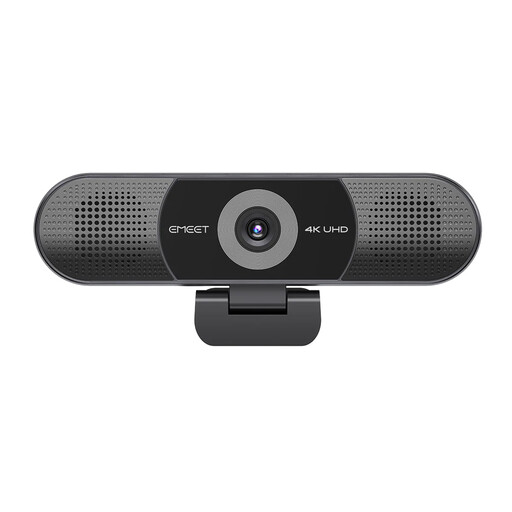 Image unavailable
EMEET All-in-One 4K USB Webcam with Sony Sensor
Consider this combined camera and call-audio device if you also need video and normally speak near the screen. Its name specifies four microphones, two speakers, fixed focus and an adjustable 98° field of view. Check that its USB connection suits your PC and meeting app, and test the audio with your intended room-speaker arrangement.
View on Joybuy
Common questions
Can I listen to an online class through a TV or soundbar?
Yes, but keep the microphone away from the TV or soundbar, use a comfortable rather than excessive playback level and test the call before class. Zoom identifies loud TV and soundbar speakers as possible echo sources; if more than one device joins in the same room, check that only your intended meeting-audio path is active.
Should I use USB or Bluetooth for a PC lesson?
USB is a sensible starting point when you want a connection you can select and test at the PC. Bluetooth is worth considering when portable placement or phone use matters too, but pairing is only part of setup: confirm that the meeting app has selected the intended microphone and speaker. Microsoft Support explains how to select those devices separately in Teams.
Can I use a USB microphone with separate room speakers?
Yes, particularly if one seated person can keep the microphone close and facing them. Because playback and capture use separate devices, select both in the call app, keep speaker volume under control and make an audio test. Zoom provides a way to test the selected microphone and speakers.
When does a dedicated wireless microphone make sense?
Consider one when the person speaking must move away from the PC or a local activity needs a movable microphone. Before buying, check how its receiver connects to the computer and becomes a selectable meeting-app input. Shure’s documented Zoom arrangement, for example, uses an audio adapter with a wireless system.


