One participant concerned about echo
If one person needs to ask questions while viewing the lesson on a TV, a headset keeps received audio out of the room. Zoom Support identifies loud TV or soundbar playback as a possible source of echo.


For one person asking questions during a PC lesson, start with a headset that plays lesson audio through its earphones rather than through the television; Zoom identifies loud TV and soundbar playback as possible echo sources. If several people need to listen and speak together, consider a speakerphone and test it at the intended seating positions and volume. A desktop or wireless clip-on microphone can suit a seated or moving speaker, but neither removes room-speaker echo on its own.
If one person needs to ask questions while viewing the lesson on a TV, a headset keeps received audio out of the room. Zoom Support identifies loud TV or soundbar playback as a possible source of echo.
When people seated near one PC need to hear and occasionally speak, a speakerphone offers a shared audio route without passing around a headset. Test its microphone and speaker at the actual seating positions and volume.
Someone standing to demonstrate work may prefer a wearable microphone with a receiver connected to the PC. RØDE documents this connection route for its Wireless ME system; room-speaker volume still needs attention.
Decide whether lesson sound must be shared through room speakers before choosing a microphone: that choice changes how you manage echo. Then check the connection to the PC and which input and output the meeting app will use.
Choose when: One participant can listen through earphones instead of playing the lesson through the TV.
Trade-off: It does not provide shared listening for people around the screen; a wired USB connection also avoids Bluetooth pairing steps.
Choose when: Several nearby participants need one shared, hands-free call speaker and microphone.
Trade-off: Shared room audio remains sensitive to seating, acoustics and loud TV or soundbar playback.
Choose when: The questioner stays near the desk and wants to speak hands-free.
Trade-off: A separate microphone does not prevent the TV speakers from feeding lesson audio back into the call.
Choose when: The questioner needs to stand or move away from the PC while speaking.
Trade-off: The transmitter and receiver need power and a working PC connection; movement alone does not solve room-speaker echo.
| Concern | What to check | Who this matters to |
|---|---|---|
| Room-speaker echo | Decide whether TV audio must stay on; test one selected microphone and speaker pair at the intended volume. | If I am the only one speaking, I would rather hear the lesson through a headset than risk the TV sound reaching my microphone. Around 33% of consumers put preventing room-speaker echo first. |
| Shared participation | Check that the device works as both a call speaker and microphone, then test it from the group’s seats. | When several of us follow the same screen, we need to hear and ask questions without sharing a headset. For around 27% of consumers, shared hands-free participation is the primary need. |
| PC and app compatibility | Check the required port or Bluetooth connection, then select and test the intended input and output in the operating system and meeting app. | I need the microphone to connect to my PC and be selected for the call before the lesson starts. Getting that setup right comes first for around 27% of consumers. |
| Movement while speaking | Confirm that the receiver connects to the PC and that the wearable units can be charged and selected as the call input. | If I stand to demonstrate something, I need to keep a microphone close while moving away from the desk. Around 13% of consumers prioritise that freedom to move. |
The microphone may capture lesson audio from the room. Zoom Support identifies loud TV or soundbar playback and room acoustics as possible echo sources, so a different microphone alone may not resolve the problem.
For one speaker, try a headset. For shared listening, test the intended seating positions and volume with one selected call speaker and microphone.
Pairing and the PC’s audio capabilities affect the call setup. Microsoft Support says stereo playback while a Bluetooth LE Audio microphone is active depends on Windows 11 version 24H2 or later, factory-integrated Bluetooth LE support, suitable drivers and a compatible accessory.
Check that the device appears as both the intended input and output, and test a call. If stereo playback during microphone use matters, check all of Microsoft’s stated prerequisites before buying.
The call may use a built-in or webcam microphone even when a new device is connected.
Select the intended microphone in the operating system and Zoom, then run the microphone and speaker tests before the lesson.
A clip-on microphone lets a speaker move, but it can still capture sound played through room speakers.
Use wireless equipment for movement, confirm its receiver is the selected PC input, and test the room-speaker volume separately.
Its Zone Wired 2 line illustrates a wired headset route for an individual PC-call setup.
The Sync 20 and Sync 20+ series illustrates a tabletop speakerphone route for people sharing a call.
Wireless ME illustrates a wearable microphone route for someone who needs to move while speaking.
These products cover an individual headset, shared speakerphone, wearable wireless kit and two desktop microphones. Choose the audio route for the people using the screen before comparing devices within it.
 No image available
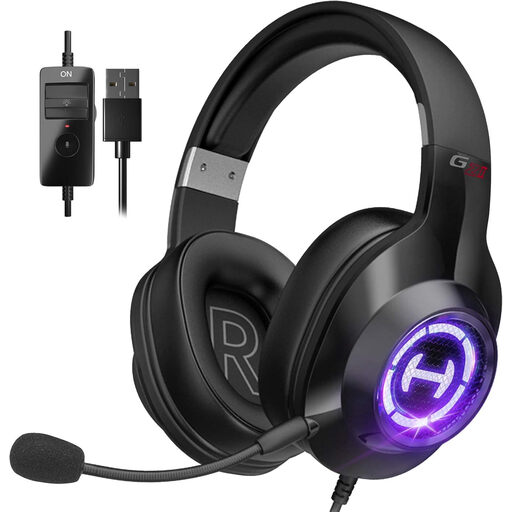
A headset route for one participant who can listen without playing lesson audio through the TV.
The product name specifies a wired USB connection, microphone and 50 mm drivers. Select the headset as the call input and output, then test for echo in the intended setup.
 No image available
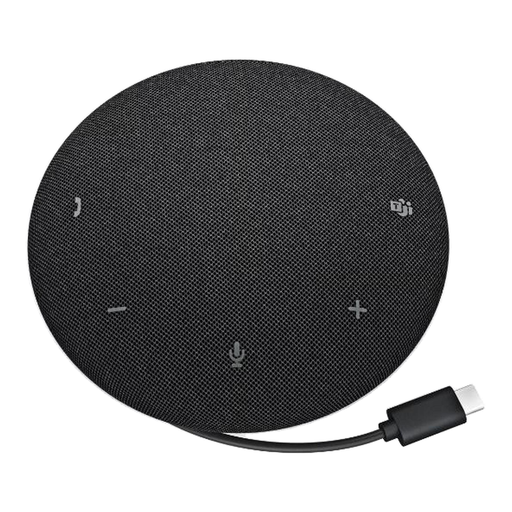
A shared speakerphone route to consider when several people near one PC need to hear and speak during a lesson.
It is a wired model. Test the selected call devices at the intended seating positions and room volume; using a speakerphone does not guarantee an echo-free call.
 No image available
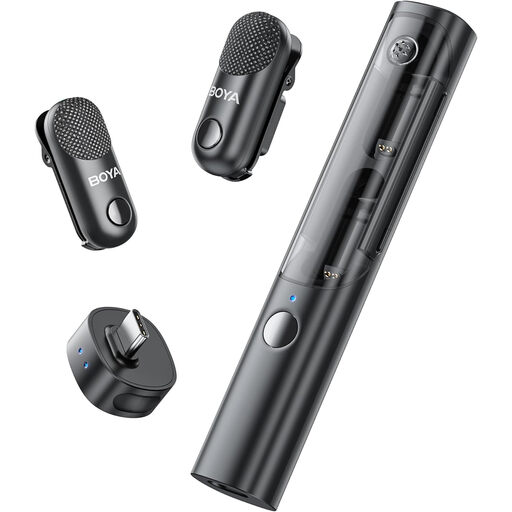
A wearable microphone route for a questioner who needs to move away from the desk.
The product name specifies USB-C, two transmitters, one receiver and a charging case. Confirm that the PC and meeting app recognise the receiver, and test for echo if lesson audio still plays through room speakers.
 No image available
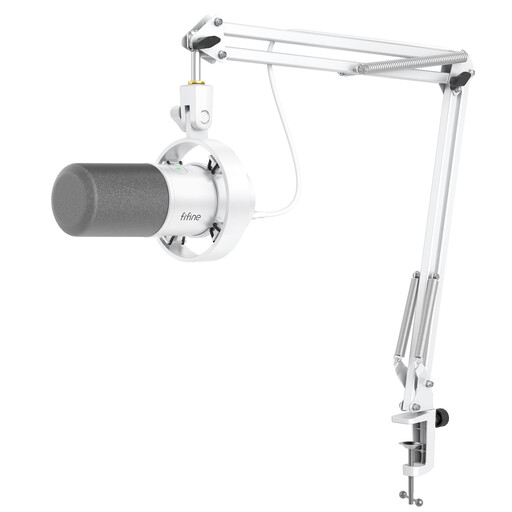
A desktop route for a seated speaker who wants to position the microphone near their voice.
The product name specifies USB and XLR connections and a boom arm. Check the connection and selected call input; use headphones or test carefully if TV speakers remain active.
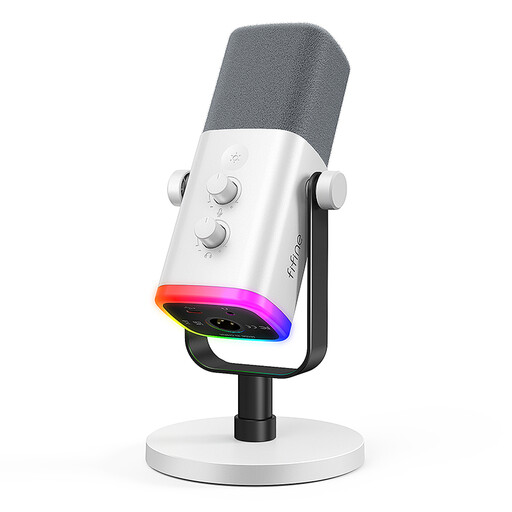 No image available
A desktop microphone route for someone speaking from a fixed position at the PC.
The product name specifies USB and XLR connections, a gain knob, mute button and monitoring jack. Select and test it as the meeting input; a separate microphone will not by itself stop TV audio entering the call.
For one participant, route lesson audio through a headset rather than the TV speakers. If the group needs room audio, Zoom Support advises addressing potential echo sources such as loud TV or soundbar playback; lower the volume, select one intended speaker and microphone pair, and test the call in the room. Disconnect computer audio on any nearby devices that have also joined.
Yes, if the PC connects to it and makes it available as the intended call input and output; test both before the lesson. If stereo playback while using the microphone matters, Microsoft Support says Bluetooth LE Audio requires Windows 11 version 24H2 or later, factory-integrated Bluetooth LE support, suitable manufacturer drivers and a compatible audio device.
Check that the PC and conferencing app have selected the microphone and speaker you intend to use. On Windows, Microsoft Support describes checking the microphone under Sound input settings; Zoom Support also provides speaker and microphone tests. Make a short test from the usual seat with the room audio at its intended level.
No: a desktop microphone does not, by itself, stop lesson sound from the TV reaching the microphone. Keep the microphone near the speaker, select it as the call input and test the room setup; headphones are another option if shared listening is not essential.