Choose around the device and setting you will use most: a high-refresh monitor for PC play at a desk, a monitor with confirmed HDMI modes for desk-based console or shared use, or a gaming TV for sofa play and a larger screen. Check the exact input and cable path for your intended resolution, refresh rate, variable refresh rate (VRR) and HDR; a display’s headline specification does not establish that every connected device or game can use those features.
Who is choosing a display?
PC high-refresh players
If fast PC play is the priority, match the monitor’s intended mode and VRR support to the graphics card, driver and connection. NVIDIA and AMD each specify compatible hardware and displays for their respective adaptive-refresh technologies.
Console feature seekers
PS5 and Xbox Series X|S players looking for particular resolution, 120Hz, VRR or HDR modes need to check the display’s HDMI input and cable alongside the console and game. PlayStation and Xbox Support describe these as conditional features, not modes available with every display.
Shared PC-and-console screen buyers
One screen must accommodate two different output paths. Check PC and console modes separately, then decide whether a desk monitor or sofa-oriented TV suits the seating arrangement; Xbox Support also notes that equipment placed between a console and display can affect video features.
What matters when buying?
Choose the desk or sofa setting and your primary device before comparing display modes. A shared setup needs a workable connection for each device, not just one impressive specification.
PC gaming monitor
Choose when: High-refresh PC play at a desk takes priority and your graphics card and connection support the intended mode.
Trade-off: The same refresh rate or VRR mode may not be available to a console through HDMI.
Console-compatible monitor
Choose when: A console, or a console and PC together, will be used at a desk and the required HDMI mode is documented for the exact display.
Trade-off: A feature label alone does not confirm the full resolution, refresh and VRR combination on the input you plan to use.
Gaming TV
Choose when: Sofa play, a larger image and shared viewing matter more than a compact desk arrangement.
Trade-off: Check gaming input lag and the relevant HDMI input; an AV receiver or soundbar in the connection path can affect video features, according to Xbox Support.
| Concern | What to check | Who this matters to |
|---|
| Shared-device compatibility |
List the intended resolution and refresh mode for each device; confirm which display input and cable support each path. |
If one screen serves my PC and console, I need both devices to reach the modes I intend to use. About 33% of consumers put shared-device compatibility first. |
| PC refresh and VRR |
Match the target monitor mode to the graphics card’s output and the display’s documented adaptive-sync support. |
For fast PC play at a desk, I care most about whether my graphics setup can use the selected refresh and VRR mode; about 27% of consumers prioritise that PC fit. |
| Console display modes |
Confirm the desired mode on the relevant HDMI input, then check the cable and the games you play. |
If console features are my priority, I want the display connection to support the modes my games offer. That is the primary concern for about 20% of consumers. |
| Monitor or TV fit |
Choose for desk or sofa placement; for a TV, check gaming input lag and the HDMI inputs you will use. |
When I play from a sofa or share the screen, its size and placement matter before extra PC-focused features. About 20% of consumers put the physical setup first. |
Compatibility mistakes to avoid
-
Relying on the largest refresh-rate number
A monitor may offer a high-refresh PC mode without offering the same mode to a console on its HDMI input. Xbox Support describes a complete compatible connection as necessary for Xbox Series X 4K at 120Hz.
Check the manual for the intended resolution, refresh rate, VRR and HDR combination on the exact input you will use.
-
Expecting every console game to run at 120fps
PlayStation says PS5 120Hz output applies to games that support a 120Hz frame rate and a compatible display. Console and screen specifications alone cannot establish a game’s mode.
Look at the modes of the games you play and the picture settings you prefer before making 120Hz a deciding requirement.
-
Checking VRR on the monitor but not the PC
NVIDIA G-SYNC and AMD FreeSync each require a compatible graphics-and-display setup. A VRR label on the screen does not establish that your PC can use it through your planned connection.
Identify your graphics card, intended port and driver requirements, then check the exact monitor’s VRR documentation.
-
Adding other equipment before testing the console connection
Xbox Support warns that an AV receiver, soundbar or other device between console and display can affect video features. A cable change can also complicate a connection check.
Test a direct console-to-display connection first, then add other equipment one component at a time.
If extending an Xbox Series X connection, check the cable specification: Xbox Support calls for a certified Ultra High Speed HDMI cable when replacing its supplied cable with a longer one.
Brands to consider for these display routes
Alienware
PCMag UK includes the AW2525HM in its 1080p monitor coverage and the AW2725DF in its 1440p coverage. Those are PC-monitor reference points, not confirmation of console modes.
- Two distinct models give PC-first buyers different resolution routes to investigate.
- Check the exact model’s HDMI timings and VRR support before choosing it for a console.
AOC
PCMag UK includes the Q27G4ZD in its 1440p gaming-monitor coverage, making that model relevant to a PC-first resolution comparison.
- The named model provides a specific 1440p monitor to compare against your PC requirements.
- Its placement in a PC monitor roundup does not establish a desired PS5 or Xbox mode; check the selected input.
ASUS
PCMag UK discusses the TUF Gaming VG27AQL3A in its 1440p coverage and the ROG Swift PG27UCDM in its 4K coverage.
- The two named models allow a comparison of distinct PC-monitor resolution routes.
- Neither category placement verifies the HDMI and VRR combination needed by your console.
HP
PCMag UK includes the Omen 27k in its 4K gaming-monitor coverage, making it a specific model to investigate for a 4K PC setup.
- Its named 4K category gives PC buyers a defined model for further specification checks.
- Confirm the exact model’s input modes before expecting 4K at 120Hz from a console.
LG
PCMag UK includes the LG Evo C6 OLED TV in its gaming-TV coverage. That model is relevant to the television route rather than serving as evidence about all LG displays.
- The named TV offers a model-specific starting point for sofa-gaming checks.
- Confirm the exact variant and its gaming inputs before planning a console or PC connection.
Joybuy display selections
These selections span desk-based PC monitors, a monitor to assess for shared PC-and-console use, and a television for a sofa setup. For any console connection, confirm the required mode on the exact HDMI input before choosing.
 No image available
LG UltraGear G8 27G850A 27-inch 4K Nano IPS monitor
Consider this for a PC gaming desk where a 27-inch 4K screen fits the setup. The product title lists dual-mode 240Hz/480Hz operation, AMD FreeSync Premium Pro, DisplayPort 2.1 and HDMI 2.1; confirm which resolution and input support each intended mode. HDMI 2.1 alone does not establish the resolution, refresh rate and VRR combination available to your console.
View on Joybuy
 No image available
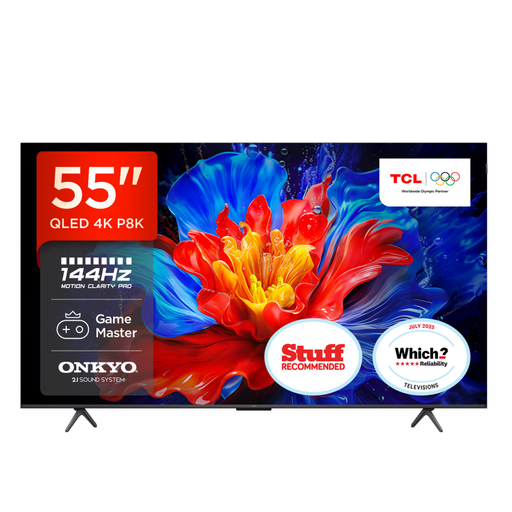
TCL 55P8K-UK 55-inch 4K QLED TV
The 55-inch TV format is a route to consider for sofa gaming or shared viewing. Its listed gaming features include HDMI 2.1 inputs, VRR and automatic low-latency mode. The title’s 288Hz Game Accelerator label should not be read as the input refresh rate: confirm the actual resolution and refresh modes on the HDMI input you will use, and check gaming input lag if responsiveness is a priority.
View on Joybuy
 No image available
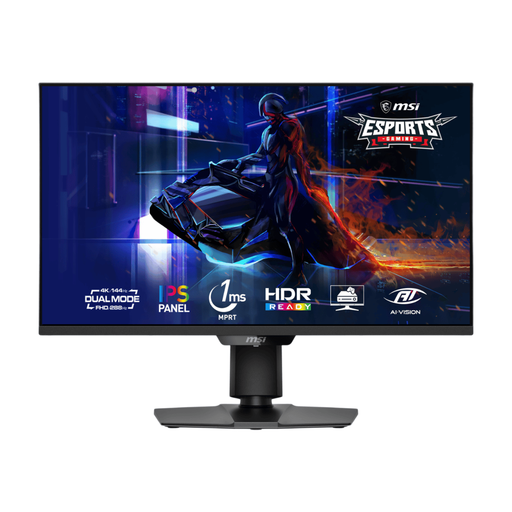
MSI MAG 275UPD E14 27-inch 4K/FHD dual-mode monitor
Consider this for a desk setup that switches between detailed PC play and a higher-refresh FHD mode. Its listed modes are 4K UHD at 144Hz and FHD at 288Hz, with Adaptive Sync, HDMI 2.1 and DisplayPort 1.4a. If a console will share it, check its supported resolution, refresh rate and VRR combination on the intended HDMI input.
View on Joybuy
 No image available
Samsung Odyssey G6 S27DG612 27-inch QHD OLED monitor
This 27-inch QHD monitor is a PC-first option for buyers checking high-refresh and adaptive-sync compatibility. The product title states 240Hz; the listing also describes FreeSync Premium Pro, G-SYNC compatibility, HDMI 2.1 and DisplayPort 1.4. Check your graphics-card pairing, and verify console modes separately before using it as a shared screen.
View on Joybuy
 No image available
Acer X Predator X49X 49-inch 32:9 QD-OLED monitor
Consider this for a spacious PC desk where a 49-inch ultra-wide screen fits the available surface or mount. The listing describes a 5120 × 1440 panel, 240Hz refresh rate and AMD FreeSync Premium. Before sharing it with a console, check supported HDMI modes and how the console image appears on its 32:9 screen.
View on Joybuy
Common questions
Will every PS5 or Xbox Series X game run at 4K and 120Hz on a 120Hz display?
No. PlayStation says PS5 120Hz output needs a compatible display and a game that supports a 120Hz frame rate. Xbox Support says Series X 4K at 120Hz needs a compatible HDMI 2.1 display and an Ultra High Speed HDMI cable; check the individual game’s mode too.
Can Xbox Series S use 120Hz without an HDMI 2.1 display?
Xbox Support says 120Hz can be used at a lower resolution in this situation. Check that the exact display accepts the resolution and refresh combination through the HDMI input you intend to use.
How can I check a monitor’s 1440p modes with PS5?
On PS5, open Settings, then Screen and Video, then Video Output. PlayStation says Test 1440p Output can test SDR and HDR at 60Hz and 120Hz, as well as VRR, when the connected display supports 1440p output.
What should I check for PC variable refresh rate?
Identify your graphics card and planned display connection, then check the exact monitor’s adaptive-sync support. NVIDIA specifies a G-SYNC or G-SYNC Compatible display for G-SYNC, while AMD describes FreeSync use with compatible Radeon graphics and a FreeSync-capable display.


