Choose an all-in-one PC if you work at one desk and value a computer and screen in one unit more than the freedom to change either separately. A tower lets you choose or replace the monitor independently, while a mini PC keeps the computer compact without tying it to a particular screen. For any route, check the exact configuration, connections and included equipment before buying.
Which setup suits your desk?
Permanent, single-screen desk users
If office applications and general home computing happen at one desk, an all-in-one puts the computer and display in one unit. Lenovo describes this integrated arrangement in its IdeaCentre range; check the keyboard and mouse included with the particular model.
People planning to change their setup
A tower or mini PC with a separate monitor lets you change the screen without replacing the computer. If internal upgrades matter too, check the exact PC’s service documentation rather than assuming its form factor guarantees access.
Small-desk users choosing their own screen
A mini PC separates a compact computer from the display you choose. Confirm its video outputs, supported display modes and connections for your other equipment before settling on a monitor.
What should you check before choosing?
All-in-one PC
Choose it when: A permanent, mainly single-screen desk makes an integrated computer and display useful.
Trade-off: The built-in screen cannot be changed independently like a separate monitor.
Tower and monitor
Choose it when: You want to select or replace the screen independently and plan around a larger computer chassis.
Trade-off: A separate display and its connections take more planning and desk space.
Mini PC and display
Choose it when: A compact computer matters, but you still want to choose the screen.
Trade-off: Display support and internal upgrade access depend on the exact mini PC.
| Priority | What to check | Your needs |
|---|
| Desk setup |
Check whether the computer and screen form one unit, and which input devices come with the exact configuration. For a separate-PC setup, match the display cable and connections. |
I work at one desk and would rather have fewer separate components to arrange. |
| Screen |
Compare panel size with native resolution, stand adjustment and external-display support. A separately chosen monitor can be changed without replacing the PC. |
I spend time on documents and want a screen that suits my desk now, with room to change it later if needed. |
| Connections |
Count the USB ports and check their types. Confirm video-port input or output direction, supported display modes and any wired-network connection against your equipment. |
My monitor and existing accessories need to connect as intended, without relying on a connector’s shape alone. |
| Future changes |
Consult the exact model’s service information for accessible memory and storage, and check how the display could be replaced. Upgrade claims for one model do not apply to every PC in its category. |
I may want more storage or a different screen later, so I need to know which parts I could actually change. |
What is easy to overlook?
-
Judging an all-in-one screen by size alone
Apple’s UK iMac specification lists a 23.5-inch 4.5K display, while HP Store UK lists both FHD and 4K 27-inch all-in-one configurations. The diagonal measurement does not tell you the resolution.
Compare the exact panel’s native resolution and size, then check stand adjustment and external-display support for your intended desk.
-
Assuming every HDMI port accepts video
An HDMI output cannot make an all-in-one serve as a monitor for another computer. Dell lists both HDMI input and output on the cited OptiPlex 7410; the direction matters.
Check the exact model’s manual for video-input support and the resolution and refresh rate it accepts before planning to connect another device.
-
Assuming upgrades are possible because it is a desktop
Access varies by model. Dell lists M.2 SSD slots for the cited OptiPlex 7410, and Lenovo describes particular IdeaCentre mini and tower models as upgradeable; neither establishes what you can change in another configuration.
Find the exact service manual and check accessible components, replacement parts and warranty conditions before relying on a future upgrade.
-
Forgetting the rest of a separate-PC setup
Lenovo states that the monitor, keyboard and mouse are optional and sold separately for its cited IdeaCentre Tower listing. A mini-PC desk also needs a compatible display and input devices.
Check the package contents and plan the monitor, cable, keyboard and mouse needed for a working desk.
Which brands illustrate the options?
These model and range examples show why the exact configuration matters; a brand name alone does not establish the screen, ports or upgrade access you will receive.
Apple
Apple offers the integrated iMac and the separate-display Mac mini route.
- Apple UK specifies a 23.5-inch 4.5K display for the cited iMac and lists external-display support for the Mac mini.
- Check the chosen configuration’s memory, ports and display support. A Mac mini setup also needs a separately selected display and input devices.
Dell
The cited OptiPlex 7410 is a business-oriented Windows all-in-one with connections worth checking if you use several peripherals.
- Dell UK lists HDMI input and output, DisplayPort, Ethernet and M.2 SSD slots for this model.
- Those specifications do not apply to every Dell all-in-one; confirm the configuration and its availability before choosing it.
HP
HP Store UK lists all-in-one configurations with different screen sizes, resolutions, memory and storage.
- Its cited 27-inch listings include both FHD and 4K configurations, giving buyers distinct screens to compare.
- Do not treat two HP all-in-ones as equivalent because they have the same screen diagonal; check the full model specification.
Lenovo
Lenovo’s cited IdeaCentre range includes all-in-one, mini-PC and tower designs.
- Lenovo describes its cited IdeaCentre Mini as easy to open and upgrade, and its cited 17L Tower as upgrade-ready.
- Check the particular model’s accessible components, ports and included peripherals; those descriptions are not range-wide guarantees.
Joybuy options for a fixed desk
These options span integrated all-in-ones, a tower and mini PCs for a permanent desk. For the tower and mini PCs, choose a compatible separate display and check what comes in the package.
 No image available
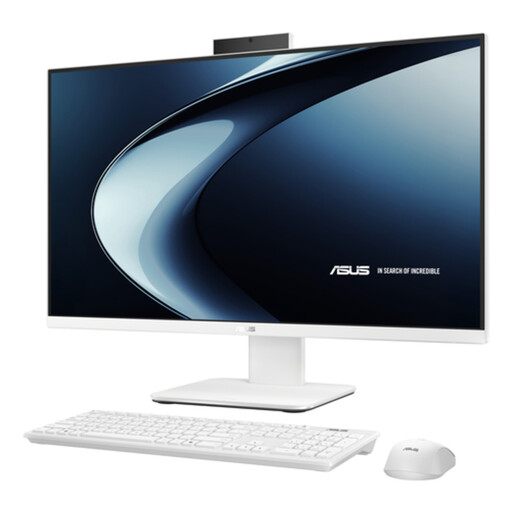
ASUS V400 AiO V470VAK-WPE032W, 27-inch Full HD
For a desk where the computer and screen should form one unit. The listed configuration has an Intel Core i7-13620H, 16GB DDR5 RAM, a 512GB SSD and Windows 11 Home. Check whether Full HD suits your screen work, whether keyboard and mouse are included, and the direction of any video connections you plan to use.
View on Joybuy
 No image available
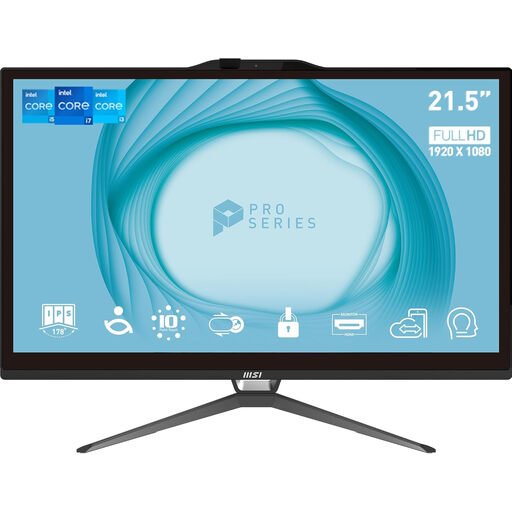
MSI Pro AP222T 13M, 21.5-inch touchscreen
An integrated touchscreen option for a fixed desk. Its listed configuration has an Intel Pentium Gold G7400, 4GB RAM, a 128GB SSD and Windows 11 Pro. Check those capacities against your applications and files, and confirm keyboard and mouse contents and service access if future changes matter.
View on Joybuy
 No image available
Lenovo IdeaCentre Mini PC 01IRH10R, 91B2000XUK
A compact separate-screen route for a permanent desk. The selected configuration is listed with an Intel Core 5, 16GB RAM and a 512GB SSD. Match its exact display outputs and supported modes to your intended monitor, and check the input-device package contents and service information.
View on Joybuy
 No image available
HP M02-0005na OmniDesk, AMD Ryzen 5 8500
A tower route if you want to choose the screen separately. The listed configuration has 8GB RAM, a 1TB SSD and Windows 11 Home. Confirm whether a monitor is included, match the video output to your chosen display and check memory-expansion details if your workload may grow.
View on Joybuy
 No image available
SOYO M5 mini PC, AMD Ryzen 4300U, 16GB/512GB
A mini-PC option for a desk with a separately chosen screen. The title lists 16GB LPDDR4 memory, a 512GB SSD, HDMI 2.0 and DisplayPort 1.4. Check the supported modes for every display you intend to connect rather than relying on the title’s triple-display claim; confirm input-device contents and upgrade access as well.
View on Joybuy
Frequently asked questions
When does an all-in-one make more sense than a laptop and monitor?
An all-in-one is worth considering when the computer will stay at one desk and you want the screen and PC in one unit. If you need to take your computer away from the desk, a laptop-and-monitor arrangement retains that option.
Can an all-in-one PC display video from another computer?
Only if that exact all-in-one supports video input. Dell UK lists HDMI input on the cited OptiPlex 7410, but an HDMI connector may instead be an output; check the model manual and supported input modes before relying on this use.
Which connections should I check before buying?
List your monitor and peripherals, then match them to the exact PC’s USB types and counts, video-output or input direction, and any Ethernet or audio connections you need. Check supported display modes too: a named connector alone does not establish that your intended setup will work.
Can I upgrade an all-in-one later?
Upgrade access depends on the model and component. Dell UK lists M.2 SSD slots for the cited OptiPlex 7410, but that does not establish memory access or the service options for another all-in-one. Check the exact service documentation before buying if an upgrade is part of your plan.


