Writers in managed Windows workplaces
People whose instruction-writing process depends on Windows applications, employer IT support or Windows 11 Pro administration. Check the organisation's requirements before choosing a particular desktop.


Choose the operating system around the software used to write and approve customer instructions: a Windows desktop is the practical route when work tools or device management require Windows, while a Mac mini is an option when the complete workflow is approved for macOS. Once compatibility is settled, choose the chassis, display connections and peripherals around the documents and applications you use together; a compact computer still needs a workable desk setup.
People whose instruction-writing process depends on Windows applications, employer IT support or Windows 11 Pro administration. Check the organisation's requirements before choosing a particular desktop.
People who keep a draft, reference material, customer records and screenshot tools open together. Their choice depends on the configured memory, display arrangement and connections for the peripherals they use.
People whose required applications and workplace policies support macOS and who want a compact computer. A Mac mini also needs an external display and input devices to make a complete desk setup.
Confirm the required software and workplace rules before comparing computer configurations. Then plan the screen and peripherals you need for writing, checking references and handling customer materials.
| Concern | What to check | Who this matters to |
|---|---|---|
| Software compatibility | Confirm the required operating system, work applications and any VPN, templates or device-management tools. | If customer records or approved templates depend on particular software, I need the whole workflow to run before I compare hardware. Around 36% of consumers put compatibility first. |
| Screen and workstation | Plan the monitor, keyboard and mouse; check that the computer has the display connection your setup requires. | For long drafting and review sessions, I want a screen and input devices I can position comfortably. Around 29% of consumers make workstation fit their primary concern. |
| Multi-window work and expansion | Compare the configured memory and storage, display outputs and peripheral ports; check whether the chosen chassis can be expanded if needed. | When documents, references and customer systems are open together, I need a configuration that accommodates that workload. Around 21% of consumers prioritise working capacity and connections. |
| Compact macOS setup | Confirm macOS approval and application support, then check monitor connections and the external equipment needed. | If my work tools already run on Mac, I may value a compact computer on a crowded desk. Around 14% of consumers put that Mac-compatible setup first. |
Microsoft offers Office Home & Business 2024 for a PC or Mac, but that does not establish whether an employer's customer system, VPN, templates or management tools will work on both.
Ask for the required application and peripheral list, including any operating-system restrictions, before selecting Windows or macOS.
Meeting an operating system's minimum requirements does not tell you whether a particular configuration suits your mix of documents and work applications. For an older or refurbished PC, eligibility also needs checking on the exact unit.
If Windows 11 is required, confirm the processor compatibility, TPM 2.0 and Secure Boot capability described in Microsoft's requirements, then assess the configured memory, storage and connections for your workload.
A small desktop does not by itself provide a suitable position for reading, drafting and checking instructions. The Health and Safety Executive advises positioning the top of the screen around eye level and the screen about an arm's length away.
Plan the monitor and input devices alongside the computer, and check its ports against the connections you will use.
An operating system and the applications used to create customer instructions are separate parts of the setup; what is supplied depends on the particular product and workplace.
Check the desktop's included software and ask what licences your organisation already provides before arranging another one.
Dell Pro desktops provide a business-desktop route that includes compact Micro configurations; Dell says the line continues its OptiPlex desktop legacy.
The ThinkCentre range includes business desktops in different formats, rather than one fixed specification for writing work.
HP ProDesk business desktops offer Mini and small-form-factor choices for buyers assessing a Windows workplace setup.
Mac mini is a compact macOS desktop to consider when the organisation permits Mac and the entire customer-instruction workflow is compatible.
These choices cover compact desktops, a Windows 11 Home configuration, a Mac mini and a specialist NVIDIA DGX OS system. Compare each operating system with your required writing tools before choosing a computer for customer instructions.
 No image available
A compact Windows 11 Pro option to assess if your organisation's applications and management requirements support this configuration.
The named configuration has a Ryzen 5 7535HS processor, 16GB LPDDR5 memory and a 512GB NVMe SSD. Confirm the display and peripheral connections needed at your desk.
 No image available
Consider this Windows 11 Home configuration if it supports your work applications and you want to assess a larger stated storage capacity.
It is named with 8GB RAM and a 1TB SSD. Check whether the memory suits the applications you keep open, what upgrade options apply and whether its display connections fit your monitor plan.
 No image available
This mini desktop is an option for a space-conscious desk if the chosen unit supports your organisation's applications and peripherals.
The named variant has 16GB RAM and a 512GB SSD. Confirm its operating-system requirements and the exact display arrangement it supports before choosing monitors.
 No image available
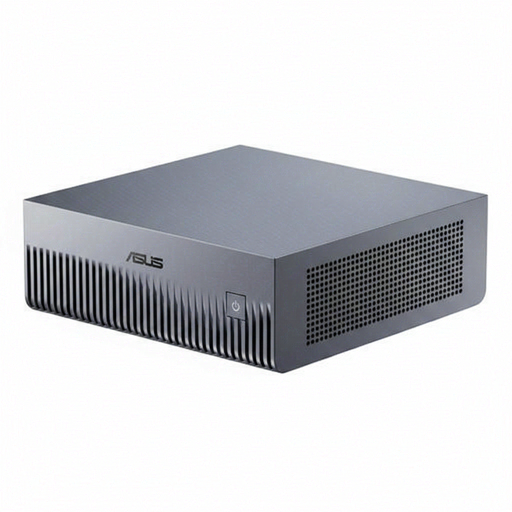
This is a specialist DGX OS desktop to consider only if your required writing and customer-workflow tools are compatible with that software environment.
The named configuration has 128GB unified memory and a 1TB NVMe SSD. Its stated AI-development focus should not be mistaken for a requirement of routine document writing; confirm the display and input equipment needed.
 No image available
This compact Mac option suits consideration when your organisation approves macOS and every required application, template and peripheral works with it.
The named variant has 24GB RAM and a 512GB SSD. Plan for a display, keyboard and mouse, which are not included, and confirm the connections needed for your setup.
You need Windows if the required customer-service, document-control, security or management tools are Windows-specific. A Mac can be considered when the organisation approves macOS and the complete workflow is compatible; Microsoft's availability of Office Home & Business 2024 for PC or Mac does not establish compatibility for other work tools.
Plan the monitor, keyboard, mouse and desk arrangement alongside the desktop. The Health and Safety Executive advises placing the top of the screen around eye level and the screen about an arm's length away; check that the computer connects to the display you intend to use.
It can matter when the desktop is used for regular work: the Health and Safety Executive says the UK Display Screen Equipment Regulations apply to employers whose workers regularly use display screen equipment as a significant part of their normal work. If you are choosing equipment for staff, arrange the workstation and any workplace assessment through the organisation's DSE process.
Check what the desktop includes and what licence your organisation already supplies before arranging Office software. Microsoft offers Office Home & Business 2024 as a one-time purchase for one PC or Mac, but a suitable licence for one application does not cover every customer-workflow tool.