For fine architectural linework, consider a 15.6-inch 4K pen display if your computer can drive it at the resolution and refresh rate you intend to use; a 2560 × 1600 model may suit a desk where a built-in stand matters more than 4K. Check the video connection and drawing angle before comparing pen-pressure figures. For a quiet study, confirm noise behaviour for the exact display and connected computer rather than assuming any model is silent.
Who this choice affects
Fine-detail architectural drafters
If you inspect dense plans, elevations and annotations on screen, a 15.6-inch 4K display offers more pixels within that screen size. Check that your computer can deliver the intended 4K signal and that the display is comfortable to use with your software.
Fixed-desk study users
For extended sessions at one desk, the drawing angle, cable placement and space left for a keyboard may shape the choice. Wacom describes a VESA-compatible mounting route for the Cintiq Pro 16, while ASUS specifies integrated kickstands for the ProArt PA169CDV.
Quiet-study users
If room noise is a deciding factor, assess the pen display and its connected computer separately. Ask about noise behaviour for the exact model and setup before relying on it in a quiet room.
What to check before buying
Start with the detail you need to inspect, then check how the display will sit on your desk and connect to your computer. Treat quiet-room suitability as a separate question.
| Concern | What to check | Who this matters to |
|---|
| Fine-detail clarity |
Compare the exact resolution and screen surface, then check whether your drawing software remains comfortable to use at that resolution. |
When I inspect small dimensions and linework, I want to judge marks without repeatedly zooming; around 36% of consumers put fine-detail clarity first. |
| Desk fit and drawing angle |
Check the supplied stand or compatible mount and whether the chosen position leaves room for your keyboard and cables. |
For long sessions at one desk, I need a workable drawing angle without crowding my other equipment. Desk fit is the primary concern for roughly 29% of consumers. |
| Computer compatibility |
Match your computer, operating system, video port and cable to the exact display; for Huion Kamvas Pro 16 (4K) at 4K and 60 Hz, Huion recommends HDMI 2.0 or DisplayPort 1.2 or later. |
If I am keeping my current computer, I need to know it can run the display as intended before buying. Around 21% of consumers prioritise that compatibility check. |
| Quiet-study suitability |
Ask the manufacturer or seller about noise behaviour for the exact display and assess the connected computer separately. |
In a quiet room, I do not want an unexpected sound from either part of my drawing setup; for about 14% of consumers, quiet-study assurance comes first. |
Buying pitfalls
-
Assuming the pen display works as a standalone computer
The Wacom Cintiq Pro 16 connects to a Mac or Windows PC, and the Huion Kamvas Pro 16 (4K) also depends on a compatible host device.
Identify the computer and operating system you plan to use before choosing the display. Check its video ports as well as the display's connection requirements.
-
Choosing 4K without checking the signal path
For the Kamvas Pro 16 (4K), Huion says HDMI 1.4 is limited to 4K at 30 Hz and recommends HDMI 2.0 or DisplayPort 1.2 or later for 4K at 60 Hz.
Check the documented output of your computer and any dock, adapter or cable between it and the display.
-
Treating VESA compatibility as an included mount
Wacom says the Cintiq Pro 16 can be used with its adjustable stand or a compatible VESA arm or stand; that does not establish what a particular seller includes.
Check the package contents, mounting compatibility and available desk space before planning an arm-based setup.
-
Assuming a detailed display specification confirms quiet operation
Resolution and pen specifications cannot establish how the complete setup will sound in a quiet study. The connected computer may be a separate source of noise.
Ask about noise behaviour for the exact display model and assess the computer you will connect to it.
Relevant brands to consider
Wacom
The Cintiq Pro 16 is a fixed-workstation option for a Mac or Windows PC.
- Wacom describes rear ExpressKeys, a physical touch switch and a VESA-compatible route for positioning the display.
- Check the exact connection arrangement and whether a suitable arm or stand is included in the listing you choose.
Huion
The Kamvas Pro 16 (4K) pairs a 15.6-inch 3840 × 2160 display with anti-glare laminated glass.
- Huion states support for Windows, macOS, Linux and Android for this model.
- For 4K at 60 Hz, Huion recommends checking for HDMI 2.0 or DisplayPort 1.2 or later on the host connection.
XPPen
The Artist Pro 16 (Gen 2) has a 2560 × 1600 display and a built-in foldable stand for desk use.
- Its integrated stand offers a drawing-angle option without starting with a separate desk arm.
- This model is not a 4K display; compare its resolution with your fine-detail viewing needs rather than treating pen-pressure figures as a substitute.
ASUS ProArt
The PA169CDV is a 15.6-inch 4K pen display with an anti-glare surface and two integrated kickstands, according to ASUS UK.
- ASUS specifies USB-C with DisplayPort Alternate Mode and HDMI connection options.
- Check host compatibility and the exact seller's package contents, including the pen needed for drawing.
Joybuy products for a desk-based setup
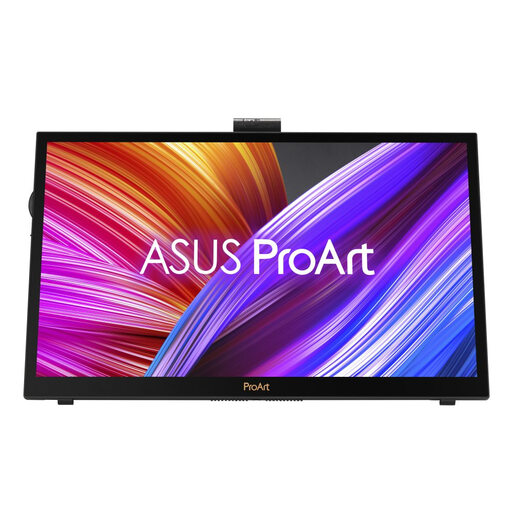
The ASUS ProArt PA169CDV shown here is a 4K option with integrated kickstands for drawing at a study desk. Confirm its connection and package contents against your setup before ordering.
 No image available
ASUS ProArt PA169CDV 4K UHD IPS pen display
Consider this model if you want a high-resolution drawing display that can sit on its integrated kickstands at a study desk.
ASUS specifies a 15.6-inch 3840 × 2160 IPS panel with an anti-glare surface. Check that your computer supports the intended USB-C DisplayPort Alternate Mode or HDMI connection.
Confirm that the seller's package includes the pen you need, and ask about noise behaviour if quiet-room use is essential.
View on Joybuy
Frequently asked questions
Can I use a pen display without a computer?
Treat the Wacom Cintiq Pro 16 and Huion Kamvas Pro 16 (4K) as host-connected displays, not standalone drawing computers. Check the exact model's supported host devices and connections before buying.
What matters most when connecting a 4K pen display?
The computer's graphics output and the full cable path must support the resolution and refresh rate you intend to use. For its Kamvas Pro 16 (4K), Huion recommends HDMI 2.0 or DisplayPort 1.2 or later for 4K at 60 Hz; it says HDMI 1.4 is limited to 4K at 30 Hz.
What should I check about product marking when buying from a marketplace seller?
Check the exact listing, supplied documentation and power arrangement for the market where you will use the display. The Department for Business and Trade's product-marking guidance distinguishes Great Britain from Northern Ireland, so a marking statement for one should not be assumed to cover the other.
How should I dispose of an unwanted pen display?
Ask your local electrical-waste collection service or retailer about an appropriate route rather than treating the display as general household rubbish. The Department for Environment, Food & Rural Affairs' WEEE guidance covers the collection and treatment of electrical and electronic equipment.


