Start with a screenless pen tablet if you teach from a computer monitor and are comfortable looking at the screen while drawing on a separate surface. Consider a pen display if seeing the ink beneath the pen tip matters more to you than a smaller desk footprint; either way, check your lesson software, operating system and required connections before buying.
Who each setup suits
Geometry teachers presenting from a computer
If you write equations, annotate diagrams or draw shapes while sharing a computer screen, a pen tablet offers input on a separate surface. Wacom describes educational annotation and shape work for its pen tablets, while Microsoft Support documents drawing tools in OneNote.
Teachers who prefer drawing on the image
A pen display puts the drawing surface and image together, which may suit detailed diagram corrections if you have room for the display and the required computer connections. Check the connection requirements of the particular model.
Teachers working at a small study desk
Consider where the tablet will sit beside your keyboard or monitor. Huion describes medium pen tablets as a balance between drawing control, hand movement and portability; the active area still needs to suit your own setup.
What matters when choosing
Decide whether you can draw while looking at a separate monitor, then check the software and connections needed for the setup you prefer.
Screenless pen tablet
Choose it when: You teach from a computer monitor and can draw on a separate surface.
Trade-off: Your hand and the visible stroke are in different places, so the movement may take practice.
Pen display
Choose it when: Seeing diagram lines appear beneath your pen tip is central to how you teach.
Trade-off: Huion describes pen displays as needing more desk space and costing more than screenless pen tablets; connection requirements also vary by model.
| Concern | What to check | Who this matters to |
|---|
| Lesson workflow |
Check the exact model’s operating-system driver and whether your lesson app accepts its pen input and drawing tools. |
If I annotate equations and shapes during a lesson, I need the tablet to work with my computer and teaching app. Around 40% of consumers put that workflow first. |
| Drawing surface |
Decide between drawing on a separate tablet and drawing on a display; for a Wacom One 14 single-cable setup, check for Thunderbolt 3 or later or DisplayPort Alt Mode. |
When I correct detailed diagrams live, I want to see the line appear beneath my pen tip. Direct visual feedback is the main concern for around 30% of consumers. |
| Desk fit |
Compare active-area size with your monitor and check the device’s physical dimensions against the space beside your computer. |
My tablet needs to fit on a small desk without making diagram work feel cramped. Around 30% of consumers prioritise that balance of working area and space. |
Buying pitfalls
-
Assuming every drawing tablet has a screen
A screenless pen tablet records your movements while you watch the result on your computer monitor; a pen display shows the image on its drawing surface.
If possible, try drawing while looking at a separate monitor before deciding whether direct on-screen input is worth the extra desk space.
-
Checking for USB-C but not video output
A USB-C socket alone does not establish that a computer can run a Wacom One 14 through a single cable.
For that setup, check the computer specification for Thunderbolt 3 or later or DisplayPort Alt Mode.
Wacom says computers without DisplayPort Alt Mode require its separately sold Converter Kit for this display.
-
Choosing the smallest active area solely to save space
Huion notes that a small drawing area can make detailed work harder with a larger monitor because short hand movements produce larger cursor movements.
Compare the active area with your monitor and available desk space, and consider how far you are comfortable moving your hand.
-
Treating pressure levels as a teaching result
A pressure-sensitivity figure does not establish how well a tablet will handle equations or geometric shapes in your lesson app.
Check the app’s drawing tools, the exact model’s driver and your preferred drawing surface before comparing pen specifications.
Brands to consider
Wacom
Wacom presents pen tablets and pen displays for educational writing, annotation and shape work.
- Its One by Wacom material explicitly discusses drawing shapes in educational software.
- For single-cable use, the Wacom One 14 display needs a compatible USB-C video connection; otherwise Wacom specifies a separately sold converter kit.
Huion
Huion offers screenless tablets and pen displays, with working-area and shortcut options that vary by model.
- Huion lists a 160 × 100 mm PC-mode workspace, six programmable keys and a battery-free pen for the H640P.
- Its screenless pen tablets require you to draw on one surface while watching another; confirm the exact model’s fit and computer compatibility.
XPPen
The Deco 01 V3 is a screenless option to consider if you want a larger drawing area for diagrams.
- XPPen lists a 10 × 6.25-inch working area and eight programmable keys for the Deco 01 V3.
- Check its physical fit and the driver for your teaching computer; XPPen’s manual calls for the appropriate driver for proper operation.
Joybuy product choices
These TECLAST tablets have built-in screens and are options to assess for drawing directly on an Android device. If your lessons run from a separate computer, check whether your teaching app and screen-sharing workflow will work on the tablet before treating either as an alternative to a computer-connected pen tablet or pen display.
 No image available
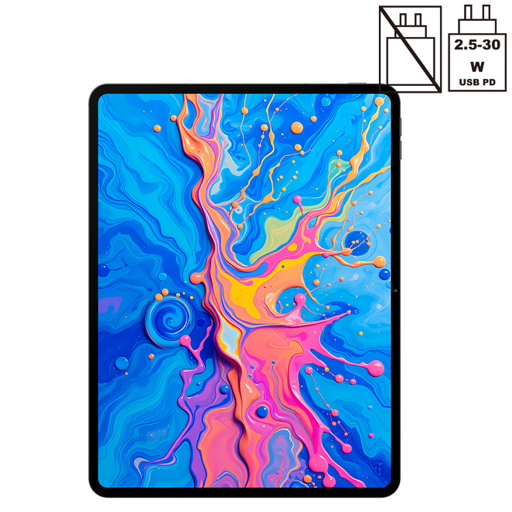
TECLAST ArtPad Pro 2025, 12.7-inch, 256GB
Consider this Android tablet if you want to assess direct on-screen drawing for lessons. It has a 12.7-inch 2K display, Android 15 and a listed stylus; confirm whether the included pen is the T-Pen associated with the listing’s 4096-level pressure-sensitivity specification.
Check your lesson app and the tablet’s physical dimensions before planning a small-desk teaching setup.
View on Joybuy
 No image available
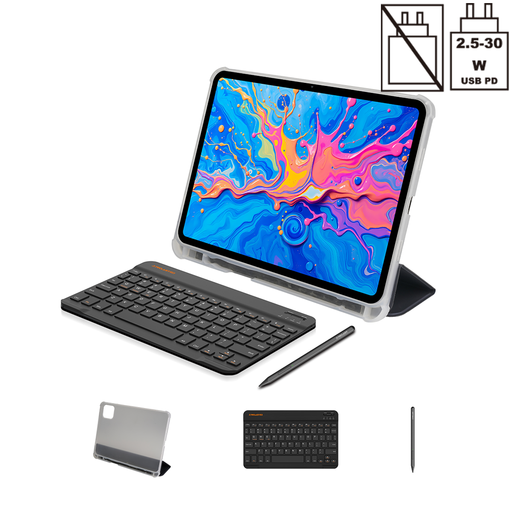
TECLAST ArtPad Pro 2025, 12.7-inch, 256GB with stylus, case and keyboard
Consider this bundle if you want a stylus and keyboard alongside an Android tablet for your lesson setup. It lists a 12.7-inch 2K display and Android 15, with a stylus, case and keyboard; confirm the included pen’s exact model if pressure sensitivity matters to you.
Check your lesson app, computer workflow and available desk space before choosing it for geometry teaching.
View on Joybuy
Common questions
Do I need a screen to teach geometry with a drawing tablet?
No: a screenless pen tablet can work if you are comfortable drawing on it while watching your computer monitor. A pen display puts the image beneath the pen tip, but Huion’s form-factor comparison describes greater desk-space and cost demands for displays.
Can I draw equations and geometric shapes in OneNote?
OneNote supports drawing with a stylus or mouse and provides shapes, gridlines and a ruler for straight lines, according to Microsoft Support. Check that your chosen tablet and its driver work with the computer and version of the app you intend to use.
What should I check before connecting a tablet for a lesson?
Check the exact tablet model’s operating-system and driver requirements, then confirm the ports required by your setup. XPPen’s Deco 01 V3 manual calls for the appropriate driver; for single-cable use, the Wacom One 14 requires Thunderbolt 3 or later or DisplayPort Alt Mode on the computer.


