What to consider when backing up personal records
Portable external SSD
Consider it when: you regularly carry files or transfer large collections and can match the drive’s connector and cable to your devices.
Trade-off: a drive carried with your computer may not be a separate-location copy, and rated transfer speeds depend on the host and cable.
Portable external hard drive
Consider it when: you need space for a computer-based photo and document collection and can connect the drive for scheduled backups.
Trade-off: a disconnected drive cannot receive scheduled backups until it is reconnected; features vary by model.
Encrypted USB storage
Consider it when: you need to carry a relatively small set of sensitive documents and want a deliberate access-control method.
Trade-off: it is not a substitute for another copy, and losing the PIN or password may prevent access.
Network-attached storage
Consider it when: several household devices need a shared location and someone can manage a networked system.
Trade-off: a NAS needs setup and ongoing management, and synchronisation alone does not establish that deleted files can be restored.
Cloud storage with a local backup
Consider it when: you want an additional copy stored separately from home and can confirm that the folders upload and can be restored.
Trade-off: account access, internet access and the service’s storage allowance matter; syncing folders is not necessarily the same as keeping an independently restorable backup.
Start by deciding what files need a copy and where that copy will be kept; then check capacity, protection and whether the backup setup works with your computer.
| Concern |
What to check when buying |
Who this matters to |
| A backup beyond the original |
Plan where the local backup and any additional copy will be kept; test opening a restored file. |
If I want my records to remain accessible if one copy is lost or damaged, I would keep another copy apart from the original. Around 28% of consumers put avoiding reliance on a single copy first. |
| Protection for sensitive files |
Check whether encryption protects the actual backup, how to enable it and how to keep credentials separately. |
If I carry personal or financial records, I want to limit access if the device is misplaced, while still being able to unlock it myself. About 22% of consumers prioritise protecting sensitive files. |
| Capacity for a growing collection |
Measure the folders to back up, allow for additions and retained versions, and compare with usable capacity. |
If I am bringing years of documents and photos together, I need room for the collection to grow. Roughly 22% of consumers put capacity for a growing collection first. |
| Computer and backup compatibility |
Check computer ports, cable ends, operating systems and the intended backup workflow before formatting the drive. |
If I need backups to work with my computer and its software, I would confirm the setup before relying on the drive. Around 17% of consumers prioritise compatibility. |
| Carrying and transferring files |
Check the complete host, cable and drive connection; treat resistance ratings as applying only to their stated conditions. |
If I regularly carry a copy or move large files, portability and the connection matter to me. About 11% of consumers put frequent carrying and transfers first. |
Joybuy product choices for portable local backups
The products below are portable local-storage options: SSDs for carrying files and transferring larger collections, an HDD for a larger photo and document library, and a keypad USB drive for a limited set of sensitive records.
 No image available
Samsung Portable SSD T7 2 TB, Grey
A portable SSD option for carrying files and transferring a larger collection.
2 TB capacity; USB 3.2 Gen 2; two cable types are listed. Optional AES 256-bit hardware encryption requires password setup using the listed software.
Joybuy
 No image available
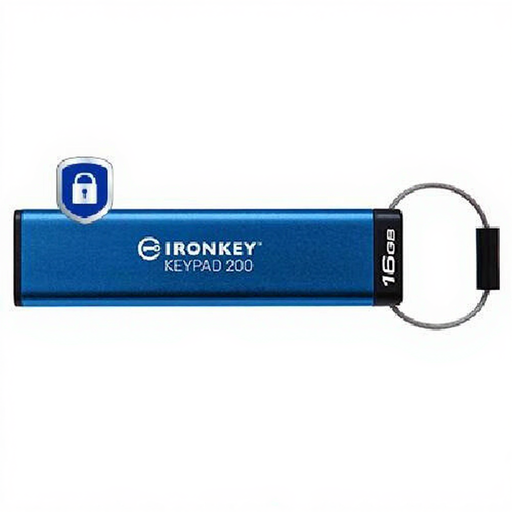
Kingston IronKey Keypad 200 16 GB
A keypad USB drive for carrying a limited set of sensitive records; it is not a substitute for another copy.
16 GB capacity; USB-A; integrated keypad; XTS-AES 256-bit encryption. Keep the PIN carefully and retain another copy.
Joybuy
 No image available
Samsung MU-PE1T0S 1 TB, Black
A portable SSD option for carrying files and making transfers, if 1 TB suits the collection you plan to back up.
1 TB capacity; USB Type-C; USB 3.2 Gen 2; stated read/write speeds up to 1,050/1,000 MB/s. The listing describes IP65 protection for temporary water exposure and says not to submerge the drive.
Joybuy
 No image available
SanDisk Portable SSD 2 TB
A compact portable SSD option for taking a photo or document collection on the move.
2 TB capacity; stated read speeds up to 800 MB/s; listed weight 0.04 kg.
Joybuy
 No image available
Western Digital Elements Portable 4 TB, Black
A portable hard drive option for a larger collection of photos and documents.
4 TB capacity; USB 3.2 Gen 1; Micro-B connector; USB-A cable included. The listing says reformatting may be required for Mac or other operating systems.
Joybuy
Frequently asked questions
How much drive capacity should I buy?
Add up the files and folders you intend to back up, including photographs and files on other devices you plan to consolidate. Allow for additions and retained versions, then compare the total with usable drive space; there is no universal capacity requirement for every collection.
Will one external drive work for Windows File History and Mac Time Machine without changes?
Do not assume it will. Microsoft describes File History using an external drive or network location, while Apple says Time Machine cannot back up to a Windows-formatted disk. Apple also warns that reformatting removes existing data, so confirm the intended setup before putting your only copy on the disk.
How can I check that a backup is usable?
Connect the destination for scheduled backups, check that the intended folders are included, then restore and open a file. Microsoft notes that a disconnected File History drive must be reconnected before the next scheduled backup can proceed.
Does a UK household have to encrypt its personal backup under UK GDPR?
Not merely because the backup contains personal records. The Information Commissioner’s Office says processing that is purely for personal or household activity, without a professional or commercial connection, is outside UK GDPR’s scope. Its organisational encryption guidance describes a safeguard against loss or theft, not a universal legal duty for household backups; professional or commercial circumstances differ.
Does a drive warranty or consumer remedy replace keeping another backup?
No. UK consumer-rights guidance concerns remedies for faulty goods, not a promise to restore files. Keep another independently accessible copy so your records are not dependent on a device that may fail.


