What matters when choosing?
Choose a restoration method first, then decide whether important photos and files also need a separately maintained copy. A cable or adapter enables a compatible connection; it is not a backup destination.
Automatic cloud backup
Choose it when: You want a backup available for phone replacement without making each copy manually.
Allow for: Account access and cloud capacity, plus limits on which app data and settings can be restored. Apple Support says automatic iCloud Backup requires power, Wi-Fi and a locked screen.
Computer backup
Choose it when: You have a Mac or Windows PC and want a local backup route before changing phones.
Allow for: Computer storage and access to a recent backup. Apple Support says an iPhone computer backup must be encrypted to include Health and Activity data; keep its password safe.
External file storage
Choose it when: You chiefly want a separate copy of selected media and files, made through a computer or directly from a compatible phone.
Allow for: Manual updates and connection checks. Apple Support describes iPhone external storage for file access, not as a substitute for its device-backup methods.
| Concern |
What to check |
Who this matters to |
| Restoration after loss or replacement |
Check that the backup has completed and that its contents and restoration route suit your phone. For an iPhone computer backup, decide whether encryption is needed for Health and Activity data. |
If my phone becomes unavailable, I need important information ready for the next one. Around 42% of consumers put restoration readiness first. |
| Media capacity and quality |
Review available cloud space and photo-quality settings, then decide which originals also need a separate copy. |
With a growing photo or video library, I want room for new files without losing the quality I need to retain. For around 33% of consumers, media capacity and preservation are the primary concern. |
| Separate local file copies |
Check the intended phone or computer connection and file-access method. For an iPhone-connected drive, confirm its supported format, single data partition and power needs. |
When I want important files somewhere I manage separately, I need a copying workflow I can repeat. Local or direct-copy control comes first for around 25% of consumers. |
External storage for selected file copies
These Joybuy drives offer portable space for separately managed photos and files. Some are described for phone-connected use; others suit a computer-managed copy. Check your exact connection and file-access method, and keep a device-backup route if restoring settings and app data matters.
 No image available
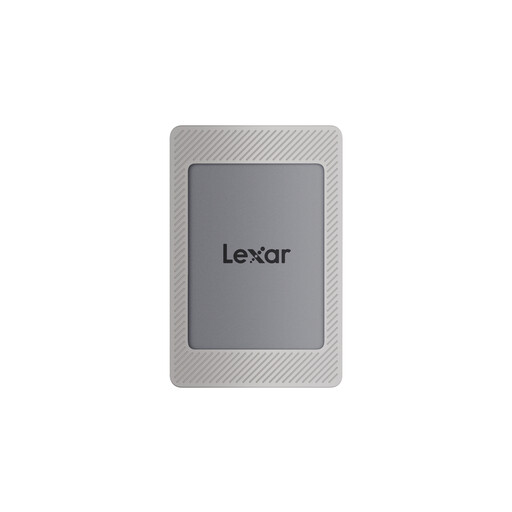
Lexar ES4 Portable SSD with Magnetic Set, 2TB
Consider it for selected-file copies if the intended iPhone 15/16, computer or other named device supports your connection and file-access workflow.
The title specifies USB 3.2 Gen 2 and up to 1,050 MB/s read and 1,000 MB/s write; those are rated speeds, not assured phone-transfer speeds. Confirm drive format and any mounting or power requirements before direct phone use.
Joybuy
 No image available
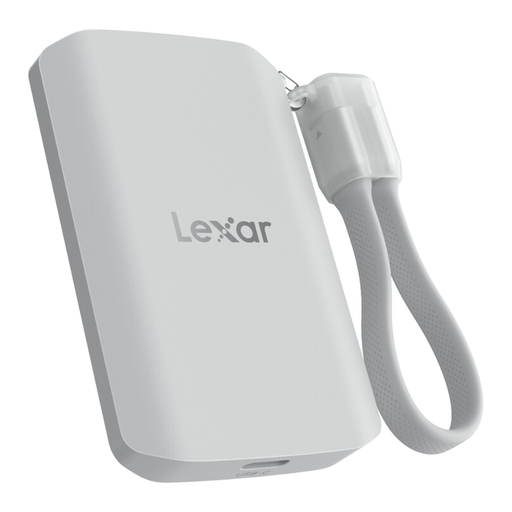
Lexar ES5 Portable SSD, 1TB
For a separate media-file copy, check the intended phone model and precisely which files its supported apps can transfer; phone recording claims do not establish a restorable device backup.
The title lists USB 3.2 Gen 2x2, IP65 and up to 2,000 MB/s read and write. It names iPhone 15/16 Pro and Galaxy S25 recording uses; confirm the applicable model, connection and workflow rather than treating the rated speed as a phone result.
Joybuy
 No image available
Samsung MU-PE1T0S 1TB portable SSD
Consider this USB-C drive for a computer-managed copy of selected phone files. Check the computer connection, cable and drive format for your planned transfer.
The title specifies USB 3.2 Gen 2. For Samsung UK’s matching T7 Shield model, stated speeds of up to 1,050 MB/s read and 1,000 MB/s write require a compatible USB 3.2 Gen 2 host and cable with UASP enabled.
Joybuy
 No image available
SanDisk Portable SSD, 2TB
The 2TB capacity makes this an option for keeping a separately managed copy of a large selection of photos and files. Confirm the cable, computer or phone connection and drive format for your intended workflow.
Joybuy
 No image available
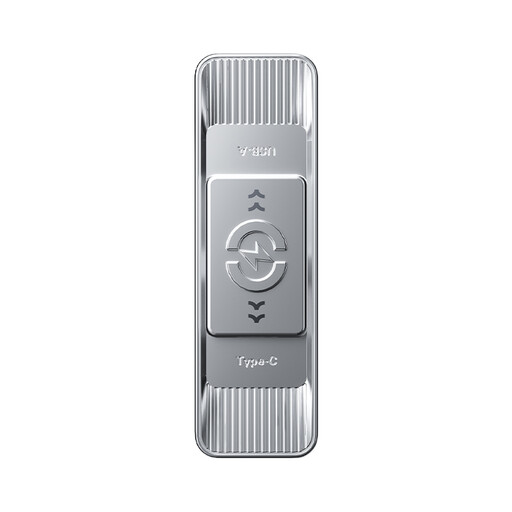
MOVESPEED YSUSP05-512GSR USB flash drive, 512GB
The USB-A and USB-C connectors offer a way to move selected files between devices that support the drive and the intended file-access method. Check your exact phone and its supported drive format before relying on direct copying.
The title specifies USB 3.2 Gen 1 and a rated read speed of up to 570 MB/s; it does not establish a complete phone-backup method.
Joybuy
Common questions
Is cloud backup enough before replacing a phone?
Cloud backup can be your main restoration route if it has completed and covers the information you need. Apple Support says an iCloud device backup excludes items already synchronised with iCloud, while Google Help warns that not all Android apps restore all settings and data. Check the backup and keep a separate copy of particularly important files where appropriate.
Can I back up an iPhone directly to a USB drive or SSD?
You can copy selected files to compatible connected storage through Files or supported apps, but do not equate that with an iPhone device backup. Apple Support says to check the connector or adapter, supported drive format, single data partition and any external power requirement.
What should I check before restoring a Google backup to a new Android phone?
Check that the backup has completed, which Google Account holds it and which transfer options the new phone supports. Google Help says restoration varies by phone and Android version; a backup from a higher Android version cannot be restored to a phone running a lower one.
Does Google Photos Storage saver retain full-resolution originals?
Not necessarily: Google One Help says Storage saver can resize photos above 16 MP and videos above 1080p. If captured resolution matters, review the Original quality setting and your available account storage, or keep a separate local copy of selected originals.


